0 1 0 1 0 1 0 1 0 1 0 1 0 1 0 1 0 1 0 1 0 1 0 1 0 1 0 1 0 1 0 1 0 1 0 1 0 1 0 1 0 1 0 1 0 1 0 1 0 1 0 1 0 1 0 1 0 1 0 1 0 1 0 1 0 1 0 1 0 1 0 1 0 1 0 1 0 1 0 1 0 1 0 1 0 1 0 1 0 1 0 1 0 1 0 1 0 1 0 1 0 1 0 1 0 1 0 1 0 1 0 1 0 1 0 1 0 1 0 1 0 1 0 1 0 1 0 1 0 1 0 1 0 1 0 1 0 1 0 1
JPPINTO
  • Home
  • Certifications
  • About
  • Contact
  • Gallery
  • Current Setup
Contact

Search

November 16, 2011 / SharePoint 2007, SharePoint 2010

Batch File to Slipstream Service Pack (SP) and Cumulative Updates (CU) for MOSS 2007 or SharePoint 2010
Tags: batch file, slipstream cumulative updates, slipstream service pack

I perform a lot of SharePoint installs. I like to Slipstream both the Service Pack and the Cumulative Updates before I begin an install. In the zip file you find the batch file and links to the latest MOSS 2007 and SharePoint 2010 Service Packs. I will keep this zip file up to date when new Service Packs and Cumulative Updates come out.

  • New Farm – Slipstream base binaries with SP’s and CU’s > Install Slip-streamed binaries on all boxes > Configure SharePoint.
  • Existing Farm – Please see link this link – https://jppinto.com/2010/10/installing-august-sharepoint-2010-cumulative-update/

Prerequisites

  • Create folder and drop in the base installation binaries of MOSS/SharePoint (i.e. C:\Software\SharePoint2010base)
  • Create folder and drop in the 4 updates (2 SP’s and 2 CU’s) (i.e. C:\Software\SP2010Updates)

Setting Variables

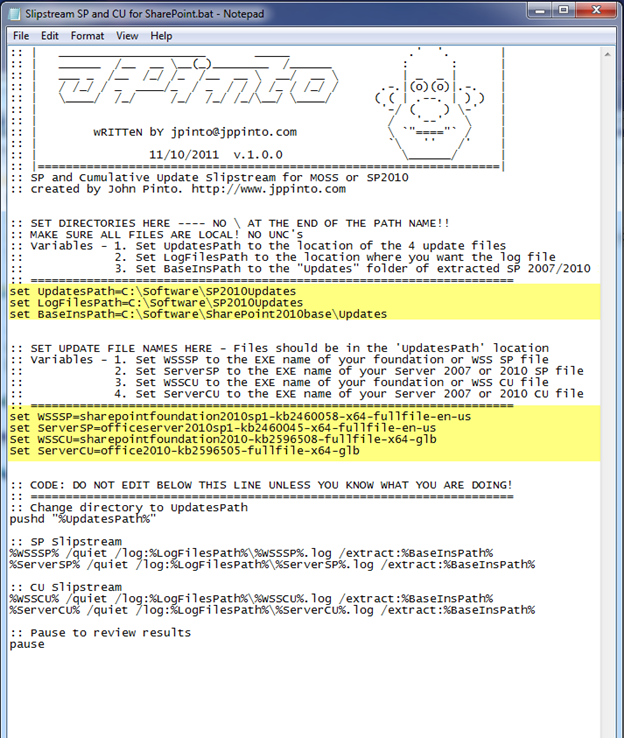
You have to set 7 variables in the batch file. First we need to set file paths

  • UpdatesPath = Set UpdatesPath to the location of the 4 update files
  • LogFilesPath = Set LogFilesPath to the location where you want the log file
  • BaseInsPath = Set BaseInsPath to the “Updates” folder of extracted SP 2007/2010 Install

Next we need to set the EXE names of the Service Packs and the Cumulative Updates

  • WSSSP = Set WSSSP to the EXE name of your Foundation or WSS SP file
  • ServerSP = Set ServerSP to the EXE name of your Server 2007 or 2010 SP file
  • WSSCU = Set WSSCU to the EXE name of your foundation or WSS CU file
  • ServerCU = Set ServerCU to the EXE name of your Server 2007 or 2010 CU file

Download: https://jppinto.com/help/SlipstreamSPandCUforSharePoint.zip
Verification

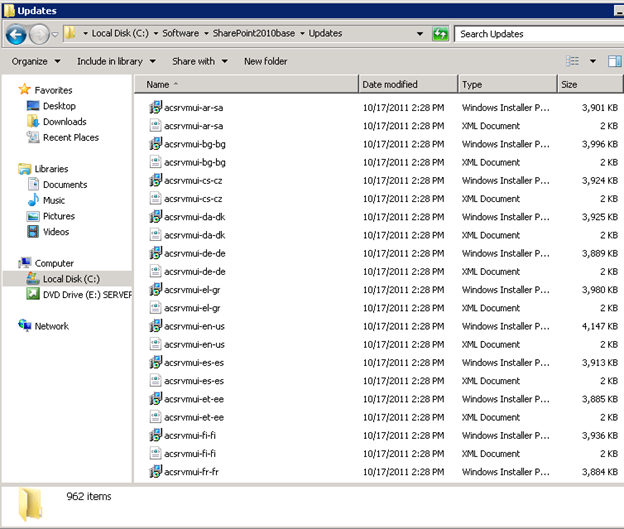
By default the “Updates” folder in the directory containing the base installation does not have any files in it. Once the 4 files are extracted you should have a little over 900 files. In this case my “Updates” was about 2.04 GB when I slip-streamed SP1 and the October 2011 CU’s for SharePoint 2010.
 

Post Views: 180
<- Configure Active Directory (AD) Synchronization for SharePoint 2010
System.Security.AccessControl.PrivilegeNotHeldException error during SharePoint Products Configuration Wizard on MOSS 2007 or SharePoint 2010 ->

Categories

  • Active Directory (5)
  • Amazon Cloud Services (1)
  • Blazor (1)
  • C# (C-Sharp) (3)
  • CI/CD Pipelines (1)
  • Containers (4)
  • Development (1)
  • Docker (3)
  • General (5)
  • IIS 6.0 (4)
  • IIS 7.0 (10)
  • IIS 8.0 (1)
  • Infrastructure as Code (IaC) (1)
  • Kubernetes (3)
  • MySQL (1)
  • Office 2010 (1)
  • PHP (1)
  • PowerShell (3)
  • SharePoint 2007 (8)
  • SharePoint 2010 (19)
  • SharePoint 2013 (2)
  • SMTP (4)
  • SQL Server 2008 (1)
  • SQL Server 2008 R2 (1)
  • SQL Server 2012 (2)
  • SQL Server 2019 (1)
  • Uncategorized (1)
  • URL Rewrite (2)
  • Visual Studio 2019 (1)
  • Visual Studio Code (1)
  • Windows 10 (2)
  • Windows 2003 (9)
  • Windows 2008 (18)
  • Windows 2012 (6)
  • Windows 7 (3)
  • Windows Firewall (1)
  • Windows Vista (1)

Recent Posts

  • Install Terraform on Windows
  • Create a .NET Core 3.1 Console App in Visual Studio Code
  • Install a stand-alone SQL Server 2019 Enterprise Server
  • Create a Blazor App project in Visual Studio 2019
  • Username and Password for minikube Virtual Machine

Advertisement

Tags

backconnectionhostnames custom column default gateway disappears disable shutdown event tracker error opening exe exe permissions externalize blob externalize sharepoint data facebook spam filezilla server firewall rules filazilla full installation http redirect https https redirect IIS iis7 iis 7 installation IIS installation index server configuration installing cumulative updates load balance central administration magic default gateway missing default gateway moss advanced search nlb no default gateway powershell redirect http to https search column sharepoint 2010 cumulative updates sharepoint 2010 farm build sharepoint 2010 farm configuration sharepoint 2010 farm installation sharepoint data externalization shutdown event tracker shutdown tracker SMTP storagepoint Windows 7 windows firewall configuration windows live messenger crash windows server 2008 wlbs x86
© 2026 JPPinto.com – Tech Blog. All rights reserved.