0 1 0 1 0 1 0 1 0 1 0 1 0 1 0 1 0 1 0 1 0 1 0 1 0 1 0 1 0 1 0 1 0 1 0 1 0 1 0 1 0 1 0 1 0 1 0 1 0 1 0 1 0 1 0 1 0 1 0 1 0 1 0 1 0 1 0 1 0 1 0 1 0 1 0 1 0 1 0 1 0 1 0 1 0 1 0 1 0 1 0 1 0 1 0 1 0 1 0 1 0 1 0 1 0 1 0 1 0 1 0 1 0 1 0 1 0 1 0 1 0 1 0 1 0 1 0 1 0 1 0 1 0 1 0 1 0 1 0 1
JPPINTO
  • Home
  • Blog
  • Certifications
  • About
  • Contact
  • Shop
  • Gallery
  • Current Setup
Contact

Search

January 14, 2009 / Windows 2008

Windows Server 2008 Standard Installation
Featured image for Windows Server 2008 Standard Installation

This article will teach you how to perform a “full installation” of Windows Server 2008 Standard Edition on a 32bit server. This article does not cover post installation configurations however I do cover post installation configurations in other articles.

Windows 2008 Server Installation Requirements:

Component

Requirement

Processor

Ôò¼├┤Ôö£├ºÔö£Ôöé Minimum: 1GHz (x86 processor) or 1.4GHz (x64 processor)
Ôò¼├┤Ôö£├ºÔö£Ôöé Recommended: 2GHz or faster
Note: An Intel Itanium 2 processor is required for Windows Server 2008 for Itanium-Based Systems

Memory

Ôò¼├┤Ôö£├ºÔö£Ôöé Minimum: 512MB RAM
Ôò¼├┤Ôö£├ºÔö£Ôöé Recommended: 2GB RAM or greater
Ôò¼├┤Ôö£├ºÔö£Ôöé Maximum (32-bit systems): 4GB (Standard) or 64GB (Enterprise and Datacenter)
Ôò¼├┤Ôö£├ºÔö£Ôöé Maximum (64-bit systems): 32GB (Standard) or 2TB (Enterprise, Datacenter and Itanium-Based Systems)

Available Disk Space

Ôò¼├┤Ôö£├ºÔö£Ôöé Minimum: 10GB
Ôò¼├┤Ôö£├ºÔö£Ôöé Recommended: 40GB or greater

Note: Computers with more than 16GB of RAM will require more disk space for paging, hibernation, and dump files

Drive

DVD-ROM drive”

Display and Peripherals

Ôò¼├┤Ôö£├ºÔö£Ôöé Super VGA (800 x 600) or higher-resolution monitor
Ôò¼├┤Ôö£├ºÔö£Ôöé Keyboard
Ôò¼├┤Ôö£├ºÔö£Ôöé Microsoft Mouse or compatible pointing device

“

1) First you will need to boot off of the installation media, the media comes in variety of flavors including DVD and ISO image. For this particular build I am using an ISO image connected through a network share. It may boot right into the installation media or you may have to configure your server to boot from DVD or the network.
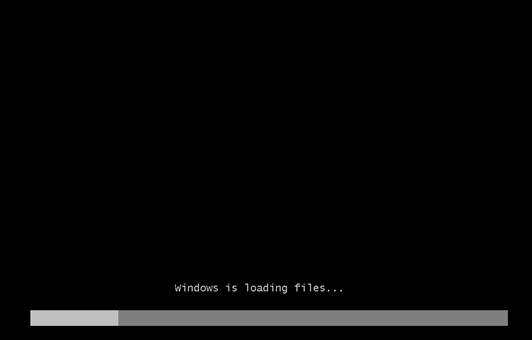
Windows Server setup loading installation files.

2) Select the Language, Time Zone and Keyboard information. These are defaulted to typically US settings, Press “Next” to continue
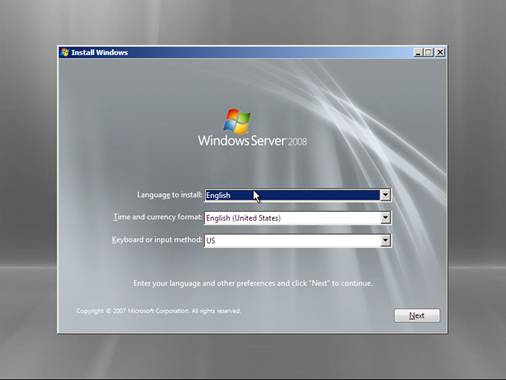
Windows Server 2008 language, time and keyboard selections.

3) Press the “Install now” button to begin the Windows Server 2008 installation process
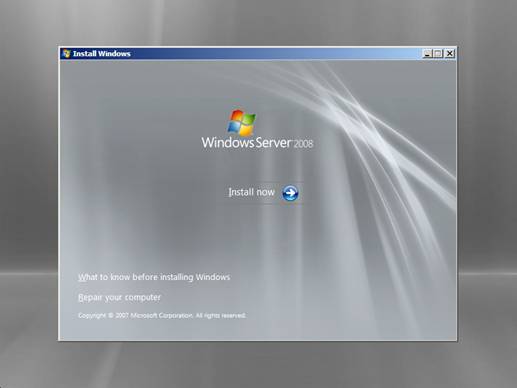
Windows Server 2008 Install now screen.

Note

Depending on the media that you are using for the installation you might or might not get prompted to enter a serial number for the product at this point. If prompted, enter your serial number to continue. In this example I am using a corporate volume license copy which does not prompt you for a serial number.

4) Select the version of Windows Server 2008 you wish to install. We will be installing Windows Server 2008 Standard (full installation) for this article. Depending on the installation media you are using, you might not have all or any of these options available.
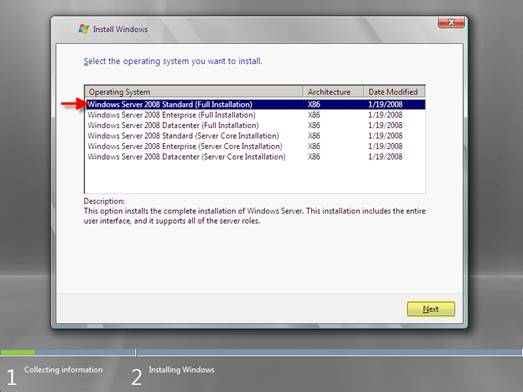
Windows Server 2008 Standard full installation selected.

5) Read and then accept the license agreement by checking off the check box. Press “Next” to continue
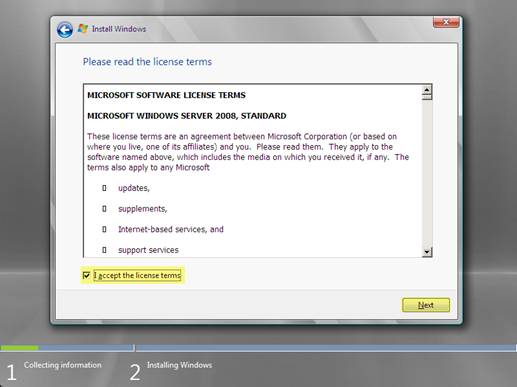
Windows Server 2008 license terms and acceptance checkbox.

6) Select “Custom(advanced)” installation option. The Upgrade is grayed out because Windows Server 2008 did not find a previous installation that it can upgrade
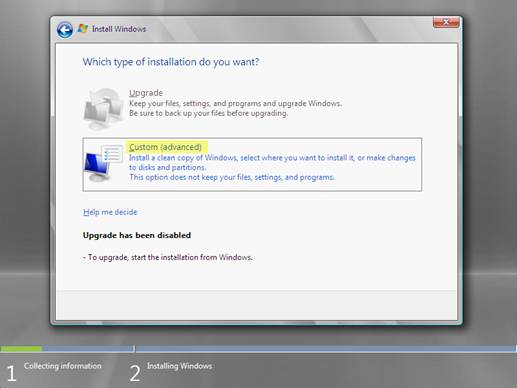
Custom advanced installation selected instead of Upgrade.

7) You can select the disk you would like to install Windows Server 2008 on. Press “Next” to continue
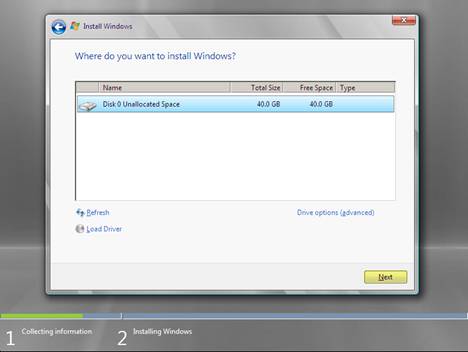
Disk selection for the Windows Server 2008 installation.

Note

There are some additional options in this section of the setup

Load Driver – some hard drives, in particular some SCSI drives and RAID controllers do not have the drivers built into Windows Server 2008. If this is the case you will not be able to see the hard drives or controller for installation.

Pressing Load Driver option.button will present you with a dialog box to install new drivers for hard drives or controllers
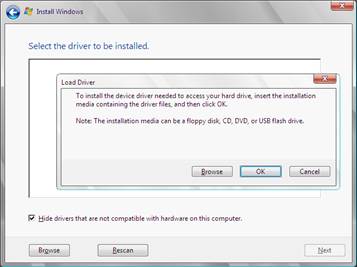
Load Driver dialog for storage controller drivers.

Drive Options – This allows you to make changes to the existing hard drive detected on the system. It will provide you with the option to create, extend, delete and format partitions

Pressing Drive options advanced link.button will present you will all available disk options

Partition controls for creating, deleting, extending and formatting a disk.

8) The setup will copy files to the hard drive and proceed with the installation
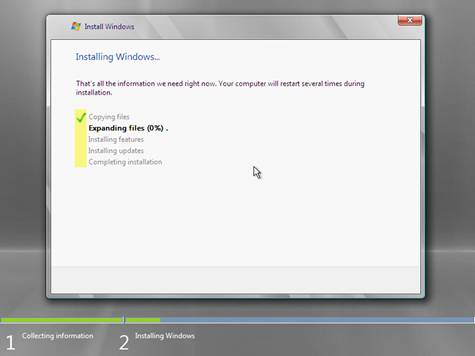
Windows Server 2008 setup copying and expanding installation files.

9) The setup will reboot the server during installation
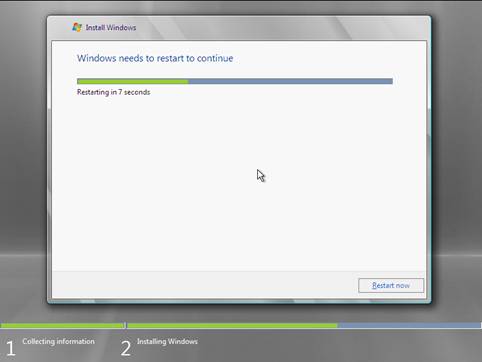
Windows setup restart countdown.

10) After the reboot, setup will reinitialize the installation process
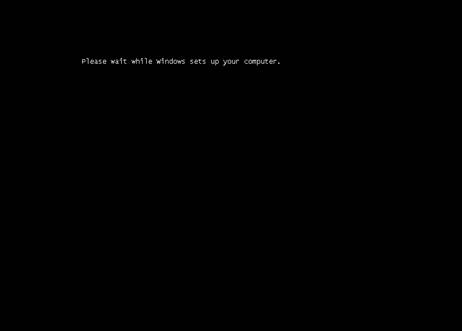
Prompt to wait while Windows sets up the computer.

11) The setup will continue now the installation process
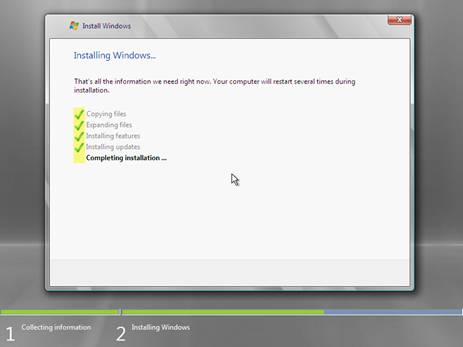
Windows Server 2008 setup completing installation.

12) The setup will reboot one more time after the installation process is complete

Windows setup restarting after installation completes.

13) The setup will prompt you to change the password to continue. Press “OK” to continue
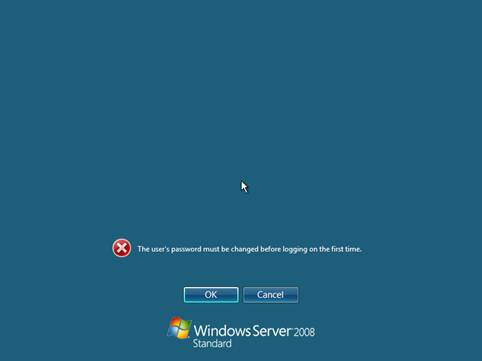
Administrator password must be changed before the first sign-in.

14) Enter the new password for Administrator and press the green arrow
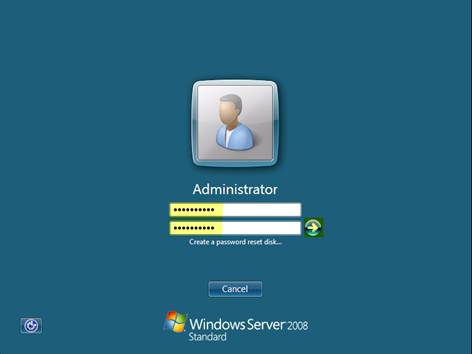
Administrator password and confirmation fields.

Note

If the password does not meet the complexity requirements it will be rejected and you will get this error message:

Password rejected because it does not meet the domain policy requirements.

15) Press “OK”, to acknowledge the system message about the password
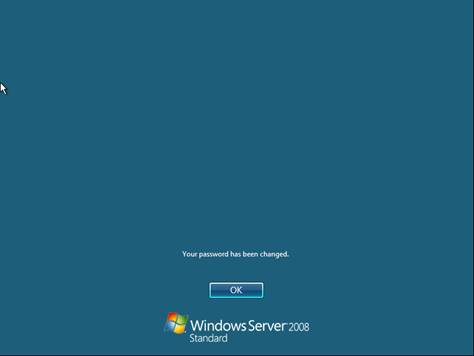
Confirmation that the Administrator password has changed.

16) You will be at the “Initial Configuration” screen when Windows 2008 Server first logs you in, I have minimized this screen to show you that the install did in fact complete. This completes a basic Windows 2008 Server installation, although I do not cover initial configuration or settings in this article I do cover them in other articles.
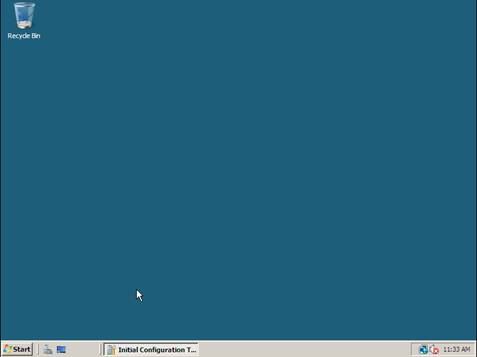
Newly installed Windows Server 2008 desktop.

“”””

Post Views: 391
Automatically Redirect HTTP requests to HTTPS on IIS 6 ->

Categories

  • Active Directory (5)
  • AI (5)
  • Amazon Cloud Services (1)
  • AWS (3)
  • Blazor (1)
  • C# (C-Sharp) (3)
  • CI/CD Pipelines (1)
  • Cloud (1)
  • Cloudflare (2)
  • Codex (2)
  • Containers (4)
  • Deployment (2)
  • Development (6)
  • DNS (1)
  • Docker (3)
  • Email (1)
  • Family (1)
  • General (5)
  • IIS 6.0 (4)
  • IIS 7.0 (10)
  • IIS 8.0 (1)
  • Infrastructure as Code (IaC) (1)
  • Kubernetes (3)
  • Linux (11)
  • Microsoft 365 (2)
  • MySQL (1)
  • Office 2010 (1)
  • PHP (1)
  • PowerShell (11)
  • Productivity (1)
  • Security (2)
  • Servers (9)
  • SharePoint 2007 (8)
  • SharePoint 2010 (19)
  • SharePoint 2013 (2)
  • SharePoint Online (1)
  • SMTP (4)
  • SQL Server 2008 (1)
  • SQL Server 2008 R2 (1)
  • SQL Server 2012 (2)
  • SQL Server 2019 (1)
  • SSL (1)
  • Travel (1)
  • Troubleshooting (1)
  • Ubuntu (9)
  • Uncategorized (1)
  • URL Rewrite (2)
  • Visual Studio 2019 (1)
  • Visual Studio Code (1)
  • Web Server (1)
  • Windows 10 (7)
  • Windows 2003 (9)
  • Windows 2008 (18)
  • Windows 2012 (6)
  • Windows 7 (3)
  • Windows Firewall (1)
  • Windows Server (1)
  • Windows Vista (1)
  • WordPress (5)
  • WP-CLI (3)

Recent Posts

  • Fix ‘Codex Could Not Start’ in VS Code Remote SSH on Linux
  • Move WordPress Uploads to Amazon S3 with the Uploads to S3 Plugin
  • WordPress Must-Use Plugins: MU Plugins vs. Regular Plugins
  • Install Codex Desktop on Windows Server and Control It from Your Phone
  • Create an Internal Certificate Authority for Private Websites

Advertisement

Tags

agents.md ai coding agents aws bash cloudflare cloud storage codex context engineering developer workflow dev to production dns externalize blob externalize sharepoint data full installation https IIS IIS installation index server configuration installing cumulative updates linux load balance central administration microsoft 365 nginx powerpoint powershell redirect http to https s3 server setup sharepoint 2010 cumulative updates sharepoint 2010 farm build sharepoint 2010 farm configuration sharepoint 2010 farm installation sharepoint data externalization ssl storagepoint tls ubuntu ubuntu server web server windows windows server 2008 wordpress WordPress plugins wp-cli x86
© 2026 JPPinto.com. All rights reserved.