Fix ‘Codex Could Not Start’ in VS Code Remote SSH on Linux
Opening the Codex sidebar in a Visual Studio Code Remote-SSH window can sometimes produce a nearly empty panel with two messages:
- Codex could not start
- The extension could not start its user interface.
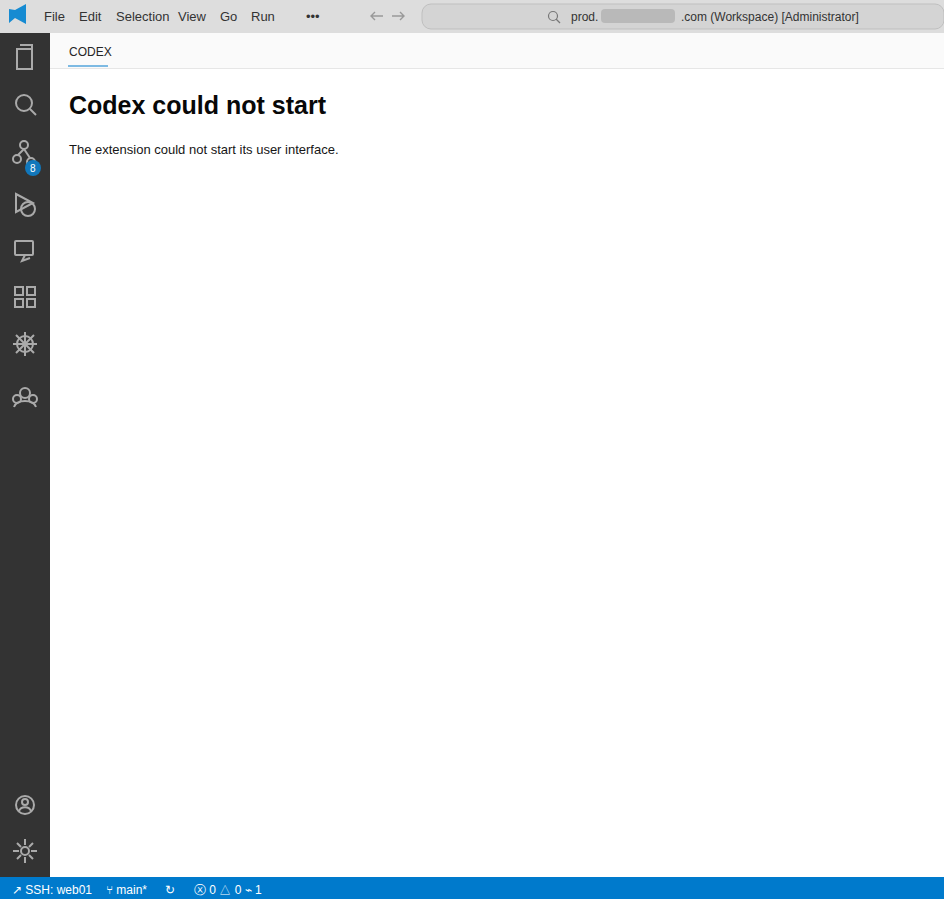
The screenshot above shows the characteristic failure: VS Code is still connected to the Linux host, the editor remains usable, but the Codex view cannot initialize. This usually does not mean Nginx, WordPress, MySQL, SSH, or the entire Linux server has failed. It normally means one layer in the chain between the VS Code window, the remote extension host, the Codex extension, and the Codex backend process is stale, incompatible, blocked, or unavailable.
The fastest safe recovery order is:
- Run Developer: Restart Extension Host.
- If necessary, run Developer: Reload Window.
- Check the Codex and Remote-SSH logs before making a larger change.
- Run Remote-SSH: Kill VS Code Server on Host…, select the affected host, and reconnect.
- Use Linux process commands only when the VS Code commands cannot recover the session.
On a shared Linux account, avoid a broad pkill until you know what else uses that account. It may stop every VS Code Server, code-server workspace, or Codex session owned by the same user.
What the Codex Error Actually Means
The Codex IDE extension provides a webview-based interface inside the editor. In a normal desktop session, the visible VS Code window runs locally. In a Remote-SSH session, VS Code also installs and starts a small VS Code Server on the remote host. Microsoft explains that most workspace extensions run on that remote SSH host, while purely visual extensions can remain local.
The official OpenAI Codex IDE extension documentation describes Codex as working beside the code already open in the editor. Microsoft's Remote Development using SSH documentation explains the other half of the architecture: VS Code installs a matching server on the remote operating system and runs commands and remote extensions there.
That creates several places where startup can fail. The editor window can be healthy while the Codex webview renderer times out. The webview can load while the bundled Codex process cannot start. The process can start while authentication or network requests fail. A stale remote extension host can also keep an old extension version or broken state in memory.
What Runs on the Linux Server
Codex in a Remote-SSH window is not usually a traditional system service managed by systemctl. It is more often a child of the remote VS Code extension host.
The process relationship normally looks like this:
Local VS Code window
  -> SSH connection
     -> VS Code Server on Linux
        -> remote extensionHost process
           -> OpenAI Codex extension
              -> codex app-server process
                 -> codex-code-mode-host process
The inspected Ubuntu server behind the screenshot also had these supporting processes:
- A VS Code Server process for the Remote-SSH connection.
- One or more Node.js
extensionHostprocesses that load remote extensions. - A
ptyHostfor integrated terminals. - A file-watcher process for workspace changes.
- The OpenAI extension's bundled
codex ... app-serverprocess. - A
codex-code-mode-hostchild process. - A separate workspace gateway and several socket-based
code-serverworkspaces.
That last point matters. code-server, a managed Codex workspace service, and Microsoft's Remote-SSH VS Code Server may all be present at the same time, but they are not interchangeable. Restarting the Remote-SSH server should not require restarting Nginx, PHP-FPM, MySQL, Redis, WordPress, or unrelated browser-based workspaces.
Use this read-only command to see the relevant processes owned by your current Linux user:
ps -u "$USER" -o pid,ppid,etimes,%cpu,%mem,args --forest \
  | grep -E 'vscode-server|code-server|extensionHost|openai\.chatgpt|codex' \
  | grep -v grep
Typical paths make the ownership clear:
~/.vscode-server/...usually belongs to Microsoft's Remote-SSH server.~/.vscode-server/extensions/openai.chatgpt-...is the remotely installed Codex extension.- A path ending in
/codex ... app-serveris the Codex backend launched by the extension. /usr/lib/code-server/...or a custom workspace directory may belong to a separate browser-based or managed workspace system.
Do not assume every process containing code belongs to the broken window.
Why Codex Could Not Start Its User Interface
1. The Codex webview renderer timed out
The sidebar is a webview. If its renderer does not signal that it is ready, the extension can replace it with the generic Codex could not start page. A corresponding log may say:
[CodexWebviewProvider] Webview renderer did not become ready
reason=renderer_ready_timeout
This can follow a suspended laptop, interrupted SSH tunnel, VS Code window restore, extension update, or stale renderer state. Restarting the extension host or reloading the window often clears it.
2. The remote extension host is stale or crashed
The extension host is the Node.js process that runs remote extensions. One bad activation, a closed communication channel, memory pressure, or a partially completed update can leave the editor connected while a particular extension fails.
Related messages can include:
Extension host terminated unexpectedly
Extension host is unresponsive
Channel has been closed
renderer disconnected for too long
Restarting the extension host is more targeted than restarting the full remote server, so it should be the first bounce.
3. VS Code, VS Code Server, and the extension are out of sync
Remote development depends on compatible local and remote components. Microsoft notes that the remote VS Code Server is installed or updated to match the client. A client update interrupted during reconnect, an old remote server, or an extension that requires a newer VS Code engine can prevent activation.
This is especially likely when the problem starts immediately after updating VS Code, switching between Stable and Insiders, restoring an old remote window, or installing a different build of the extension.
4. The remote Codex extension installation is incomplete
The Codex extension contains platform-specific files. If an update is interrupted, disk space runs out, antivirus or endpoint controls quarantine a file, or permissions are wrong, the extension may exist in the Extensions view but fail when it tries to launch its bundled executable.
Possible log text includes:
No such file or directory (os error 2)
ENOENT
EACCES: permission denied
spawn ... failed
No such file or directory can also mean a referenced workspace path disappeared; it is not automatically proof that the Codex executable itself is missing. Read the surrounding log lines before reinstalling anything.
5. Network, proxy, DNS, TLS, or firewall problems
The user interface may start locally but still depend on remote requests for account state, models, configuration, or sessions. A proxy interruption, SSL inspection issue, blocked WebSocket, DNS failure, or unstable route can produce errors such as:
TypeError: fetch failed
read ECONNRESET
stream disconnected before completion
request timed out
403 Forbidden
A 403 Forbidden is different from a renderer timeout. It means a server understood the request and refused it. Check the signed-in account, workspace policy, proxy behavior, and whether the request is being made from the expected host. Do not repeatedly reinstall the extension for an account or policy error.
6. Authentication or secure-storage problems on headless Linux
Headless Linux hosts may not expose a desktop keyring or Secret Service over D-Bus. Logs can mention that secure storage is unavailable or that an OAuth token could not be read. Depending on the authentication method and fallback behavior, Codex may ask you to sign in again or may fail to restore a connection.
Do not install a desktop keyring blindly. First sign out and back in through the Codex extension, confirm the correct remote window is active, and distinguish a warning about optional token storage from the first fatal error in the log.
7. Unsupported CPU architecture or Linux runtime
Remote extensions that ship native binaries must match the server's CPU architecture and runtime. Microsoft calls out limitations for some ARM hosts. Older distributions can also lack the required glibc or other runtime libraries.
Common messages include:
Exec format error
GLIBC_x.y not found
wrong ELF class
unsupported architecture
Check the platform before changing the extension:
uname -m
getconf GNU_LIBC_VERSION
cat /etc/os-release
8. Disk, inode, ownership, or stale-lock problems
VS Code Server writes extensions, logs, workspace storage, and lock files under the remote user's home directory. A full filesystem, exhausted inodes, files created by the wrong owner, or an abandoned lock can block startup.
Check without modifying anything:
df -h
df -i
find "$HOME/.vscode-server" -maxdepth 2 ! -user "$USER" -ls 2>/dev/null
Messages may include:
No space left on device
EACCES: permission denied
EEXIST: file already exists
Could not acquire lock
Do not delete a lock merely because it exists. Confirm that its owning VS Code process is gone first.
9. Too many sessions or insufficient server resources
Multiple Remote-SSH windows can create multiple extension hosts, file watchers, terminals, and Codex processes. High memory use, a low process limit, or CPU saturation can make a 30-second renderer startup cross its timeout even though no file is corrupt.
free -h
uptime
ps -u "$USER" -o pid,ppid,%cpu,%mem,etimes,args --sort=-%mem | head -30
ulimit -u
Close abandoned windows and reconnect before killing processes globally.
Codex and Remote-SSH Error Messages Explained
| Error message or symptom | Likely layer | First thing to check |
|---|---|---|
Codex could not start |
Codex view activation | Codex output log and extension-host restart |
The extension could not start its user interface |
Codex webview | Renderer timeout, stale window, extension activation |
Webview renderer did not become ready |
Codex renderer | Reload the window; inspect webview and Codex logs |
Extension host terminated unexpectedly |
Remote extension host | Extension-host log, memory, conflicting extensions |
TypeError: fetch failed |
Network/request layer | DNS, proxy, TLS inspection, firewall, route stability |
read ECONNRESET |
IPC or network socket | Interrupted SSH/network connection or restarted child process |
403 Forbidden |
Authentication or policy | Correct account, workspace access, proxy, administrator policy |
failed to refresh available models |
Codex backend request | Network stability and whether the child process is responsive |
timeout waiting for child process to exit |
Codex child process | Restart extension host; inspect stuck Codex processes |
No such file or directory (os error 2) or ENOENT |
Filesystem or executable | Read the referenced path; verify extension installation |
EACCES: permission denied |
Linux permissions | File ownership and executable permission under the same user |
Could not acquire lock or EEXIST |
VS Code workspace state | Duplicate sessions and whether the lock owner still exists |
The VS Code Server failed to start |
Remote-SSH server | Remote-SSH log, disk, shell startup output, server reinstall |
GLIBC_x.y not found or Exec format error |
Native runtime | Linux version, glibc, and CPU architecture |
| Blank Codex sidebar with no message | Renderer or theme/UI state | Developer tools, Codex log, window reload |
The same visible page can be the final symptom of several causes. The earliest meaningful error in the logs is usually more useful than the last generic message on screen.
Fix 1: Restart the VS Code Extension Host
Save any unsaved editor changes, then open the Command Palette:
Ctrl+Shift+P
Run:
Developer: Restart Extension Host
This restarts the process that loads extensions while leaving the SSH server and the rest of Linux alone. Reopen the Codex sidebar after the extension host returns.
If that command is unavailable or the panel remains blank, run:
Developer: Reload Window
A window reload recreates more local and remote editor state, but is still narrower than removing the remote server installation.
Fix 2: Read the Codex and Remote-SSH Logs
Before reinstalling, capture the error that identifies the failing layer.
In VS Code:
- Open View > Output.
- Select Codex from the Output channel list.
- Also inspect Remote – SSH and Log (Remote Extension Host) if present.
- Use Help > Toggle Developer Tools for webview console errors.
- Reproduce the failure once and note the first error, its timestamp, and the extension version.
On the remote host, VS Code commonly stores session logs below:
~/.vscode-server/data/logs/
List the newest files without dumping secrets into a support ticket:
find "$HOME/.vscode-server/data/logs" -type f -printf '%T@ %p\n' 2>/dev/null \
  | sort -nr \
  | head -40
Review logs before sharing them. Remove access tokens, connection tokens, private repository paths, internal domains, usernames, prompts, and customer data.
Fix 3: Reconnect and Reauthenticate
If the logs show 403 Forbidden, a missing account, or token-storage failures:
- Sign out of Codex in the affected VS Code window.
- Close that remote window.
- Reconnect to the SSH host.
- Open Codex and sign in again.
- Confirm the expected OpenAI account and workspace are selected.
If fetch failed, ECONNRESET, or stream-disconnection messages dominate the log, test whether the server has working DNS and HTTPS egress. Also check the organization's proxy, firewall, VPN, TLS-inspection, and WebSocket policies. A successful basic HTTPS request proves only basic connectivity; it does not prove that every authenticated Codex route or streaming connection is allowed.
Fix 4: Update Compatible Components
Update the local VS Code client, the local Remote-SSH extension, and the Codex extension. Then reconnect so VS Code can install or update its matching remote server.
In the Extensions view, pay attention to the headings. An extension can be installed under Local – Installed or under SSH: hostname – Installed. The Codex instance that fails in the remote window may not be the same copy shown in a normal local window.
If the problem began immediately after an update, record these versions before changing them:
- Local VS Code version and commit.
- Remote VS Code Server commit.
- Remote-SSH extension version.
- Codex extension version.
- Linux distribution, architecture, and
glibcversion.
That evidence makes rollback or a useful support report possible.
Fix 5: Kill the VS Code Server on the Affected Host
If restarting the extension host does not work, use Microsoft's supported Remote-SSH recovery command from the local VS Code window:
Ctrl+Shift+P
Remote-SSH: Kill VS Code Server on Host...
Select the affected host, such as web01, then reconnect. Microsoft's Remote Development troubleshooting guide says this command kills the running VS Code Server processes and removes the remote server installation so it can be installed cleanly on the next connection.
This is broader than an extension-host restart. It ends remote terminals and extension sessions for that VS Code Server. Save work and check whether other windows use the same SSH account first.
Fix 6: Restart the Correct Process from Linux
Use this only when the Command Palette recovery is unavailable. First identify the process tree:
ps -u "$USER" -o pid,ppid,etimes,args --forest \
  | grep -E '\.vscode-server|extensionHost|openai\.chatgpt|codex' \
  | grep -v grep
Verify the exact PID belongs to the broken Remote-SSH session and to your Unix account:
ps -o user,pid,ppid,lstart,args -p <PID>
Request a normal termination of that specific VS Code Server or extension-host PID:
kill -TERM <PID>
Wait for it to exit, disconnect the VS Code window, and reconnect. Use kill -KILL only for a confirmed process that refuses normal termination.
A frequently suggested shortcut is:
pkill -u "$USER" -f 'vscode-server|code-server'
This is not safe as a default on a shared or managed host. It matches by text and can terminate unrelated Remote-SSH sessions, browser-based code-server instances, and managed Codex workspaces owned by the same service account. Prefer the VS Code command or an exact PID.
Fix 7: Reinstall the Remote Codex Extension
If logs point to missing extension files, permissions, or a failed update:
- In the affected Remote-SSH window, open Extensions.
- Find Codex – OpenAI's coding agent under the remote
SSH: hostnamesection. - Uninstall the remote copy.
- Reload the window when prompted.
- Install Codex again on the SSH host.
- Reopen the Output panel and confirm activation completes.
Do not manually delete every openai.chatgpt-* directory while extension hosts are running. Multiple versions can be present temporarily during updates, and deleting the active directory can create a more confusing partial installation.
Fix 8: Repair Disk or Ownership Problems
If the logs show no space, inode exhaustion, or permission denial, fix that root cause before reinstalling.
Files under ~/.vscode-server should normally belong to the SSH user that runs VS Code Server. Do not start Remote-SSH components with sudo; mixing root-owned and user-owned files commonly creates later update failures.
If ownership is wrong, identify how it happened and limit the correction to the exact affected directory. Do not recursively change ownership across the entire home directory or server.
Fix 9: Remove the Remote VS Code Server as a Last Resort
The Remote-SSH: Kill VS Code Server on Host… command already performs the supported clean removal and is safer than hand-written recursive deletion. Reconnecting downloads the server that matches the local client.
Manual removal should be reserved for an administrator who has confirmed:
- All VS Code windows using that Unix account are closed.
- No separate managed workspace depends on the same directory.
- Important remote settings or logs have been backed up.
- The target is exactly the per-user VS Code Server directory, not the home directory.
On multi-workspace servers, coordinate this step because a single Unix user may own several active editor sessions.
What Not to Restart
This Codex UI failure normally does not justify restarting the whole Linux server. It also does not justify restarting unrelated application services.
Do not bounce these merely because the Codex sidebar failed:
- Nginx or Apache.
- PHP-FPM.
- MySQL or MariaDB.
- Redis.
- WordPress cron or queue workers.
- Docker containers unrelated to the editor.
- The SSH daemon while connected remotely.
Restart the narrowest failed layer first: Codex view, extension host, VS Code window, Remote-SSH server, then the exact Linux process.
A Practical Diagnostic Checklist
- Confirm the lower-left status bar shows the expected SSH host.
- Save unsaved files and terminal output.
- Run Developer: Restart Extension Host.
- Run Developer: Reload Window if needed.
- Inspect Codex, Remote – SSH, and remote extension-host logs.
- Separate renderer errors from authentication and network errors.
- Check local VS Code, remote server, and extension versions.
- Confirm free disk space, inodes, memory, architecture, and file ownership.
- Close abandoned remote windows.
- Use Remote-SSH: Kill VS Code Server on Host… before Linux process killing.
- Avoid broad
pkillon shared service accounts. - Reinstall only the remote Codex extension when logs point to damaged files.
- Redact tokens and private paths before sharing diagnostics.
Frequently Asked Questions
Is Codex running as a Linux service?
Usually not in a VS Code Remote-SSH session. The Codex backend is typically started by the remote extension host and appears as a child process. A server may separately run a managed Codex workspace gateway or code-server service, but that is a different layer and should be diagnosed separately.
Why does Codex work locally but not over Remote SSH?
The local and remote windows can use different extension installations, operating systems, network paths, permissions, secure storage, and native binaries. A healthy local extension does not prove the remote copy is healthy.
Will killing VS Code Server restart my website?
Normally no. It should affect editor sessions, remote terminals, and extensions—not Nginx, PHP-FPM, WordPress, MySQL, or Redis. Commands that match all code-server processes can affect other managed workspaces, which is why targeted recovery matters.
Can a firewall cause “The extension could not start its user interface”?
Yes, but it is not the only cause. Network blocking more often appears with fetch failed, timeouts, ECONNRESET, authentication failures, or streams disconnecting. A renderer timeout can instead be local to the webview or extension host.
Should I delete ~/.vscode-server?
Not as the first fix. Use Microsoft's Remote-SSH: Kill VS Code Server on Host… command after saving work. Manual deletion is broader, easier to mistype, and riskier when several sessions share one Unix account.
What is the best order to fix Codex could not start?
Restart the extension host, reload the VS Code window, read the logs, reauthenticate or fix network problems when indicated, update compatible components, kill the VS Code Server on the affected host, and only then consider targeted Linux process termination or reinstalling the remote extension.
Final Takeaway
Codex could not start is a symptom, not a single diagnosis. In Remote-SSH, the visible UI spans a local VS Code window and several remote Linux processes. The right fix depends on whether the first real failure is in the webview renderer, extension host, Codex child process, network, authentication, native runtime, filesystem, or the VS Code Server itself.
Start with Developer: Restart Extension Host. Escalate to Remote-SSH: Kill VS Code Server on Host… only when the smaller restart fails. On servers that run multiple Codex and code-server workspaces under one Unix account, avoid global process matches and restart only the process tree that belongs to the affected session.