0 1 0 1 0 1 0 1 0 1 0 1 0 1 0 1 0 1 0 1 0 1 0 1 0 1 0 1 0 1 0 1 0 1 0 1 0 1 0 1 0 1 0 1 0 1 0 1 0 1 0 1 0 1 0 1 0 1 0 1 0 1 0 1 0 1 0 1 0 1 0 1 0 1 0 1 0 1 0 1 0 1 0 1 0 1 0 1 0 1 0 1 0 1 0 1 0 1 0 1 0 1 0 1 0 1 0 1 0 1 0 1 0 1 0 1 0 1 0 1 0 1 0 1 0 1 0 1 0 1 0 1 0 1 0 1 0 1 0 1
JPPINTO
  • Home
  • Certifications
  • About
  • Contact
  • Gallery
  • Current Setup
Contact

Search

July 9, 2010 / SharePoint 2010

SharePoint 2010: Index Server (Mirror) Configuration
Tags: index server configuration, sharepoint 2010 farm build, sharepoint 2010 farm configuration, sharepoint 2010 farm installation

Logged in as PINTOLAKE\Service-SharePoint

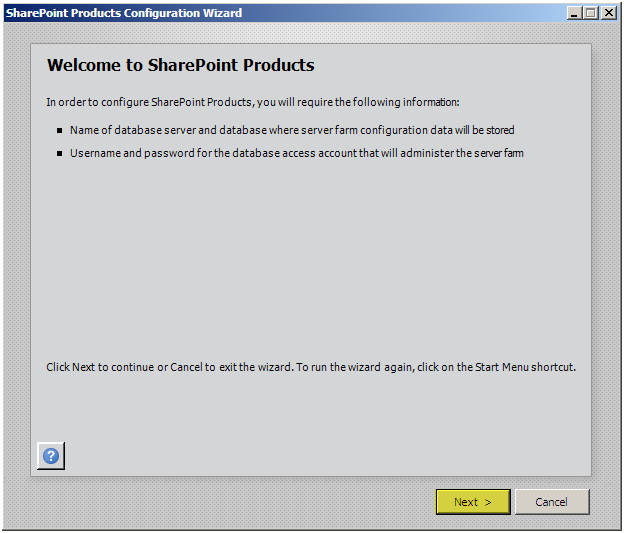
Start the “SharePoint 2010 Products Configuration Wizard” from the “Microsoft SharePoint 2010 Products” menu option under “All Programs”

Press “Next”
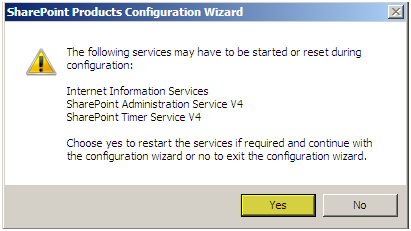
Press “Yes”
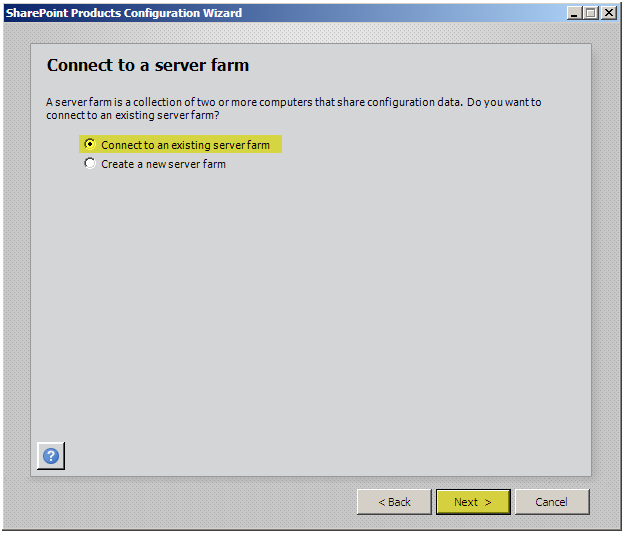
Press “Connect to an existing server farm”
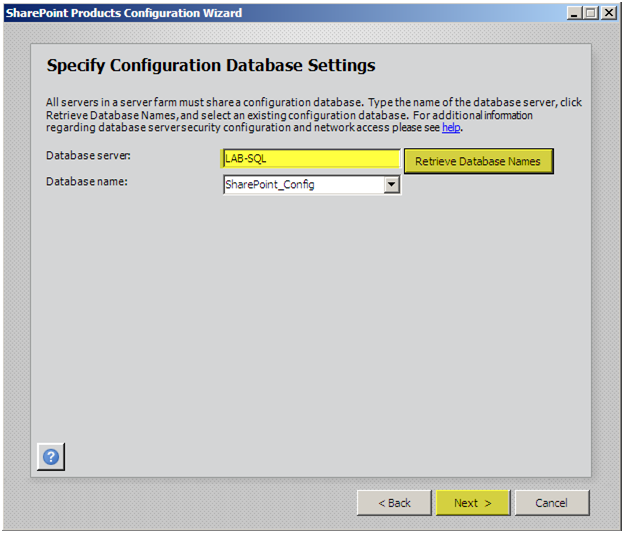
Enter the Database Server name: LAB-SQL

Press “Retrieve Database Names”

Press “Next”

If you cannot connect to the DB make sure you can ping the DB Server, make sure you can telnet to 1433, and make sure you gave Service-SharePoint the correct rights on the database server.
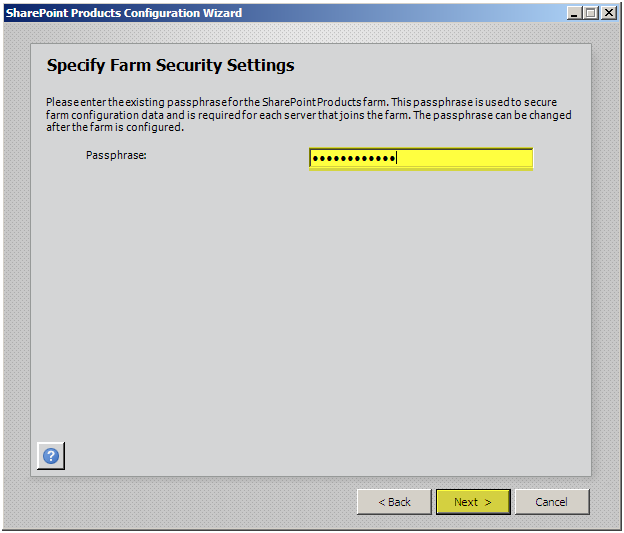
Enter the farm passphrase

Press “Next”
Enter a port (optional) – I like to specify 22222 as the Central Administrator port. That’s what I set it to dozens of farms ago so I’ll never forget it and I have kinda been using it ever since.

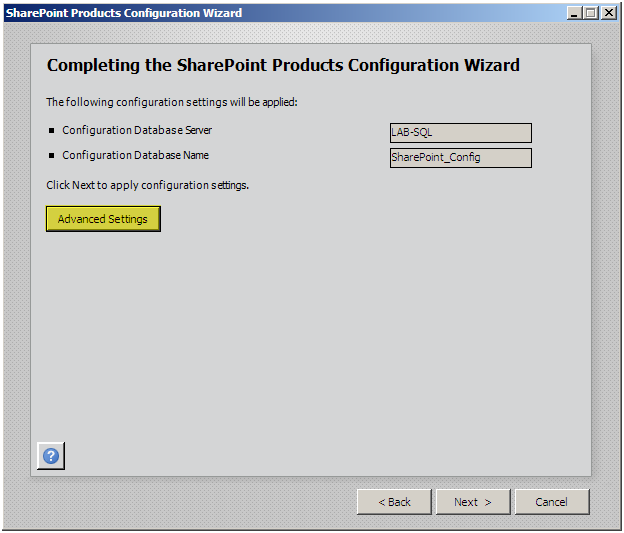
Press “Advanced Settings”, I am pressing this button to install Central Administrator on the second Indexing server so I can Load Balance the two of them.
Select “Use this machine to host the web site”
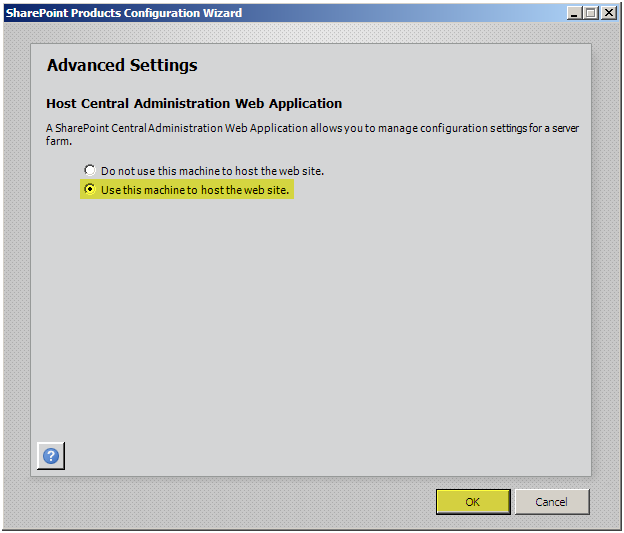
Press “Next”
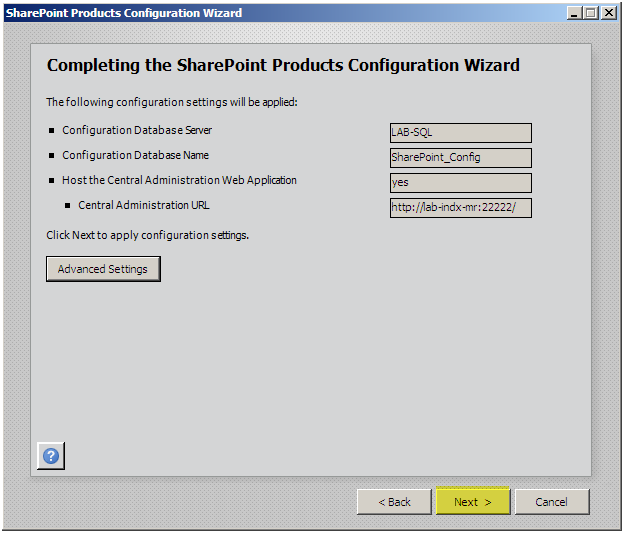
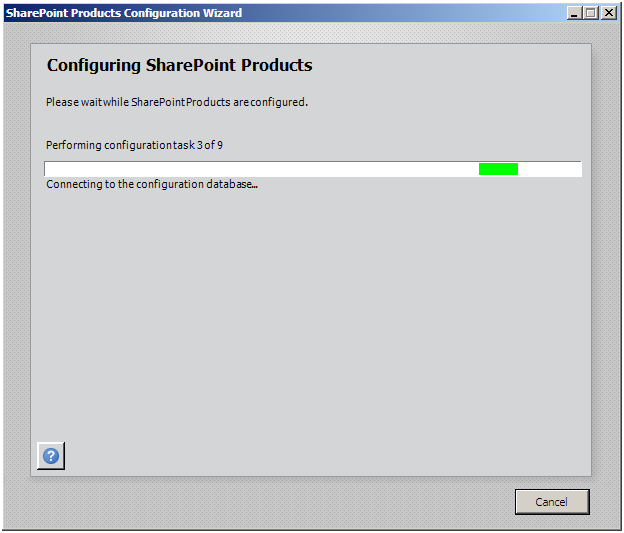
The wizard will configure this server into the farm
Press “Finish”
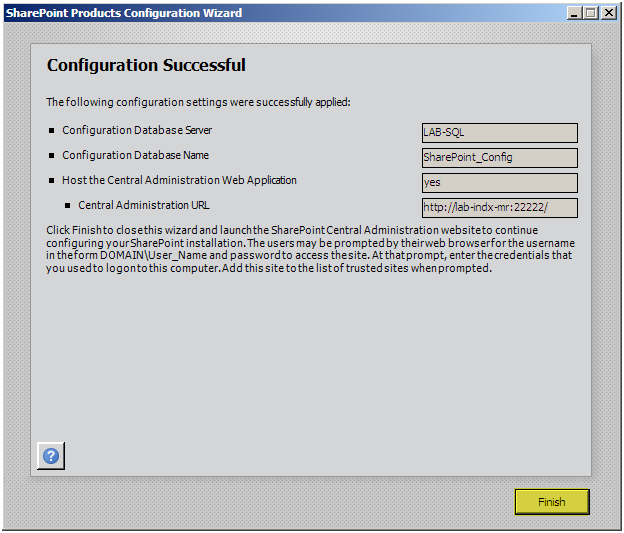
Close Central Administrator

It’s time to configure the Web Front Ends

Post Views: 208
<- SharePoint 2010: Primary Index Server Configuration
SharePoint 2010: Web Front End Configuration ->

Categories

  • Active Directory (5)
  • Amazon Cloud Services (1)
  • Blazor (1)
  • C# (C-Sharp) (3)
  • CI/CD Pipelines (1)
  • Containers (4)
  • Development (1)
  • Docker (3)
  • General (5)
  • IIS 6.0 (4)
  • IIS 7.0 (10)
  • IIS 8.0 (1)
  • Infrastructure as Code (IaC) (1)
  • Kubernetes (3)
  • MySQL (1)
  • Office 2010 (1)
  • PHP (1)
  • PowerShell (3)
  • SharePoint 2007 (8)
  • SharePoint 2010 (19)
  • SharePoint 2013 (2)
  • SMTP (4)
  • SQL Server 2008 (1)
  • SQL Server 2008 R2 (1)
  • SQL Server 2012 (2)
  • SQL Server 2019 (1)
  • Uncategorized (1)
  • URL Rewrite (2)
  • Visual Studio 2019 (1)
  • Visual Studio Code (1)
  • Windows 10 (2)
  • Windows 2003 (9)
  • Windows 2008 (18)
  • Windows 2012 (6)
  • Windows 7 (3)
  • Windows Firewall (1)
  • Windows Vista (1)

Recent Posts

  • Install Terraform on Windows
  • Create a .NET Core 3.1 Console App in Visual Studio Code
  • Install a stand-alone SQL Server 2019 Enterprise Server
  • Create a Blazor App project in Visual Studio 2019
  • Username and Password for minikube Virtual Machine

Advertisement

Tags

backconnectionhostnames custom column default gateway disappears disable shutdown event tracker error opening exe exe permissions externalize blob externalize sharepoint data facebook spam filezilla server firewall rules filazilla full installation http redirect https https redirect IIS iis7 iis 7 installation IIS installation index server configuration installing cumulative updates load balance central administration magic default gateway missing default gateway moss advanced search nlb no default gateway powershell redirect http to https search column sharepoint 2010 cumulative updates sharepoint 2010 farm build sharepoint 2010 farm configuration sharepoint 2010 farm installation sharepoint data externalization shutdown event tracker shutdown tracker SMTP storagepoint Windows 7 windows firewall configuration windows live messenger crash windows server 2008 wlbs x86
© 2026 JPPinto.com – Tech Blog. All rights reserved.