SharePoint 2010: Web Front End Configuration
The configuration for LAB-WFE1 and LAB-WFE2 were identical
Logged in as PINTOLAKE\Service-SharePoint
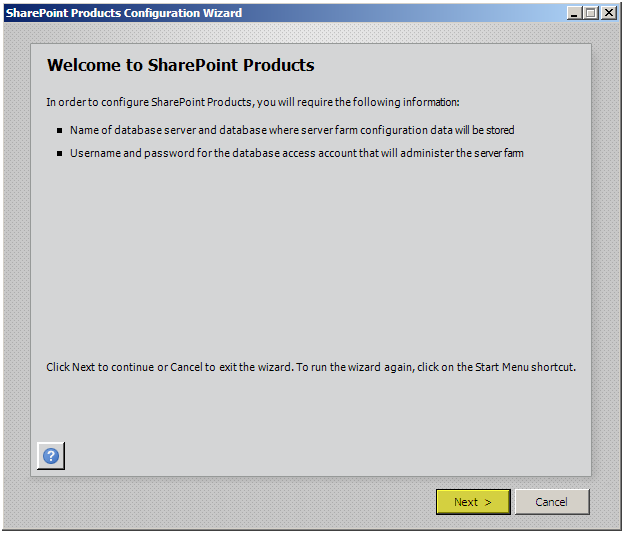
Start the “SharePoint 2010 Products Configuration Wizard” from the “Microsoft SharePoint 2010 Products” menu option under “All Programs”
Press “Next”
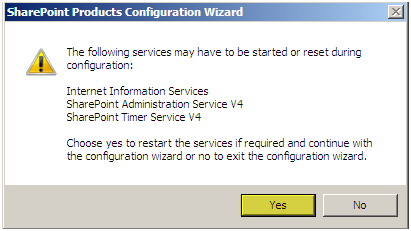
Press “Yes”
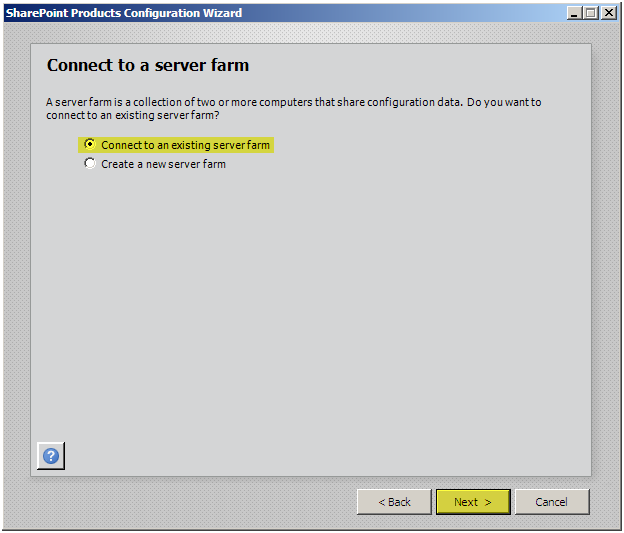
Press “Connect to an existing server farm”
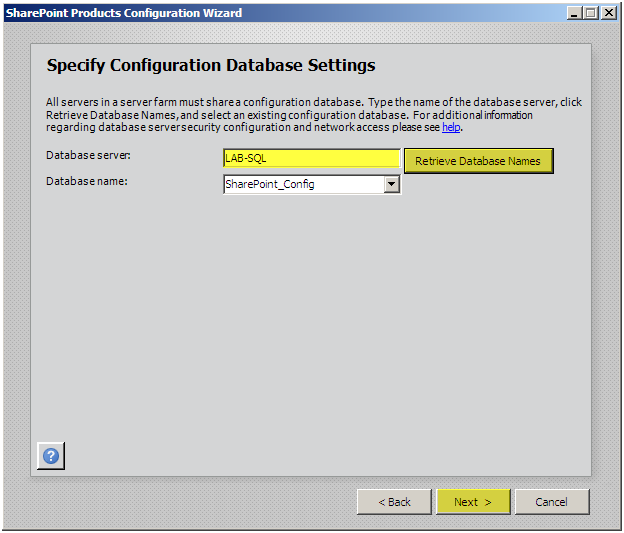
Enter the Database Server name: LAB-SQL
Press “Retrieve Database Names”
Press “Next”
If you cannot connect to the DB make sure you can ping the DB Server, make sure you can telnet to 1433, and make sure you gave Service-SharePoint the correct rights on the database server.
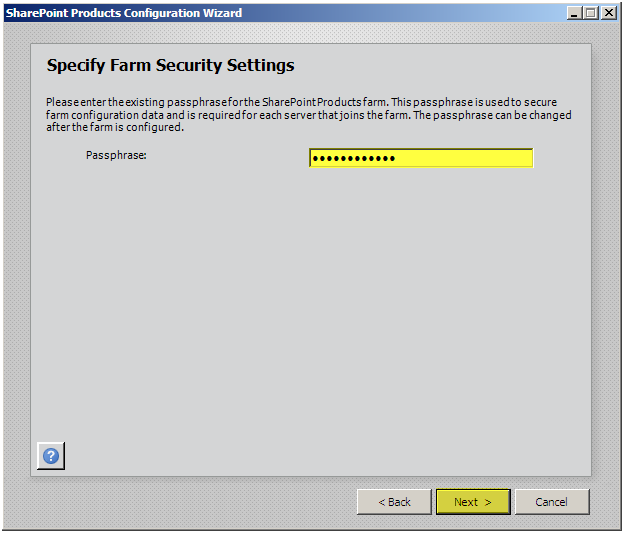
Enter the farm passphrase
Press “Next”
Press “Next”
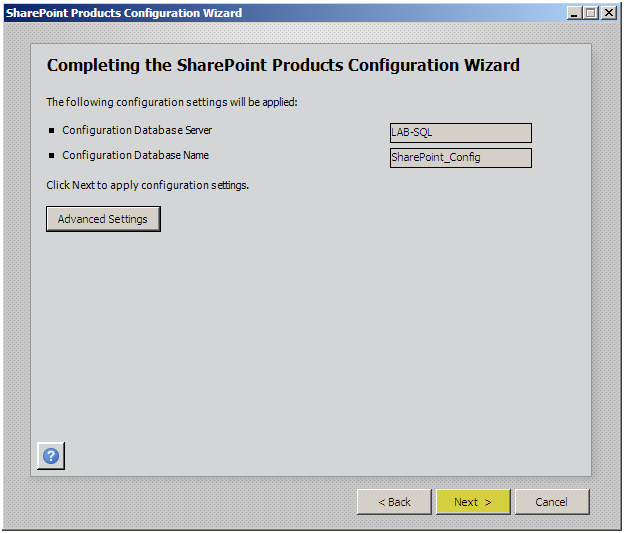
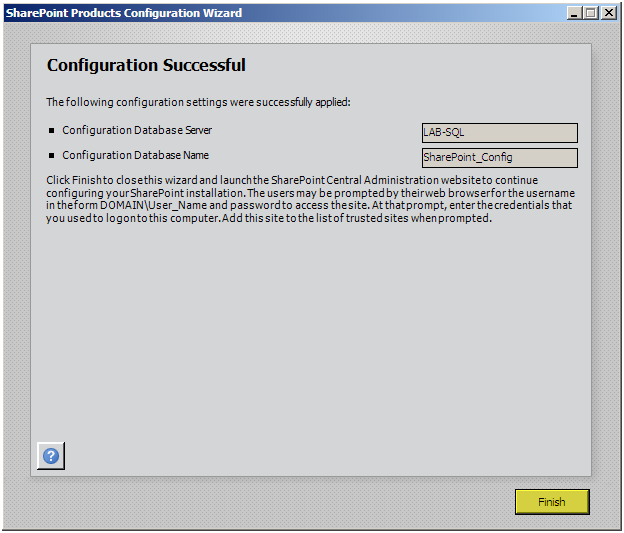
The wizard will configure this server into the farm
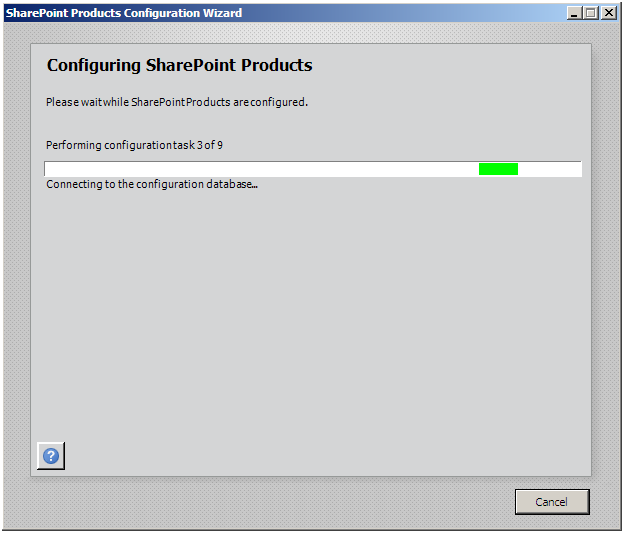
Press “Finish”
Close Central Administrator
Repeat this process on all Web Front Ends before continuing to the next article