0 1 0 1 0 1 0 1 0 1 0 1 0 1 0 1 0 1 0 1 0 1 0 1 0 1 0 1 0 1 0 1 0 1 0 1 0 1 0 1 0 1 0 1 0 1 0 1 0 1 0 1 0 1 0 1 0 1 0 1 0 1 0 1 0 1 0 1 0 1 0 1 0 1 0 1 0 1 0 1 0 1 0 1 0 1 0 1 0 1 0 1 0 1 0 1 0 1 0 1 0 1 0 1 0 1 0 1 0 1 0 1 0 1 0 1 0 1 0 1 0 1 0 1 0 1 0 1 0 1 0 1 0 1 0 1 0 1 0 1
JPPINTO
  • Home
  • Certifications
  • About
  • Contact
  • Gallery
  • Current Setup
Contact

Search

July 9, 2010 / SharePoint 2010

SharePoint 2010: Farm Configuration Wizard
Tags: farm configuration, sharepoint 2010 farm build, sharepoint 2010 farm configuration, sharepoint 2010 farm installation

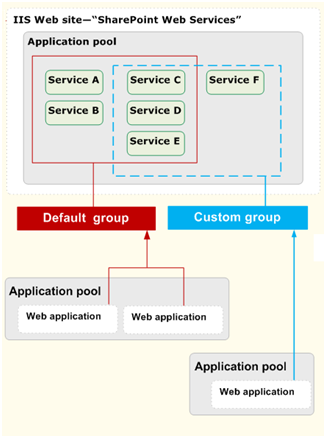
Before we get started. One thing you should know there are no more SSP’s in SharePoint 2010. Instead there are Services (many of them), the “SSP” is replaced by the “Search Service Application”. To find out more about services check out the “Services in SharePoint 2010” poster from Microsoft:

http://technet.microsoft.com/en-us/library/cc263199.aspx it’s really informative.
I am logged on to LAB-INDX as PINTOLAKE\Service-SharePoint. LAB-INDX is one of the servers where Central Administration is located, to avoid double hops. I will configure the farm directly on the server which hosts Central Administration

Open “SharePoint 2010 Central Administration” from the “Microsoft SharePoint 2010 Products” under All Programs

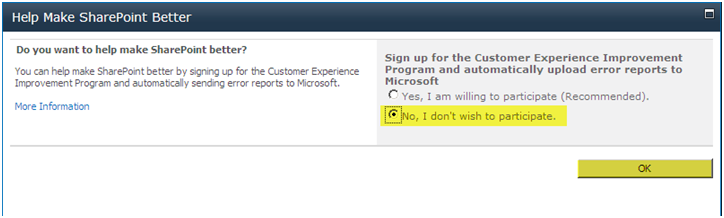
If you are prompted to “Help Make SharePoint Better” pick your option – If you let Central Administration open then closed the window while adding the other servers to the farm then you might not see this window.

Press OK
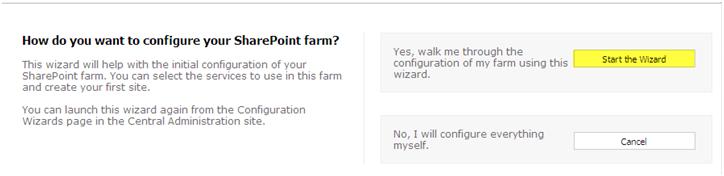
If you are prompted to “Start the Wizard” click it. If you let Central Administration open then closed the window while adding the other servers to the farm then you might not see this window but you can get to the wizard by the directions in the next step
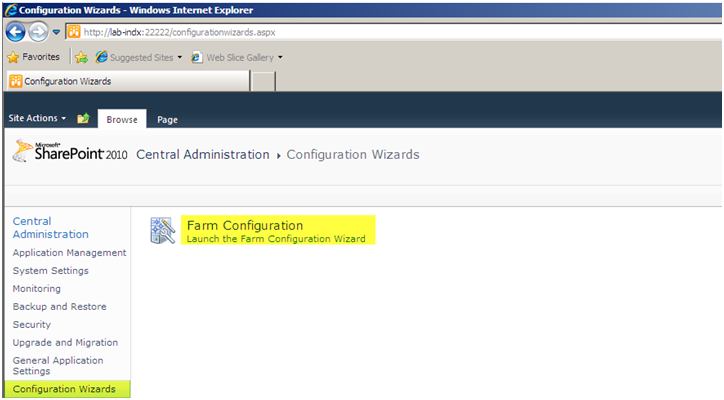
If you are not already in the wizard, Select “Configuration Wizards” from the menu on the left side

Select “Farm Configuration – Launch the Farm Configuration Wizard”
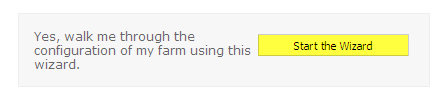
Select “Start the Wizard”
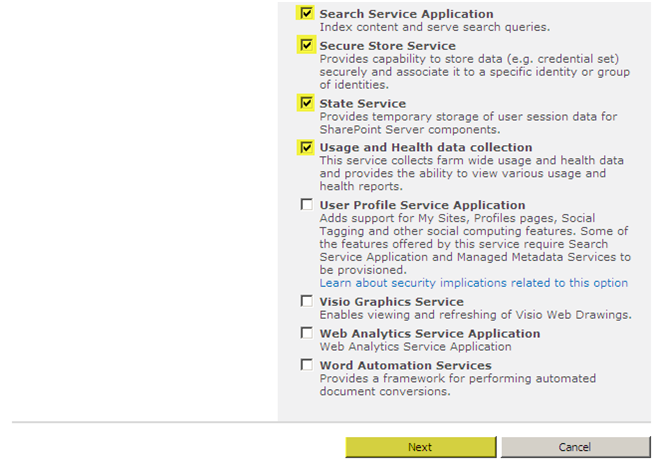
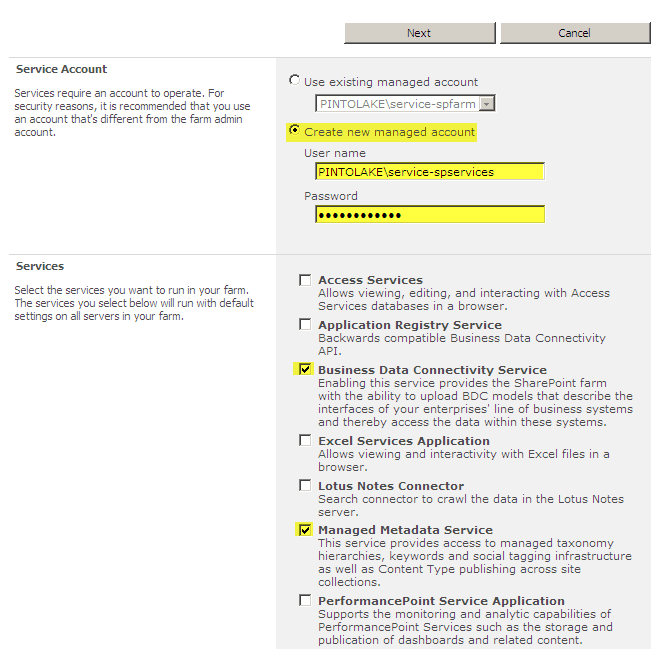
Select the services you want to enable on your farm. You can associate services a la cart to web applications now. I selected 6 services which I will most probably use in a lot of future installations

Noticeable ones worked over from SharePoint 2007 include:

  • Search Service Application – replaces the old SSP
  • User Profile Service Application – for My Sites

Press “Next”

SharePoint will process your request
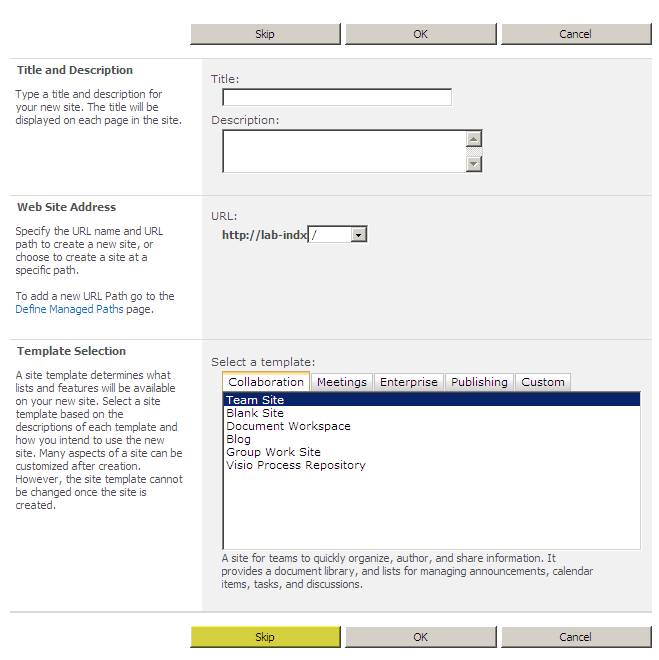
Now this kind of bugs me. We are going to skip this step. This is to create a site collection in the default web application. In most installation I perform, I create a new web application with a host header, because most WFE’s are load balanced. This is trying to create a site collection using my indexing server as the URL, we can fiddle with Defining Managed Paths however I like to start fresh with a new Web Application.

We will skip this and delete the default web application a little later on, when we create a new web application for the Load Balanced Web Front Ends
Click Finish
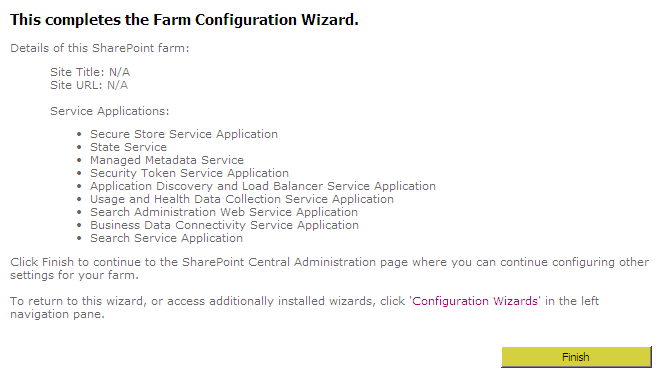
We are now ready to create a mirror of our Index, on to the next article in the series.

Post Views: 175
<- SharePoint 2010: Web Front End Configuration
SharePoint 2010: Create Index Mirror ->

Categories

  • Active Directory (5)
  • Amazon Cloud Services (1)
  • Blazor (1)
  • C# (C-Sharp) (3)
  • CI/CD Pipelines (1)
  • Containers (4)
  • Development (1)
  • Docker (3)
  • General (5)
  • IIS 6.0 (4)
  • IIS 7.0 (10)
  • IIS 8.0 (1)
  • Infrastructure as Code (IaC) (1)
  • Kubernetes (3)
  • MySQL (1)
  • Office 2010 (1)
  • PHP (1)
  • PowerShell (3)
  • SharePoint 2007 (8)
  • SharePoint 2010 (19)
  • SharePoint 2013 (2)
  • SMTP (4)
  • SQL Server 2008 (1)
  • SQL Server 2008 R2 (1)
  • SQL Server 2012 (2)
  • SQL Server 2019 (1)
  • Uncategorized (1)
  • URL Rewrite (2)
  • Visual Studio 2019 (1)
  • Visual Studio Code (1)
  • Windows 10 (2)
  • Windows 2003 (9)
  • Windows 2008 (18)
  • Windows 2012 (6)
  • Windows 7 (3)
  • Windows Firewall (1)
  • Windows Vista (1)

Recent Posts

  • Install Terraform on Windows
  • Create a .NET Core 3.1 Console App in Visual Studio Code
  • Install a stand-alone SQL Server 2019 Enterprise Server
  • Create a Blazor App project in Visual Studio 2019
  • Username and Password for minikube Virtual Machine

Advertisement

Tags

backconnectionhostnames custom column default gateway disappears disable shutdown event tracker error opening exe exe permissions externalize blob externalize sharepoint data facebook spam filezilla server firewall rules filazilla full installation http redirect https https redirect IIS iis7 iis 7 installation IIS installation index server configuration installing cumulative updates load balance central administration magic default gateway missing default gateway moss advanced search nlb no default gateway powershell redirect http to https search column sharepoint 2010 cumulative updates sharepoint 2010 farm build sharepoint 2010 farm configuration sharepoint 2010 farm installation sharepoint data externalization shutdown event tracker shutdown tracker SMTP storagepoint Windows 7 windows firewall configuration windows live messenger crash windows server 2008 wlbs x86
© 2026 JPPinto.com – Tech Blog. All rights reserved.