0 1 0 1 0 1 0 1 0 1 0 1 0 1 0 1 0 1 0 1 0 1 0 1 0 1 0 1 0 1 0 1 0 1 0 1 0 1 0 1 0 1 0 1 0 1 0 1 0 1 0 1 0 1 0 1 0 1 0 1 0 1 0 1 0 1 0 1 0 1 0 1 0 1 0 1 0 1 0 1 0 1 0 1 0 1 0 1 0 1 0 1 0 1 0 1 0 1 0 1 0 1 0 1 0 1 0 1 0 1 0 1 0 1 0 1 0 1 0 1 0 1 0 1 0 1 0 1 0 1 0 1 0 1 0 1 0 1 0 1
JPPINTO
  • Home
  • Blog
  • Certifications
  • About
  • Contact
  • Shop
  • Gallery
  • Current Setup
Contact

Search

July 9, 2010 / SharePoint 2010

SharePoint 2010: Create Index Mirror
Tags: create index mirror, mirror index, sharepoint 2010 farm build, sharepoint 2010 farm installation
Featured image for SharePoint 2010: Create Index Mirror

I am logged on to LAB-INDX as PINTOLAKE\Service-SharePoint. LAB-INDX is one of the servers where Central Administration is located, to avoid double hops. I will configure the farm directly on the server which hosts Central Administration

Open “SharePoint 2010 Central Administration” from the “Microsoft SharePoint 2010 Products” under All Programs

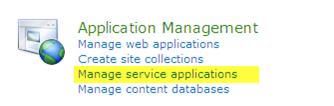
Under “Application Management” select “Manage service application”
Click “Search Service Administration”

This brings us to a section that looks similar to the old SharePoint 2010 SSP administration section of Central Administration

Click “Farm Search Administration” on the left side menu
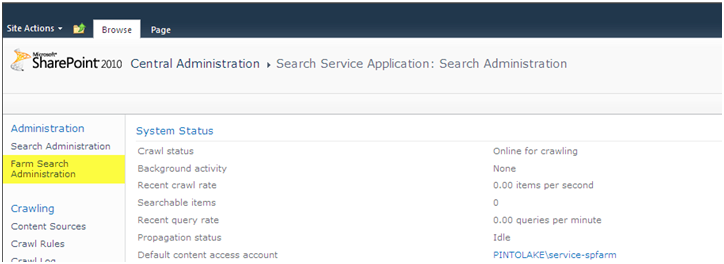
Click “Modify Topology”

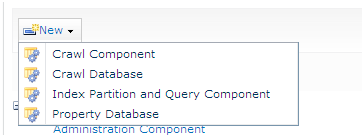
This section is where you can do thing like:

  • Create a Crawl Component
  • Create a Crawl Database
  • Create an Index Partition
  • Create a Property Database

We will be creating a mirror of the Index Partition for redundancy and high availability
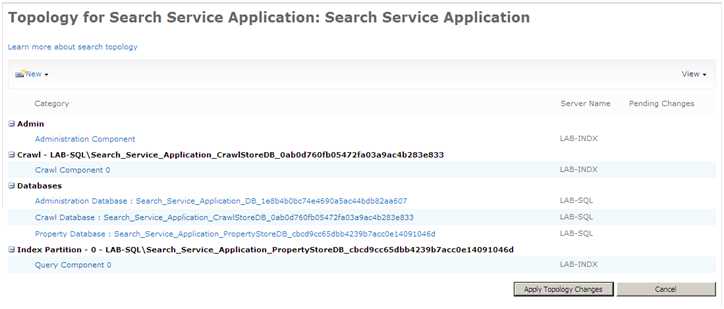
Under “Index Partition” there is a pull down menu if you highlight “Query Component 0”

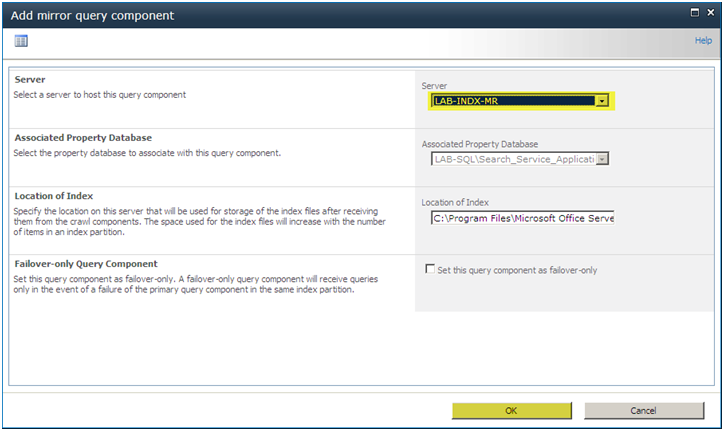
Select “Add Mirror”

Select the Server LAB-INDX-MR

You can also change the location of your index and if you did an “Edit Properties” instead of “Add Mirror” you could also change the Index location of the existing Index

You can also make it a “fail-over” which would make the set up an Active/Passive design, lets not select this as we are going for an Active/Active scenario because we hate to see 16GB sitting idle

Press “OK”
You need to click “Appy Topology Changes” or its going to be sitting at “pending creation” for eternity

Press “Apply Topology Changes”

SharePoint will process your changes
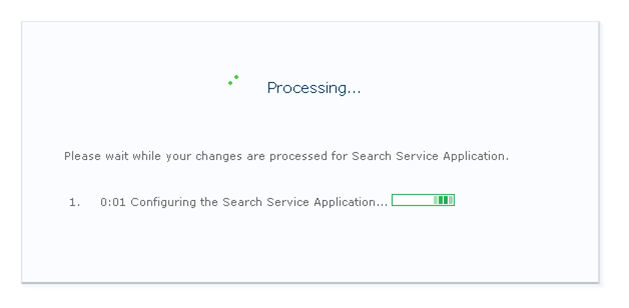
It was successful

Click “OK”

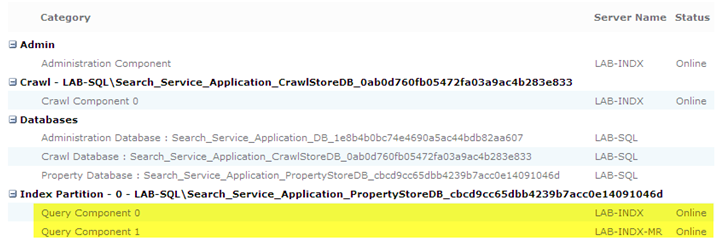
After you press OK, go to the bottom of the System Status Page.

You should see Query Component 0/1 both online; note the Server Name and Status.
We are now ready to Load Balance Central Administration site. On to the next article in the series

Post Views: 226
<- SharePoint 2010: Farm Configuration Wizard
SharePoint 2010: Load Balance Central Administration ->

Categories

  • Active Directory (5)
  • AI (2)
  • Amazon Cloud Services (1)
  • Blazor (1)
  • C# (C-Sharp) (3)
  • CI/CD Pipelines (1)
  • Containers (4)
  • Deployment (2)
  • Development (4)
  • Docker (3)
  • General (5)
  • IIS 6.0 (4)
  • IIS 7.0 (10)
  • IIS 8.0 (1)
  • Infrastructure as Code (IaC) (1)
  • Kubernetes (3)
  • Microsoft 365 (2)
  • MySQL (1)
  • Office 2010 (1)
  • PHP (1)
  • PowerShell (6)
  • SharePoint 2007 (8)
  • SharePoint 2010 (19)
  • SharePoint 2013 (2)
  • SharePoint Online (1)
  • SMTP (4)
  • SQL Server 2008 (1)
  • SQL Server 2008 R2 (1)
  • SQL Server 2012 (2)
  • SQL Server 2019 (1)
  • Uncategorized (1)
  • URL Rewrite (2)
  • Visual Studio 2019 (1)
  • Visual Studio Code (1)
  • Windows 10 (4)
  • Windows 2003 (9)
  • Windows 2008 (18)
  • Windows 2012 (6)
  • Windows 7 (3)
  • Windows Firewall (1)
  • Windows Vista (1)
  • WordPress (3)
  • WP-CLI (3)

Recent Posts

  • Do Markdown Files Save Claude Tokens? A Practical Guide to Claude Context and Cost Control
  • Use AGENTS.md, CLAUDE.md, Cursor Rules, and Prompt Logs to Keep AI Coding Bots in Context
  • Copy WordPress Plugin Settings from Dev to Production with WP-CLI
  • Move WordPress Articles from Dev to Production with WP-CLI
  • Install WP-CLI on Windows and Run Basic WordPress Commands

Advertisement

Tags

ai coding agents backconnectionhostnames custom column developer workflow dev to production disable shutdown event tracker error opening exe exe permissions externalize blob externalize sharepoint data filezilla server firewall rules filazilla full installation http redirect https https redirect IIS iis7 iis 7 installation IIS installation index server configuration installing cumulative updates load balance central administration microsoft 365 moss advanced search nlb powerpoint powershell redirect http to https search column sharepoint 2010 cumulative updates sharepoint 2010 farm build sharepoint 2010 farm configuration sharepoint 2010 farm installation sharepoint data externalization shutdown tracker SMTP storagepoint Windows 7 windows firewall configuration windows server 2008 wlbs wordpress wp-cli x86
© 2026 JPPinto.com – Tech Blog. All rights reserved.