SharePoint 2010: Load Balance Central Administration
I am logged on to LAB-INDX as PINTOLAKE\Service-SharePoint. LAB-INDX is one of the servers where Central Administration is located, to avoid double hops. I will configure the farm directly on the server which hosts Central Administration
Open “SharePoint 2010 Central Administration” from the “Microsoft SharePoint 2010 Products” under All Programs
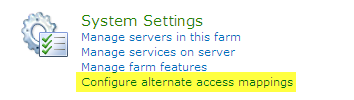
Select “Configure alternate access mappings”
On the right side of the screen pull down the menu next to “Alternate Access Mapping Collection”
Select “Change Alternate Access Mapping Collection”

Select “Central Administration”
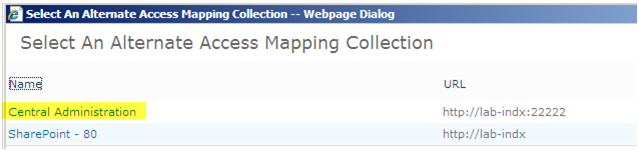
If you notice both of the servers that we added the Central Administration web site to are present, however if you look that the URL on the right. Its doing a redirect to http://lab-indx:22222. Which is not what we want to do.

Click “Edit Public URLs”

The Default is “http://lab-indx:22222”. I added “http://lab-indx-mr:22222” for the Intranet and “http://spca.pintolake.net” under Custom
CUSTOM is optional; it will require a DNS entry pointing “spca.pintolake.net” to the Load Balanced Virtual IP Address of the two indexing servers (LAB-INDX and LAB-INDX-MR)
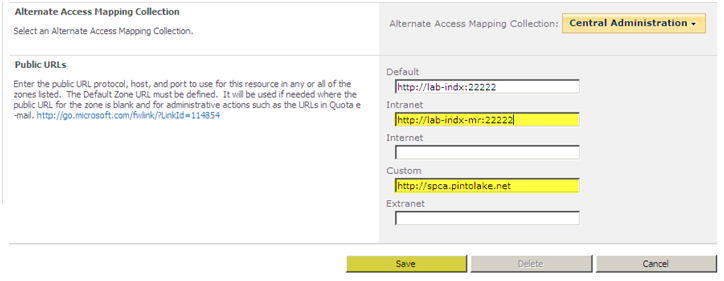
Now our Public URL’s for the Zone are correct.

If you did not enter a “Custom” zone, you do not need to do the next step. At this point you will be able to access the Central Administration web site via “http://lab-indx:22222” and “http://lab-indx-mr:22222” which should be fine in most cases.
Edit HOST HEADER in IIS
When you create an Alternate Access Mapping it does not change the Bindings in IIS, we need to manually edit the bindings on all servers that are hosting the web application for that host header entry.
We will repeat the “Edit HOST HEADER” process on both servers which you are hosting the Central Administration site. In this case I am making this change on LAB-INDX and LAB-INDX-MR
Open “Internet Information Services (IIS) Manager” from “Administrative Tools”
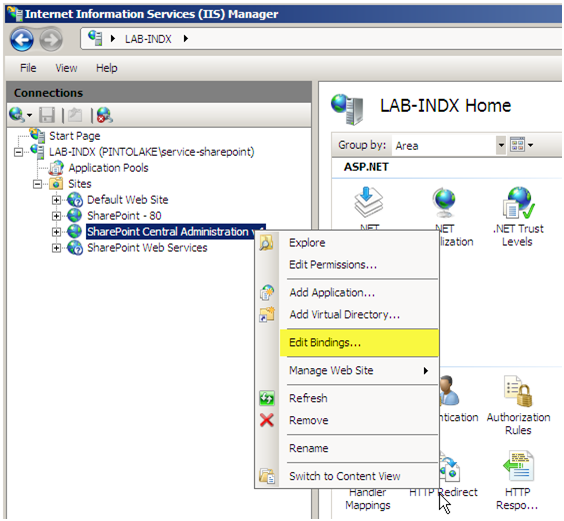
Right Click the “SharePoint Central Administration v4” site and select “Edit BindingsÔò¼├┤Ôö£├ºÔö¼┬¼”
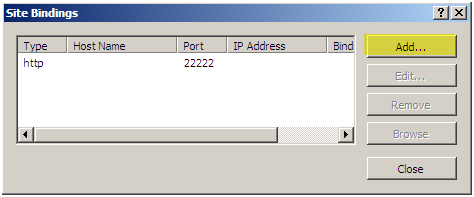
Click “AddÔò¼├┤Ôö£├ºÔö¼┬¼”
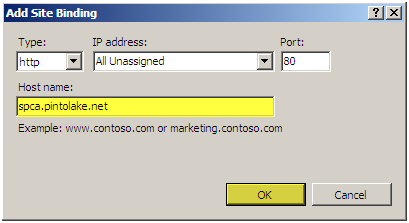
Enter “spca.pintolake.net”
Press “OK”
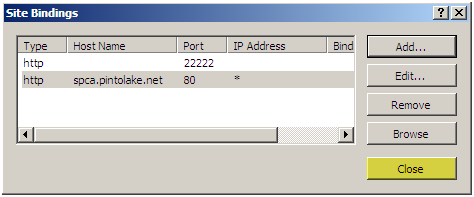
Click “Close” and exit IIS Manager
Repeat the “Edit HOST HEADER” process on both servers which you are hosting the Central Administration site. In this case I am making this change on LAB-INDX and LAB-INDX-MR
Testing
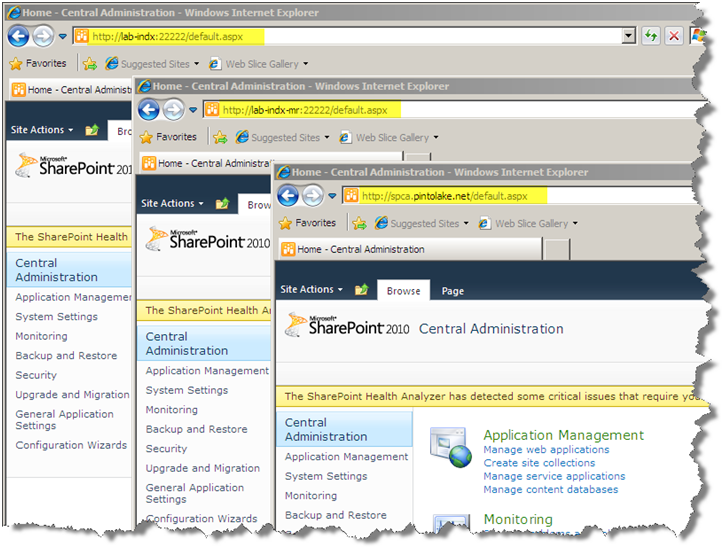
Try to access Central Administration site from all three URL’s. If you cannot access the Load Balanced IP it could that you have to enter the DisableLoopbackCheck on all of your SharePoint 2010 servers including the SQL Server.
I was able to access the Central Administration web site via:
- http://lab-indx:22222
- http://lab-indx-mr:22222
-
http://spca.pintolake.net
Perform NLB testing on http://spca.pintolake.net by disabling NLB on each server then testing access from a remote location.