GoTo Meeting Tips
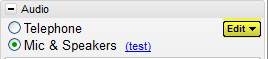
GoTo Beeps
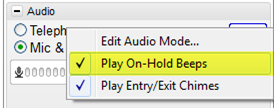
When you start a meeting and are waiting for people to join the meeting you hear an annoying beep. You can stop this beep by pressing the “Edit” button and uncheck “Play On-Hold Beeps”. Sometimes the Edit button doesn’t have an arrow and you can’t change it. Most of the time it does, I’m still trying to figure out why sometimes the edit button doesn’t have an arrow but when I’m trying to figure it out someone always joins the meeting. L
“
“
Recording
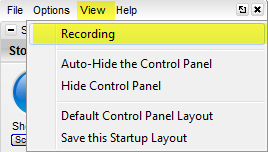
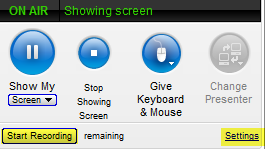
You can record a meeting if you are an Organizer. If someone makes you an organizer and you do not see the Recording bar just go to “View” > “Recording”.
It’s a good idea to record all of your meetings. Recently, I’ve been creating separate meetings for installs so I can give the recording to the client so they can see how the product was installed.
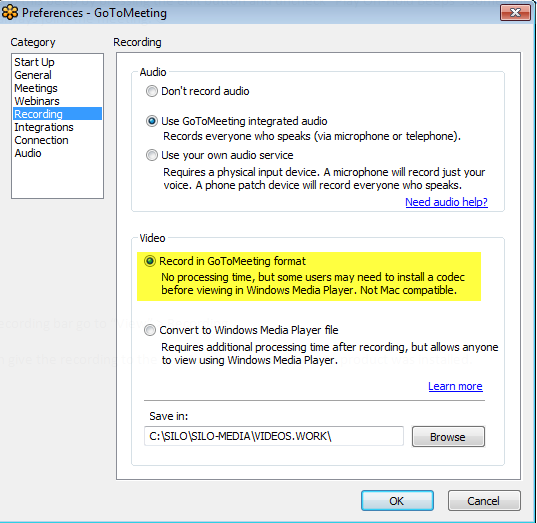
I’ve found that “Convert to Windows Media Player file” is a complete waste of resources, it takes forever and there is no benefit. Keep the GoToMeeting format.
Tips from Citrix:
Prior to Meeting or Event Start
- If you plan to share your entire desktop, turn off any instant-messaging applications, notification software or other programs that may interrupt or distract from the meeting.
- Turn off any streaming media applications that may take up bandwidth and resource-intensive applications that may be taxing processor ability.
- Set the desktop display to a neutral background and adjust display settings to a mid-range resolution (e.g., 1024×768) to improve the display for attendees with lesser settings. This is also the optimal setting for recording a meeting.
- Clean up your desktop before a meeting. Eliminate wallpaper and icons that may distract your attendees.
- Have the documents you wish to share ready to be accessed in one or two clicks.
- Run a trial meeting with a friend to anticipate questions and to familiarize yourself with the format of your online presentation.
“Managing the Meeting
- Arrive a few minutes early to greet the attendees as they arrive and start the meeting on time. It also helps to have a welcome presentation running during this time. Your presence in these opening minutes can help establish the tone and direction of the meeting.
- Create a welcome message under the Meetings category of Preferences to greet your attendees as they arrive at the meeting.
- Provide an agenda at the start of the meeting, including estimated duration, and stick to it.
- Inform attendees what the purpose/goal of the meeting is, what to expect and when and how to ask questions and participate in the meeting.
- Provide information on how to use equipment or services and how to get assistance if needed.
- Nominate a co-organizer to monitor and respond to the chat log when someone is presenting.
- Encourage participation by using open questions such as “What would you suggest?” and “How do you feel aboutÔò¼├┤Ôö£├ºÔö¼┬¼?”
- End the meeting clearly. Make sure all the attendees know that the meeting is formally over and stay on the line to address any last questions.
“
Managing the Conference Call
- Call in to the meeting from a location where there is little background noise.
- Consider globally muting participants at the start of the meeting to avoid noise issues. Turn off system prompts and sounds for when attendees join or leave a meeting. Read the Voice Conferencing section of the help files to familiarize yourself with the conference call features.
- Avoid using cellular and cordless phones because of static and use the phone handset or a headset instead of speakerphones because of background noise, tunnel effect and sentence clipping.
- Turn off your call waiting. The beep of a new call on another line is heard by everyone on the teleconference.
- Avoid putting your phone on hold during a teleconference. Your hold music will play into the conference call, and make it impossible for the other attendees to continue the meeting.
- Introduce yourself when you begin speaking and ask other attendees to also identify themselves before speaking. Not everyone in the meeting may know everyone else’s voice.
- If you find you are having a sound quality issue, hang up and dial back in. Sometimes these problems clear themselves up when the bad connection is terminated.