0 1 0 1 0 1 0 1 0 1 0 1 0 1 0 1 0 1 0 1 0 1 0 1 0 1 0 1 0 1 0 1 0 1 0 1 0 1 0 1 0 1 0 1 0 1 0 1 0 1 0 1 0 1 0 1 0 1 0 1 0 1 0 1 0 1 0 1 0 1 0 1 0 1 0 1 0 1 0 1 0 1 0 1 0 1 0 1 0 1 0 1 0 1 0 1 0 1 0 1 0 1 0 1 0 1 0 1 0 1 0 1 0 1 0 1 0 1 0 1 0 1 0 1 0 1 0 1 0 1 0 1 0 1 0 1 0 1 0 1
JPPINTO
  • Home
  • Certifications
  • About
  • Contact
  • Gallery
  • Current Setup
Contact

Search

December 19, 2011 / Amazon Cloud Services

Access Denied to files in an Amazon S3 Bucket
Tags: access denied bucket policy, amazon access denied, s3 access is denied, s3 error denied

I use a PowerShell script to upload my WordPress content to Amazon’s S3 Storage Services which is globally distributed by Amazon’s Cloudfront service. Recently Amazon changed its default security; if you upload a file to a bucket it does not inherit the buckets top level security. You need to put a Bucket Policy in place. In this example I will set the anonymous users to be able to read objects in the bucket.

Access Denied error:
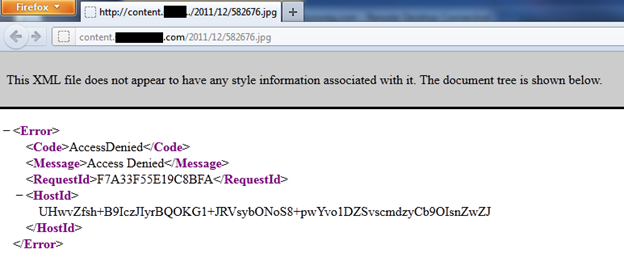
This is the error you receive when you do not have a Bucket Policy in place.

This XML file does not appear to have any style information associated with it. The document tree is shown below.

- 
AccessDenied
Access Denied
F7A33F55E19C8BFA
-
UHwvZfsh+B9IczJIyrBQOKG1+JRVsybONoS8+pwYvo1DZSvscmdzyCb9OIsnZwZJ


Creating a Bucket Policy:

You use the AWS Policy Generator to generate a Bucket Policy. There are several examples online and Amazon has a ton of examples.

http://awspolicygen.s3.amazonaws.com/policygen.html

1. Select “S3 Bucket Policy”
2. Set the “Effect” to “Allow”
3. Under “Actions” check off “GetObject”
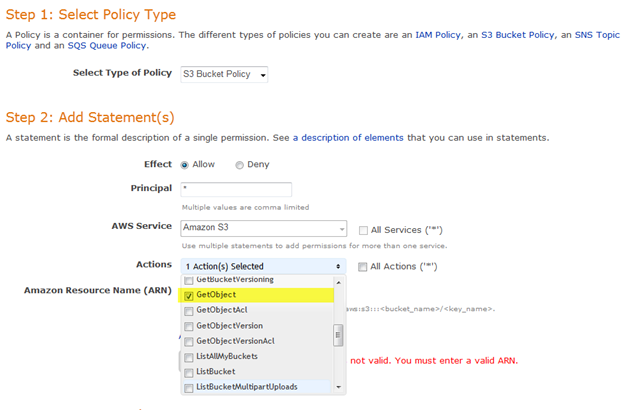
4. Set the Amazon Resouce Name (ARN) to “arn:aws:s3:::<bucket_name>/<key_name>“, in this case the Bucket name is bucket01 the key is usually set to *
5. Press “Add Statement”

6. Press Generate Policy. This will generate the policy you will need to add to your bucket
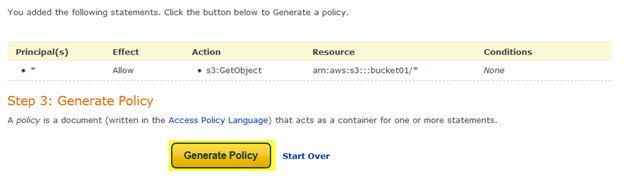
7. Copy the policy into your clipboard
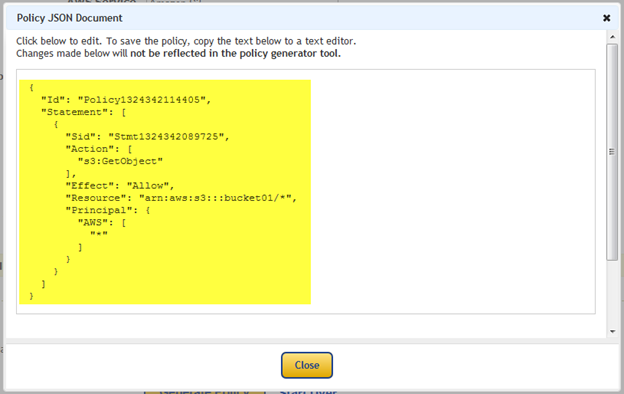
8. Open your bucket in the AWS Management Console: http://aws.amazon.com/console/

9. Go to Properties and select “Add bucket policy”
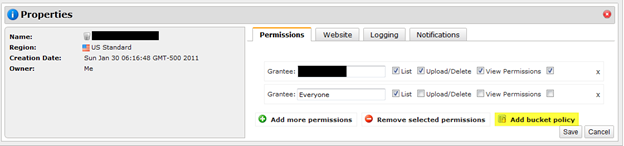
10. Paste the Policy into the Editor
11. Press Save
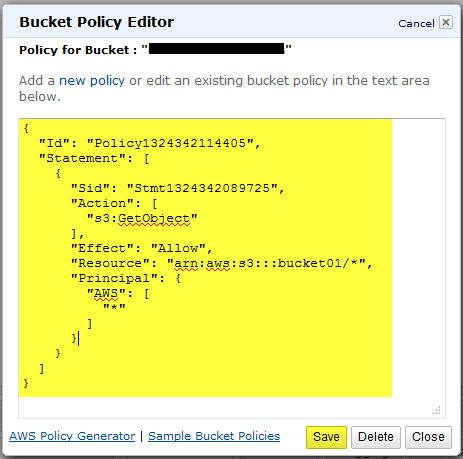
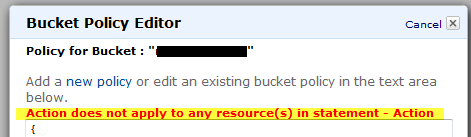
TIP: Sometimes if you have extra white space or missing a line you will get this error. Go back to the policy generator and re-copy the policy and try it again
When you try to access new uploaded pictures you should be able to see them with no problem now
 

Post Views: 671
<- sp_SDS Stored Procedure updated to work with SQL Server 2008 R2 & SQL Server 2012
GoTo Meeting Tips ->

Categories

  • Active Directory (5)
  • Amazon Cloud Services (1)
  • Blazor (1)
  • C# (C-Sharp) (3)
  • CI/CD Pipelines (1)
  • Containers (4)
  • Development (1)
  • Docker (3)
  • General (5)
  • IIS 6.0 (4)
  • IIS 7.0 (10)
  • IIS 8.0 (1)
  • Infrastructure as Code (IaC) (1)
  • Kubernetes (3)
  • MySQL (1)
  • Office 2010 (1)
  • PHP (1)
  • PowerShell (3)
  • SharePoint 2007 (8)
  • SharePoint 2010 (19)
  • SharePoint 2013 (2)
  • SMTP (4)
  • SQL Server 2008 (1)
  • SQL Server 2008 R2 (1)
  • SQL Server 2012 (2)
  • SQL Server 2019 (1)
  • Uncategorized (1)
  • URL Rewrite (2)
  • Visual Studio 2019 (1)
  • Visual Studio Code (1)
  • Windows 10 (2)
  • Windows 2003 (9)
  • Windows 2008 (18)
  • Windows 2012 (6)
  • Windows 7 (3)
  • Windows Firewall (1)
  • Windows Vista (1)

Recent Posts

  • Install Terraform on Windows
  • Create a .NET Core 3.1 Console App in Visual Studio Code
  • Install a stand-alone SQL Server 2019 Enterprise Server
  • Create a Blazor App project in Visual Studio 2019
  • Username and Password for minikube Virtual Machine

Advertisement

Tags

backconnectionhostnames custom column default gateway disappears disable shutdown event tracker error opening exe exe permissions externalize blob externalize sharepoint data facebook spam filezilla server firewall rules filazilla full installation http redirect https https redirect IIS iis7 iis 7 installation IIS installation index server configuration installing cumulative updates load balance central administration magic default gateway missing default gateway moss advanced search nlb no default gateway powershell redirect http to https search column sharepoint 2010 cumulative updates sharepoint 2010 farm build sharepoint 2010 farm configuration sharepoint 2010 farm installation sharepoint data externalization shutdown event tracker shutdown tracker SMTP storagepoint Windows 7 windows firewall configuration windows live messenger crash windows server 2008 wlbs x86
© 2026 JPPinto.com – Tech Blog. All rights reserved.