0 1 0 1 0 1 0 1 0 1 0 1 0 1 0 1 0 1 0 1 0 1 0 1 0 1 0 1 0 1 0 1 0 1 0 1 0 1 0 1 0 1 0 1 0 1 0 1 0 1 0 1 0 1 0 1 0 1 0 1 0 1 0 1 0 1 0 1 0 1 0 1 0 1 0 1 0 1 0 1 0 1 0 1 0 1 0 1 0 1 0 1 0 1 0 1 0 1 0 1 0 1 0 1 0 1 0 1 0 1 0 1 0 1 0 1 0 1 0 1 0 1 0 1 0 1 0 1 0 1 0 1 0 1 0 1 0 1 0 1
JPPINTO
  • Home
  • Blog
  • Certifications
  • About
  • Contact
  • Shop
  • Gallery
  • Current Setup
Contact

Search

July 16, 2010 / IIS 6.0, IIS 7.0, SMTP, Windows 2003

How to Configure IIS SMTP Server to forward emails using a Gmail account
Tags: configure smtp, gmail iis, gmail smtp, iis smtp relay
Featured image for How to Configure IIS SMTP Server to forward emails using a Gmail account

This is very useful when you want to test outgoing email for an application but not have access to an SMTP server. This is great for many applications including SQL Reporting Services, SharePoint and any other application which allows you to set an email/smtp server.

Prerequisites

1. Create and setup a Gmail account at http://www.gmail.com

2. Enable the Gmail account for POP3 in Gmail, you can follow the instructions on how to do this here: http://mail.google.com/support/bin/answer.py?answer=13273&cbid=wl8yzeug2lob&src=cb&lev=topic

3. Install the mail server role in IIS6 or IIS7. This should include both “POP3” and “SMTP” – you read more about this installation here: https://jppinto.com/2009/02/installing-iis-70-with-smtp-on-windows-server-2008/

Configure SMTP

We will now configure the IIS Server to forward messages using the Gmail account.

Open IIS Manager

Right Click “IIS SMTP Virtual server”

Select “Properties”

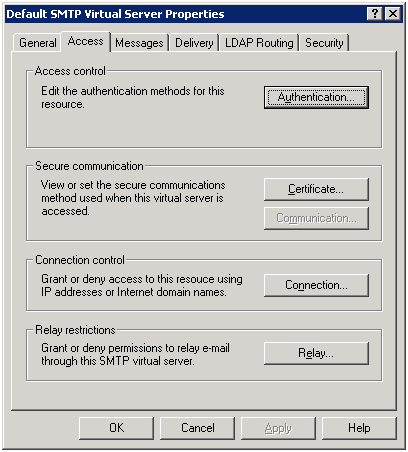
Select the “Access” Tab

Click “Relay”
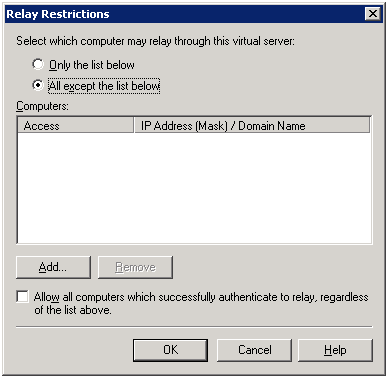
Make sure “All except the list below” is selected

You can add servers to this list that you want to block from sending mail to this server if you press “AddÔò¼├┤Ôö£├ºÔö¼┬¼”

Press “OK”
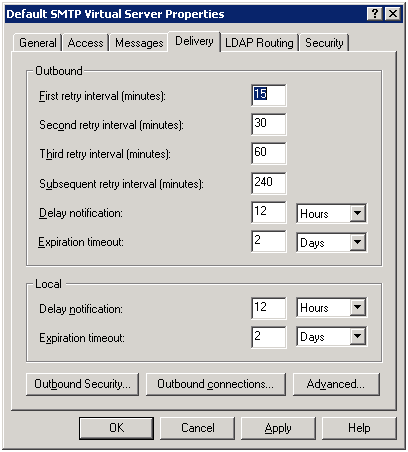
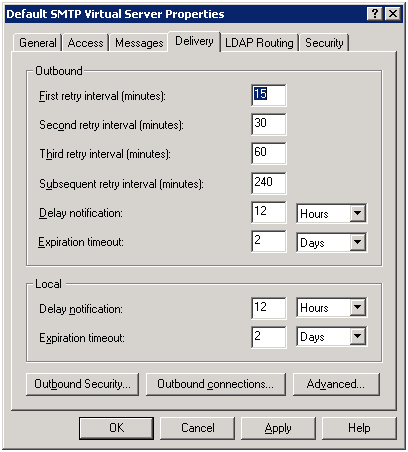
Select the “Delivery” Tab

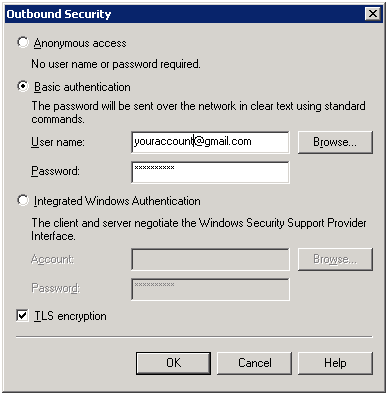
Press “Outbound SecurityÔò¼├┤Ôö£├ºÔö¼┬¼”
Select “Basic Authentication”

Enter your Gmail account (i.e. [email protected])

Enter your Gmail password

Select “TLS encryption”

Press “OK”
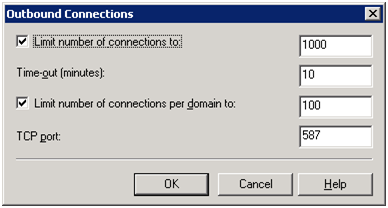
Press “Outbound connectionsÔò¼├┤Ôö£├ºÔö¼┬¼”
Set TCP port to “587”

Press “OK”
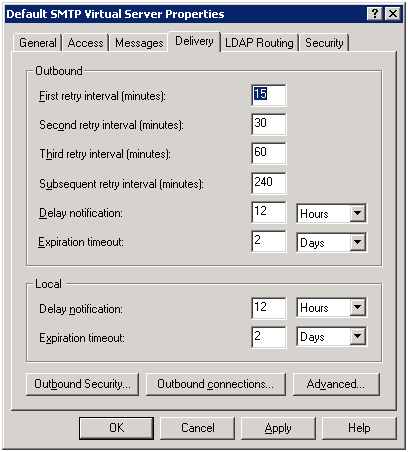
Press “AdvancedÔò¼├┤Ôö£├ºÔö¼┬¼”
Enter the Full-quailified domain name – this should be what you want this SMTP server to be called. If your server name is “SMTP” and your domain is “YOURDOMAIN.COM” then the entry should be “smtp.yourdomain.com”

Enter “smtp.gmail.com” as the “Smart host”

Press “OK”
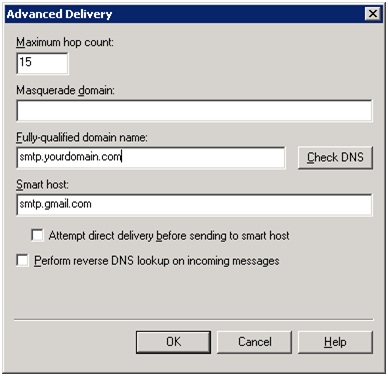
Now configure the outbound email server in your application to use “smail.yourdomain.com” and it should relay the email through Gmail.

”
“

”
“

”
“

”
“

”
“

“”

Post Views: 674
<- Creating a GPO to Disable Services on Windows Servers
Remote Desktop Connection (RDP/RDC) will automatically resize when moving it ->

Categories

  • Active Directory (5)
  • AI (3)
  • Amazon Cloud Services (1)
  • AWS (2)
  • Blazor (1)
  • C# (C-Sharp) (3)
  • CI/CD Pipelines (1)
  • Cloud (1)
  • Cloudflare (2)
  • Codex (1)
  • Containers (4)
  • Deployment (2)
  • Development (5)
  • DNS (1)
  • Docker (3)
  • Email (1)
  • Family (1)
  • General (5)
  • IIS 6.0 (4)
  • IIS 7.0 (10)
  • IIS 8.0 (1)
  • Infrastructure as Code (IaC) (1)
  • Kubernetes (3)
  • Linux (9)
  • Microsoft 365 (2)
  • MySQL (1)
  • Office 2010 (1)
  • PHP (1)
  • PowerShell (11)
  • Productivity (1)
  • Security (1)
  • Servers (9)
  • SharePoint 2007 (8)
  • SharePoint 2010 (19)
  • SharePoint 2013 (2)
  • SharePoint Online (1)
  • SMTP (4)
  • SQL Server 2008 (1)
  • SQL Server 2008 R2 (1)
  • SQL Server 2012 (2)
  • SQL Server 2019 (1)
  • SSL (1)
  • Travel (1)
  • Troubleshooting (1)
  • Ubuntu (9)
  • Uncategorized (1)
  • URL Rewrite (2)
  • Visual Studio 2019 (1)
  • Visual Studio Code (1)
  • Windows 10 (7)
  • Windows 2003 (9)
  • Windows 2008 (18)
  • Windows 2012 (6)
  • Windows 7 (3)
  • Windows Firewall (1)
  • Windows Vista (1)
  • WordPress (3)
  • WP-CLI (3)

Recent Posts

  • GPT-5.6 Sol Changes How We Prompt—and How We Write AGENTS.md
  • Protect a Domain That Does Not Send Email with SPF, DMARC, and Null MX
  • Turning Our Atlanta Vacation Photos into a Video with PowerShell
  • Bulk Create Cloudflare Origin CA Certificates with PowerShell
  • Test a Cloudflare Global API Key Connection with PowerShell

Advertisement

Tags

agents.md ai coding agents aws bash cloudflare cloud storage codex context engineering developer workflow dev to production dns externalize blob externalize sharepoint data full installation http redirect https IIS IIS installation index server configuration installing cumulative updates linux load balance central administration microsoft 365 nginx powerpoint powershell redirect http to https s3 server setup sharepoint 2010 cumulative updates sharepoint 2010 farm build sharepoint 2010 farm configuration sharepoint 2010 farm installation sharepoint data externalization SMTP ssl storagepoint ubuntu web server windows Windows 7 windows server 2008 wordpress wp-cli x86
© 2026 JPPinto.com. All rights reserved.