How to Install the March 2013 PU and August 2013 CU on SharePoint 2013
Resources
“
Updates for SharePoint 2013
http://technet.microsoft.com/en-us/sharepoint/jj891062.aspx
Install a software update (SharePoint 2013)
http://technet.microsoft.com/en-us/library/ff806338%28v=office.15%29
List of SharePoint 2013 Updates
http://technet.microsoft.com/en-us/office/ee748587.aspx
“
Summary
“
The SharePoint Server 2013 CU contains the SharePoint Foundation CU and the SharePoint Server 2013 with Project Server CU contains Project Server CU, SharePoint Server CU and SharePoint Foundation CU.
Be aware that all Update for SharePoint 2013 require March 2013 PU (Public Update) for SharePoint 2013 to be installed first.
SharePoint Foundation 2013 (You only need the SharePoint Foundation 2013 CU)
SharePoint Foundation 2013 + SharePoint Server 2013 (You only need the SharePoint Server 2013 CU)
SharePoint Foundation 2013 + SharePoint Server 2013 + Project Server 2013 (You only need the Project Server 2013 CU)
That means only one package has to be installed for the SharePoint 2013 product family. It will be either the Foundation, Server or Project Server CU. In my case I have SharePoint 2013 Server. So I will be installing March 2013 PU then the August 2013 CU for SharePoint 2013 Server. This is a rough outline of the process:
- 1. Install March 2013 Server PU:””””””””http://support.microsoft.com/kb/2767999
- 2. Reboot
- 3. Install August 2013 Server CU:””””””””http://support.microsoft.com/kb/2817616
- 4. Reboot
- 5. Run the SharePoint 2013 Products Configuration Wizard
- 6. Verify the upgrade via Central Administration
“
March PU Installation
Launch ubersrvsp2013-kb2767999-fullfile-x64-glb on your SharePoint Server. If you have multiple servers consult this document: http://technet.microsoft.com/en-us/library/ff806338%28v=office.15%29
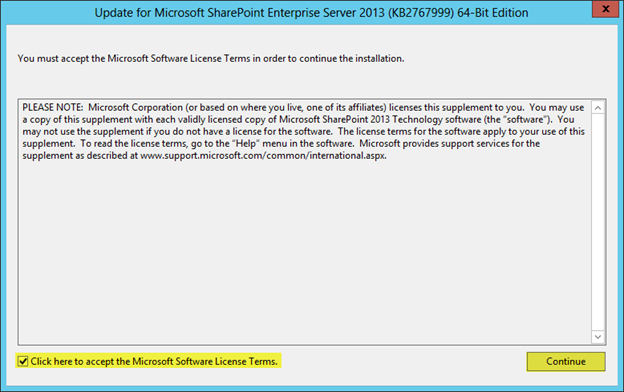
Accept the License Terms
Press Continue
“
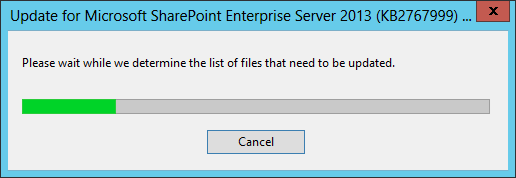
The update will determine which files need to be updated
“
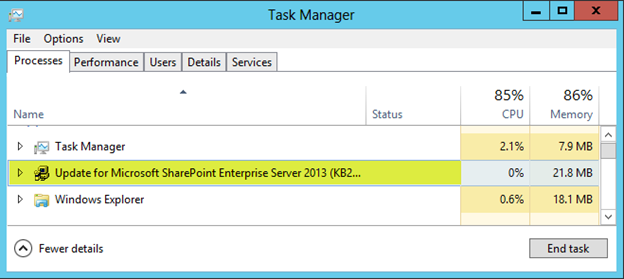
You may see the GUI for the installation disappear from time to time. You will be able to see that it’s still running in Task Manager. Just let it run the GUI will come back.
“
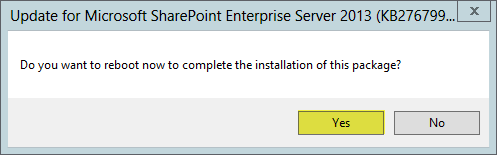
After the installation is complete you can reboot. You can install the August 2013 CU next, you can run the SharePoint 2013 Products Configuration Wizard after both updates are installed. You do not have to run them after each update.
“
August 2013 Update
“
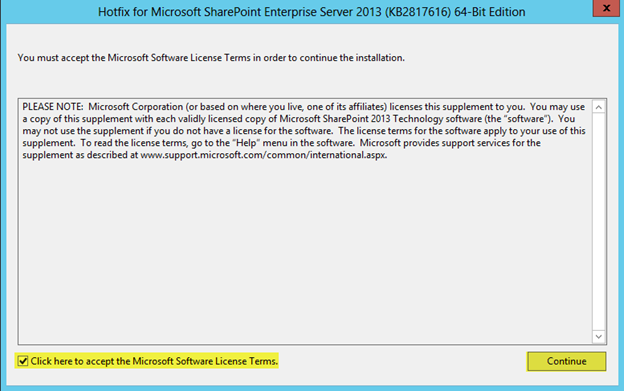
After the reboot, launch ubersrvsp2013-kb2817616-fullfile-x64-glb on your SharePoint Server. If you have multiple servers consult this document: http://technet.microsoft.com/en-us/library/ff806338%28v=office.15%29
“
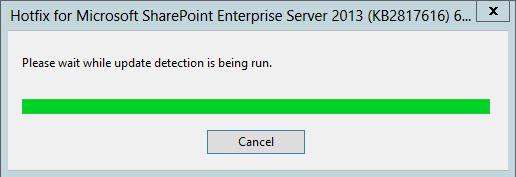
The update will determine which files need to be updated
“
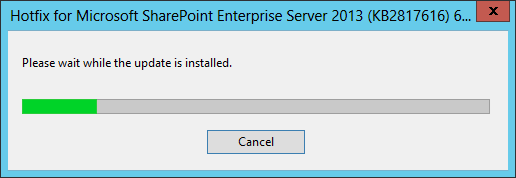
The update will install the files
“
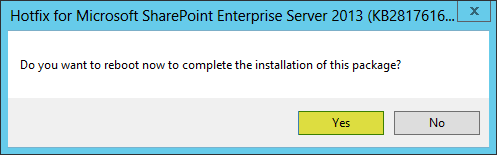
After the installation is complete you can reboot. You can run the SharePoint 2013 Products Configuration Wizard after both updates are installed.
“
Running the SharePoint 2013 Products Configuration Wizard
“
After both the March 2013 PU and August 2013 CU are installed, you must run the SharePoint 2013 Products Configuration Wizard to complete the upgrade.
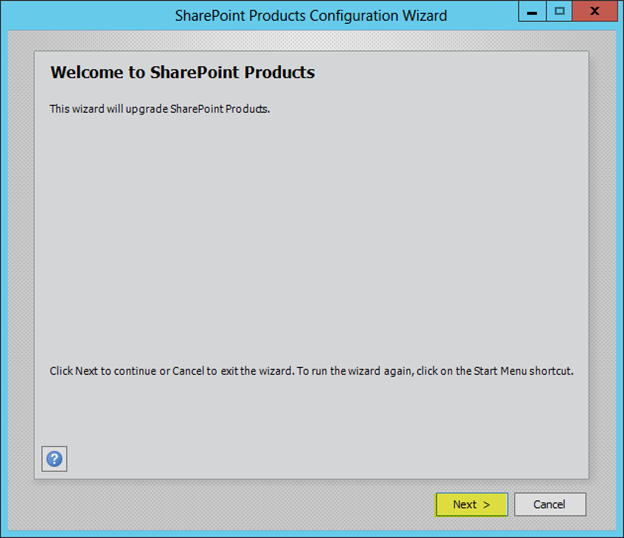
Launch the Wizard from the Start menu, Press Next
“
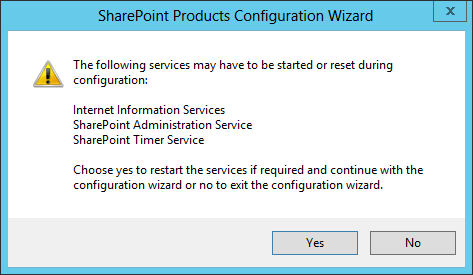
Press Yes
“
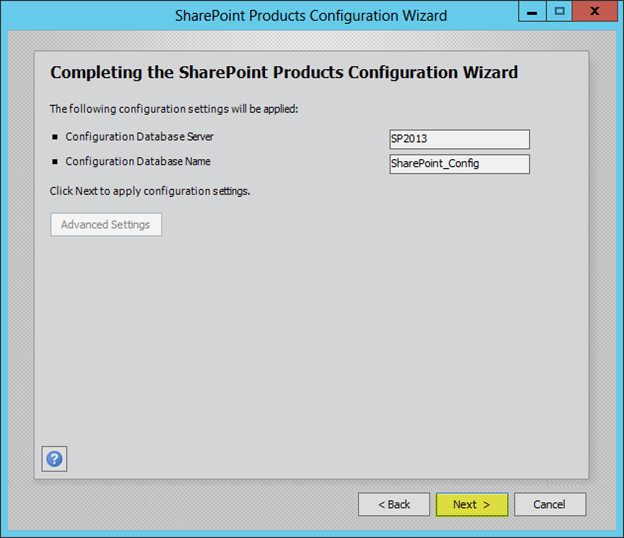
Press Next
“
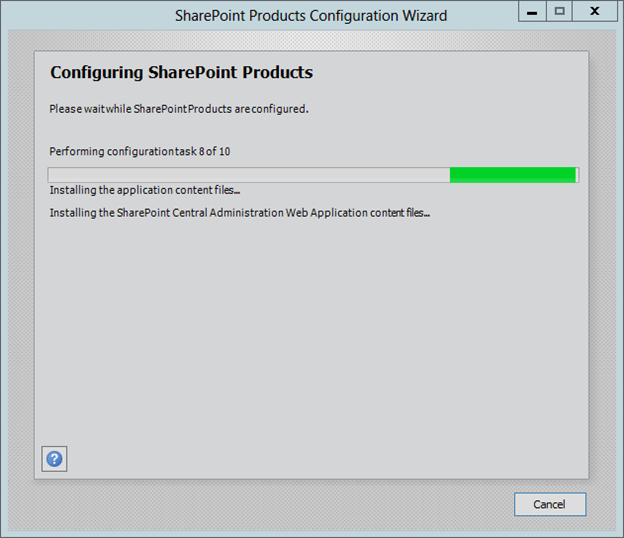
The wizard will update the farm
“
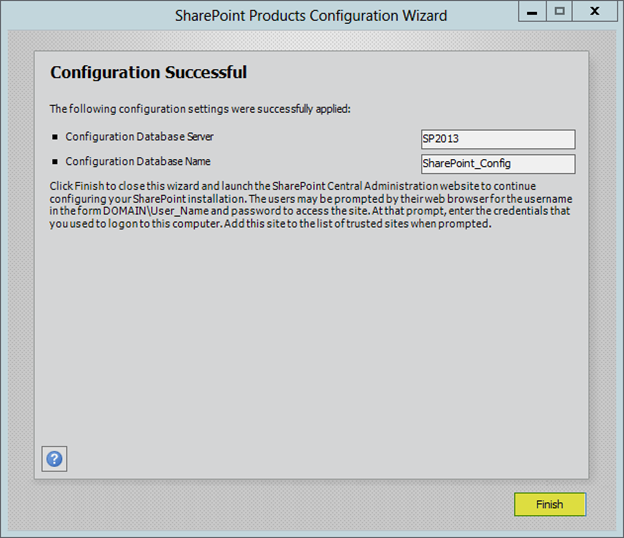
Press Finish
“
Verification
“
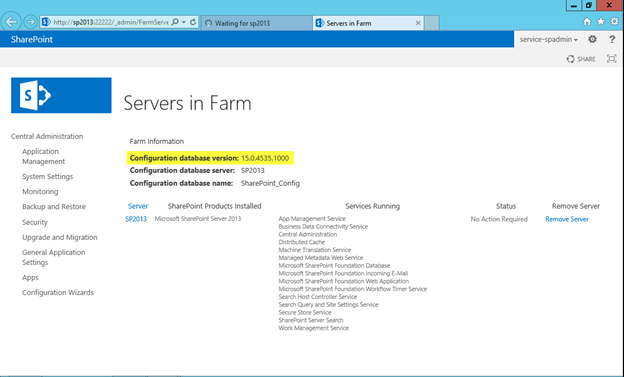
Once you press finish, Central Administration should open. You can now verify the version of SharePoint 2013 that is running by going to Servers in Farm. The August 2013 CU should bring you up to version 15.0.4535.1000
“
“
“