SharePoint 2013 Installation on Windows Server 2012
“
Summary and Prerequisites
In this article I will guide you through my Installation of SharePoint 2013. This installation consisted of a Single Server with using SQL Server 2012 as the database server.
Accounts
The following accounts created in Active Directory (AD) for this installation. For more information on the accounts needed for SharePoint 2013, please visit: http://technet.microsoft.com/en-us/library/cc263445.aspx
- Service-spadmin – this account will be used to login to Central Administration and install SharePoint. This account was made a local administrator on the SharePoint server and was given SECURITYADMIN and DBCREATOR roles in SQL Server.
- Service-spfarm – this is the farm account we will use when we create the farm and SharePoint_Config database
-
Service-spservices – this is an account we will use to create and configure the SharePoint services
“
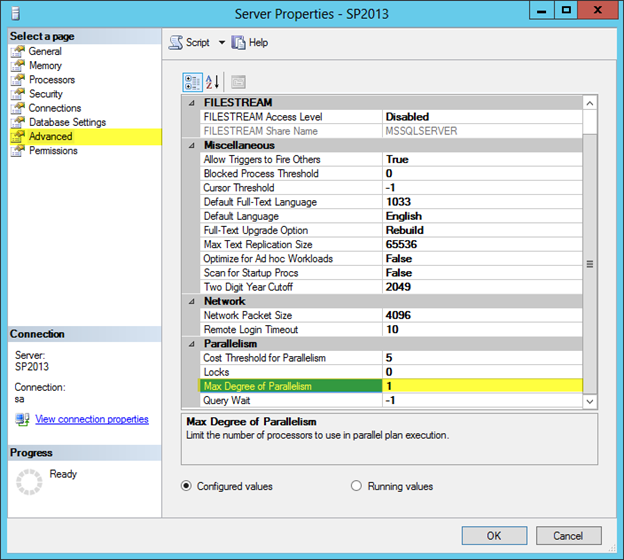
Max degree of parallelism
Ensure the Max degree of parallelism is set to 1. For additional information about max degree of parallelism see, Configure the max degree of parallism Server Configuration option
“
Install SharePoint 2013 Prerequisites
“
This installation was installed using service-spadmin account which was made a local administrator on the SharePoint server and was given SECURITYADMIN and DBCREATOR roles in SQL Server.
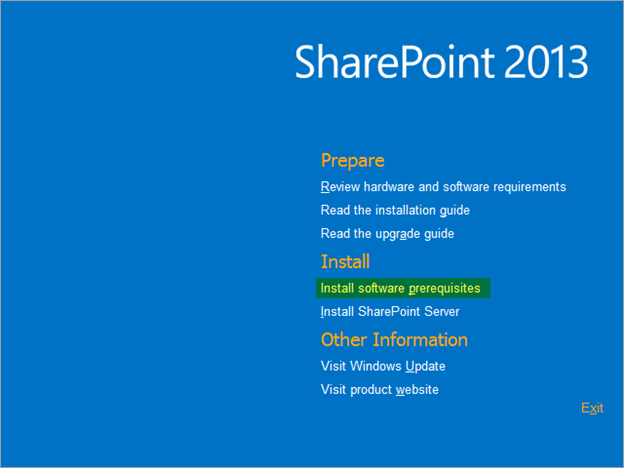
Launch the Installation and Select “Install software prerequisites”
“
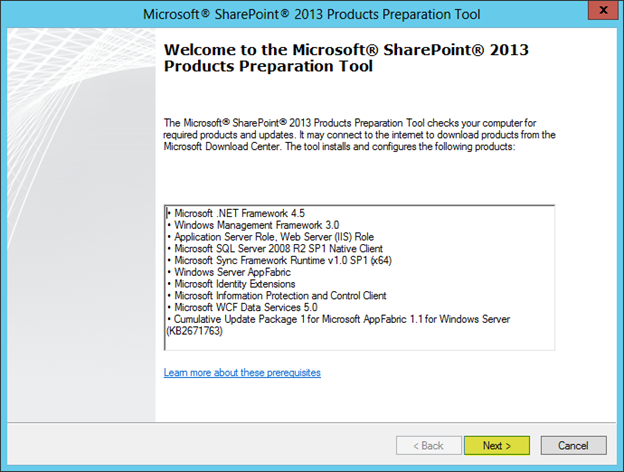
Press Next
“
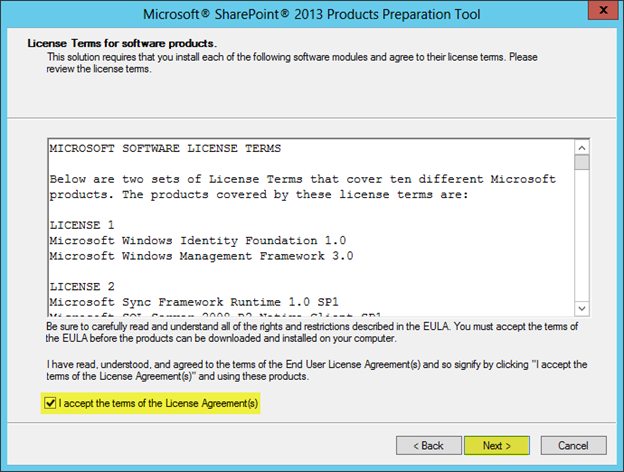
Accept the License Terms and Press Next
“
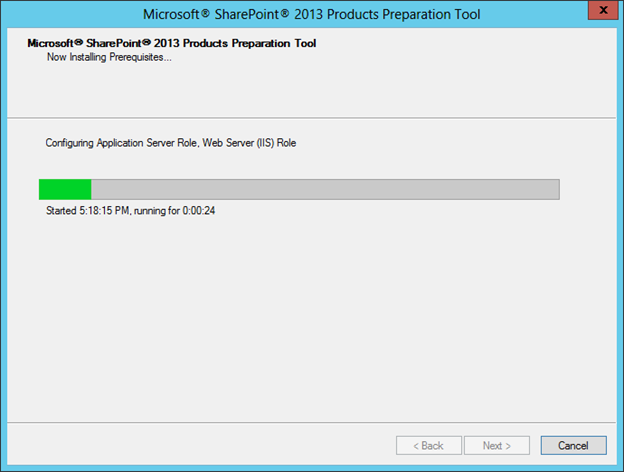
Prerequisites will now install
“
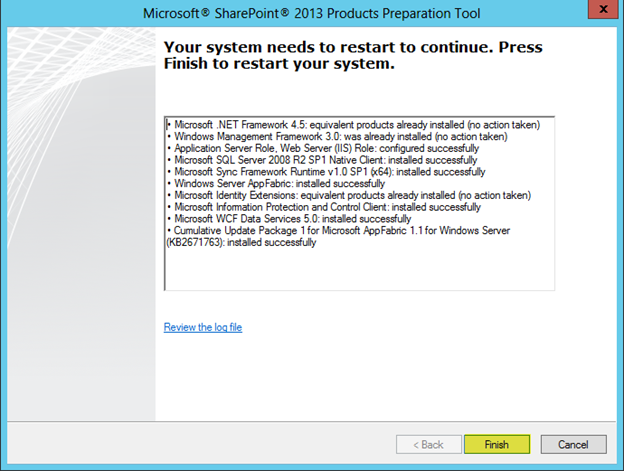
Your system will need to restart after you press Finish. When you reboot and login you may find that the wizard will run again. If this is the case just let the wizard finish and press Finish again.
“
SharePoint 2013 Installation
“
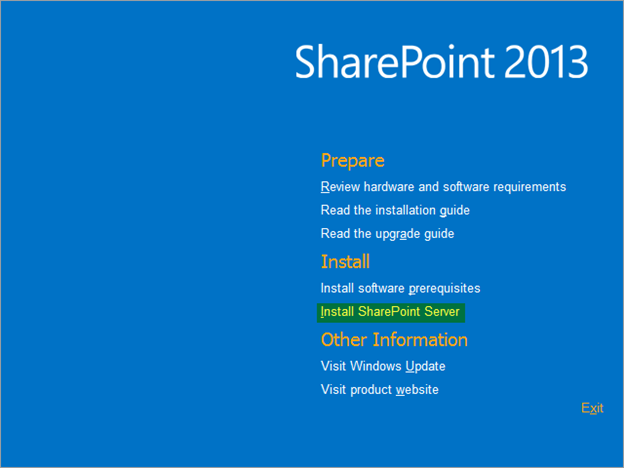
Press Install SharePoint Server
“
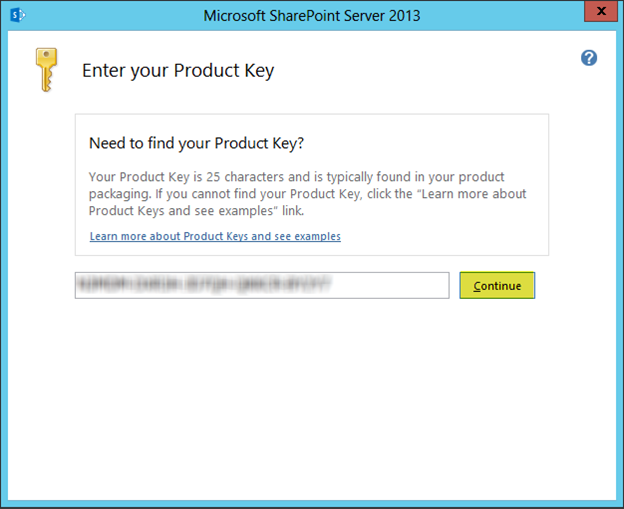
Enter your Product Key and press Continue
“
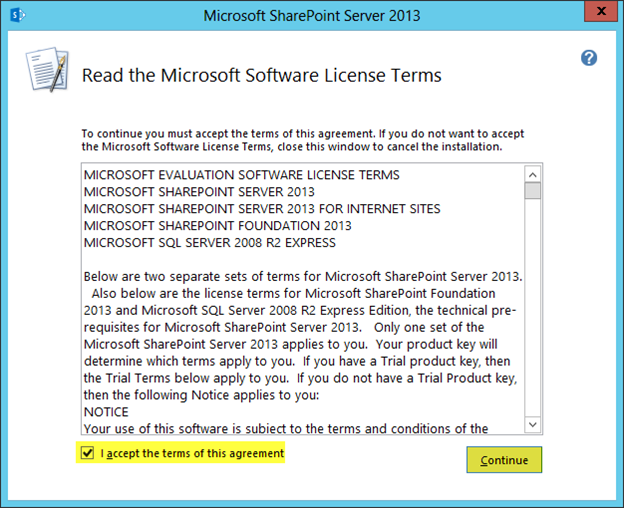
Accept the License Terms and Press Continue
“
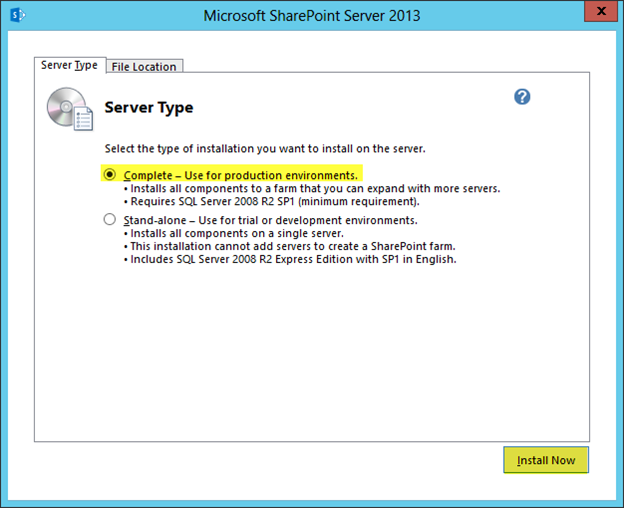
For this installation I will be selecting Complete. Stand-alone will install SQL Server Express and we do not want that. For File Location the defaults were left.
Press Install Now
“
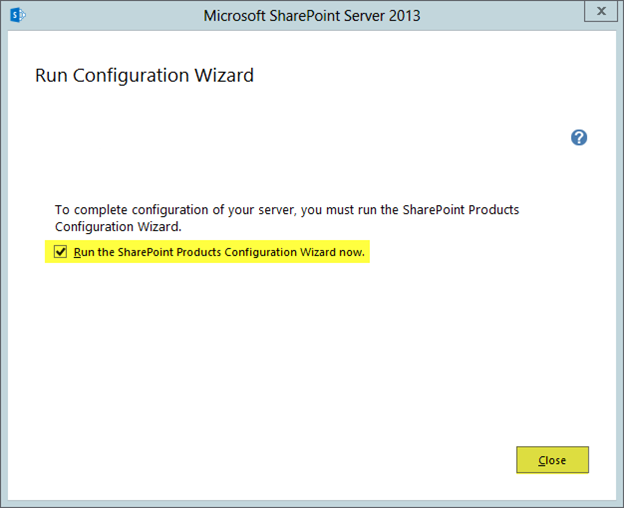
Select “Run the SharePoint Products Configuration Wizard Now”
Press Close
“
SharePoint 2013 Configuration Wizard
“
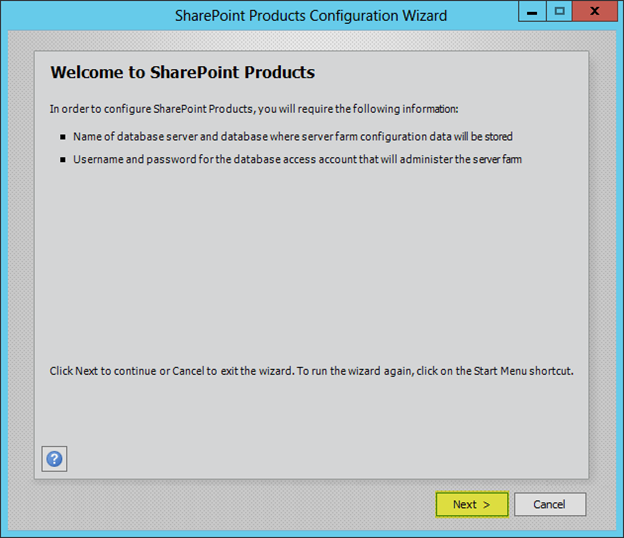
Press Next
“
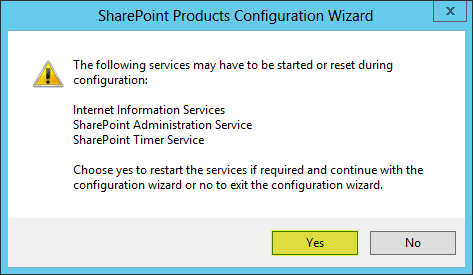
Press Yes
“
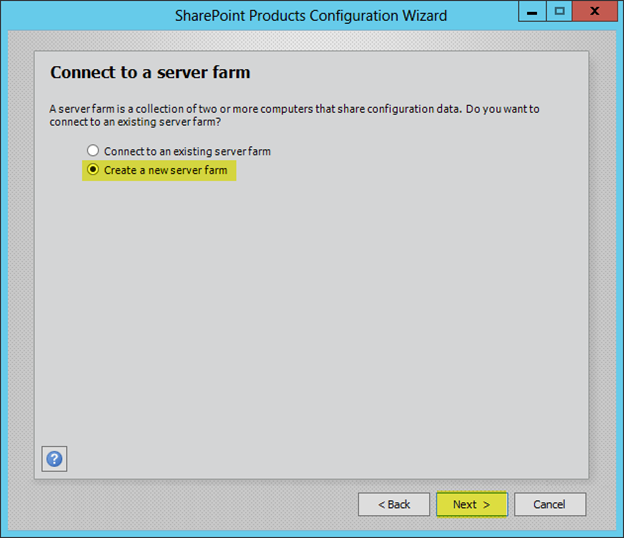
Select “Create a new server farm”
Press Next
“
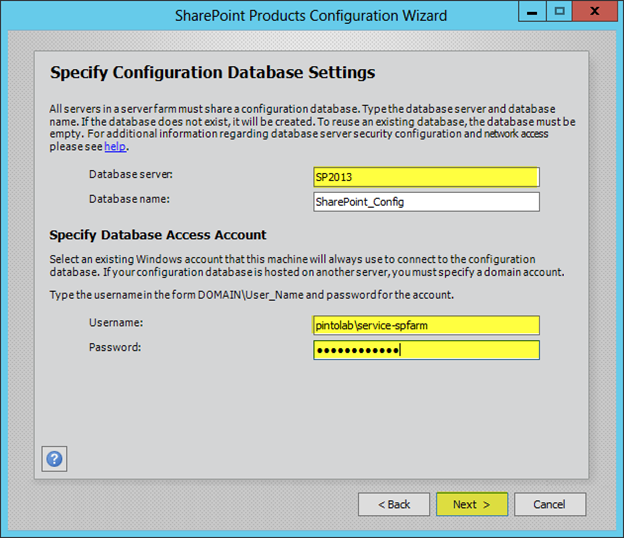
Enter the Database server name
Enter the Farm account. In this case I am using pintolab\service-spfarm and the password
Press Next
“
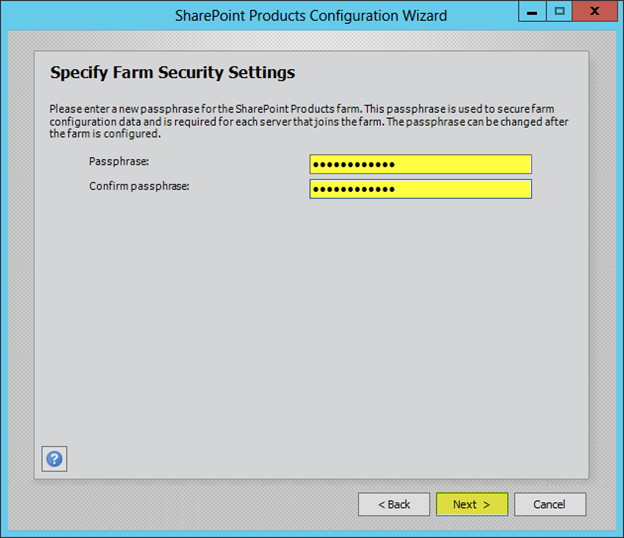
Enter the passphrase, Press Next
“
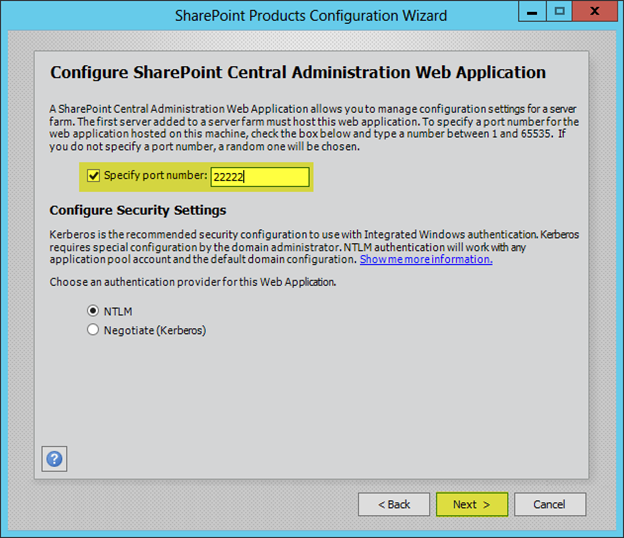
Enter the port number that Central Administration will use, Press Next
“
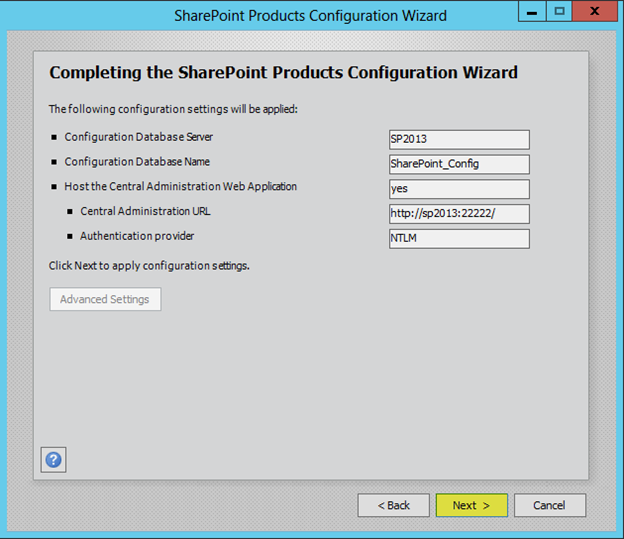
Review your selections, Press Next
“
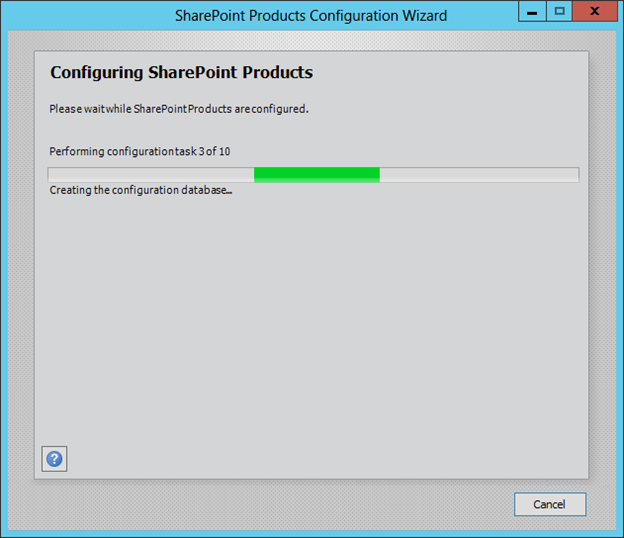
The wizard will configure the farm
“
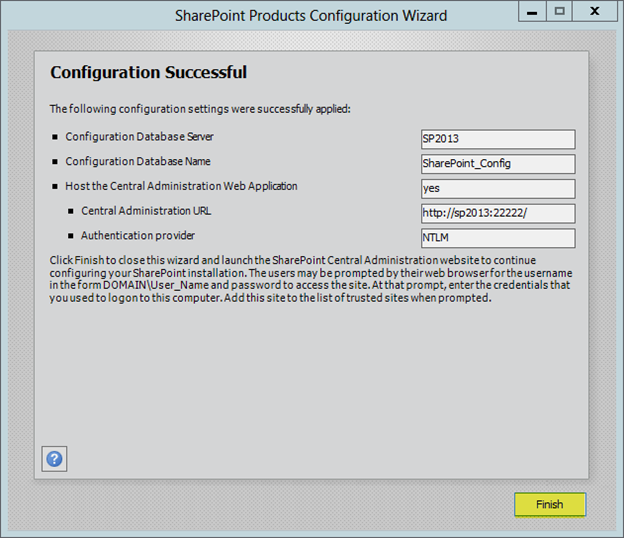
Press Finish. When you press finish Central Administration will open in Internet Explore
“
“
Farm Configuration Wizard
“
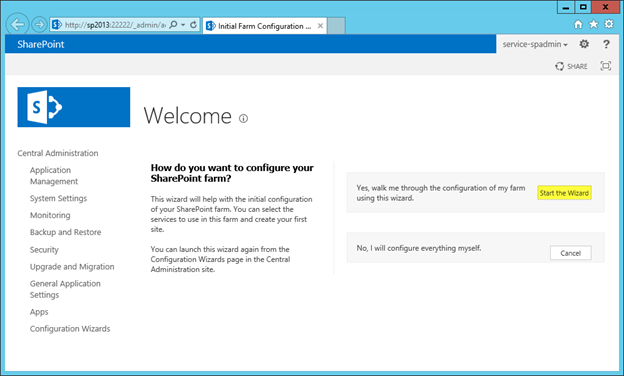
When you open Central Administration for the first time, which should launch after you click Finish you will be prompted to complete the farm wizard. You will be prompted to start the Configuration Wizard.
Press Start the Wizard
“
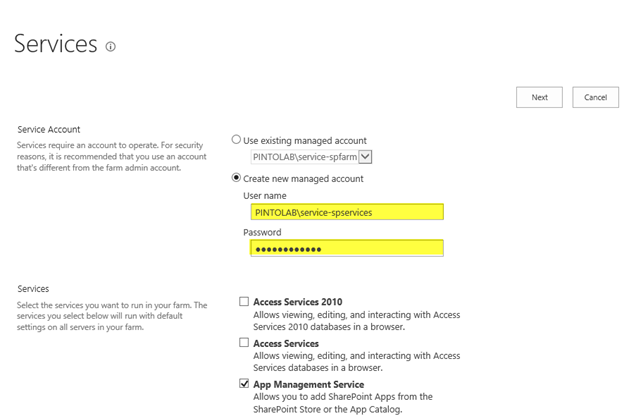
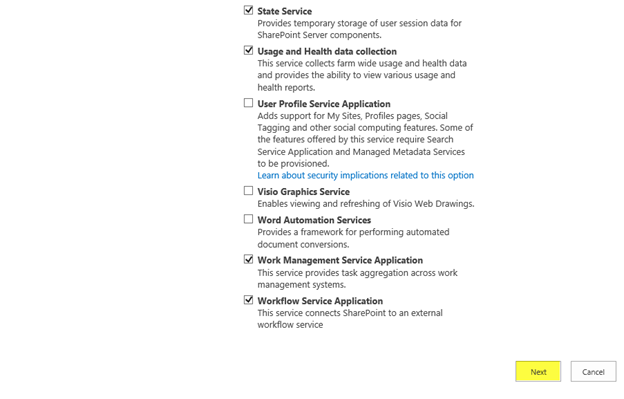
Select create a new managed account. In this case I am using pintolab\service-spservices and enter the password.
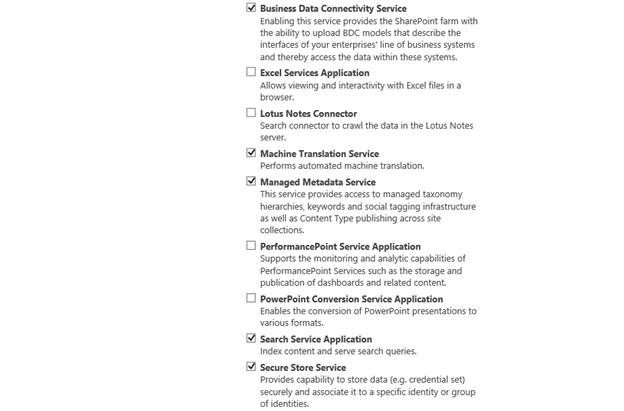
Select the Services you want to run on your farm
Press Next
“
The wizard will configure the farm
“
“
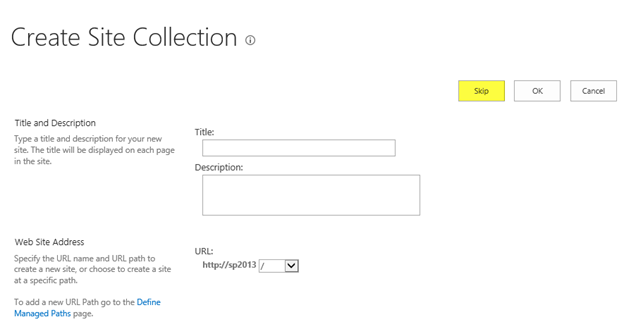
I always skip the Creation of the Site Collection because I delete the Web Application that the wizard creates.
I would understand this better if they let you pick your components for the Web Application but they do not.
“
“
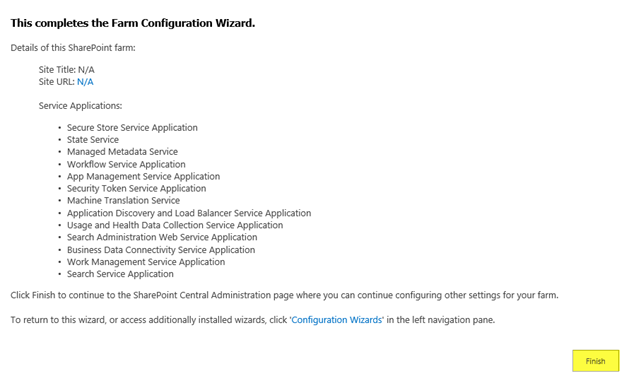
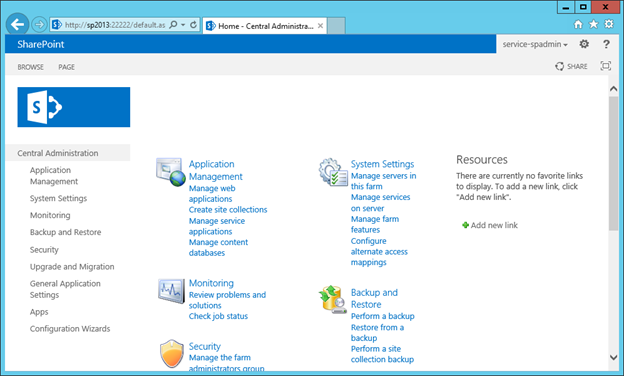
You will be redirected to the Central Administration Home Page. I have noticed on some Virtual Machines that you will get an error and you may need to refresh the page. Make sure you have enough resources
(memory and cpu), if you get an error.
At this point I usually go and delete the Web Application created by the wizard and then I create my own.
“
“
“
Resources
“
These are some of resources that helped me configure this server
“
Install SharePoint 2013
http://technet.microsoft.com/en-us/library/cc303424.aspx
“
Install SharePoint 2013 on a single server with SQL Server
http://technet.microsoft.com/en-us/library/cc262243.aspx
“
Updates for SharePoint 2013
http://technet.microsoft.com/en-us/sharepoint/jj891062.aspx
“
Plan for administrative and service accounts in SharePoint 2013
http://technet.microsoft.com/en-us/library/cc263445.aspx
“
“
“
“
“
“
“
“
“