0 1 0 1 0 1 0 1 0 1 0 1 0 1 0 1 0 1 0 1 0 1 0 1 0 1 0 1 0 1 0 1 0 1 0 1 0 1 0 1 0 1 0 1 0 1 0 1 0 1 0 1 0 1 0 1 0 1 0 1 0 1 0 1 0 1 0 1 0 1 0 1 0 1 0 1 0 1 0 1 0 1 0 1 0 1 0 1 0 1 0 1 0 1 0 1 0 1 0 1 0 1 0 1 0 1 0 1 0 1 0 1 0 1 0 1 0 1 0 1 0 1 0 1 0 1 0 1 0 1 0 1 0 1 0 1 0 1 0 1
JPPINTO
  • Home
  • Certifications
  • About
  • Contact
  • Gallery
  • Current Setup
Contact

Search

July 9, 2010 / SharePoint 2010

SharePoint 2010: Binary Installation
Tags: binary installation, sharepoint 2010 farm build, sharepoint 2010 farm configuration, sharepoint 2010 farm installation

This installation was performed on LAB-INDX, LAB-INDX-MR, LAB-WFE1 & LAB-WFE2. I was logged in as PINTOLAKE\Service-SharePoint

Software Prerequisites

Run “Splash.exe” from the installation CD or local folder if autorun is not an option or available. Do NOT run setup.exe, if you do it will not install the SharePoint 2010 prerequisites for you.

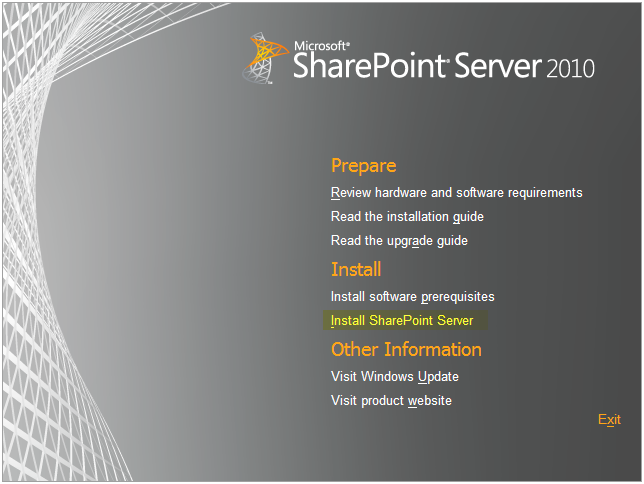
Select “Install software prerequisites”
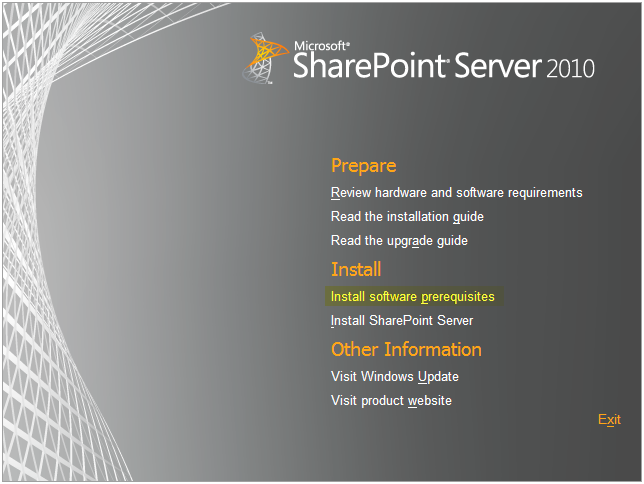
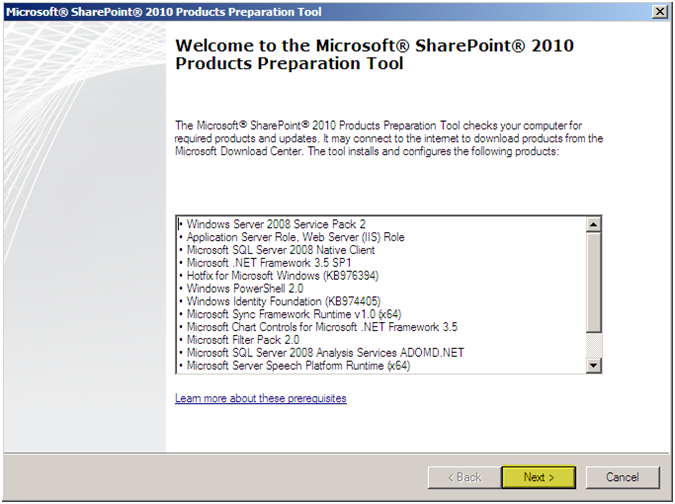
You will be presented with a list of required products and updates. It will connect to the Microsoft download center and will get what it needs for the installation.

Press “Next”
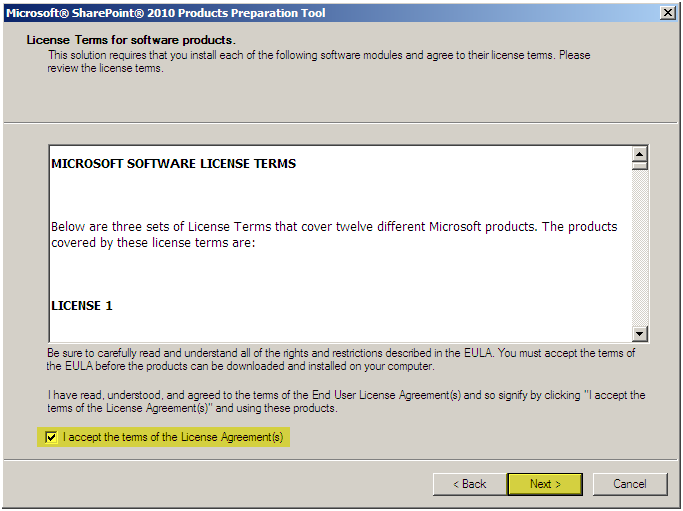
Accept the License Agreement

Press “Next”
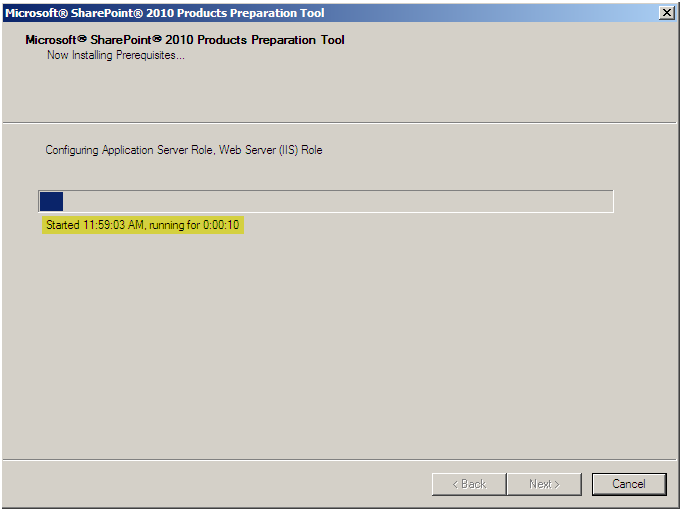
The Preparation Tool will configure and install all necessary components.
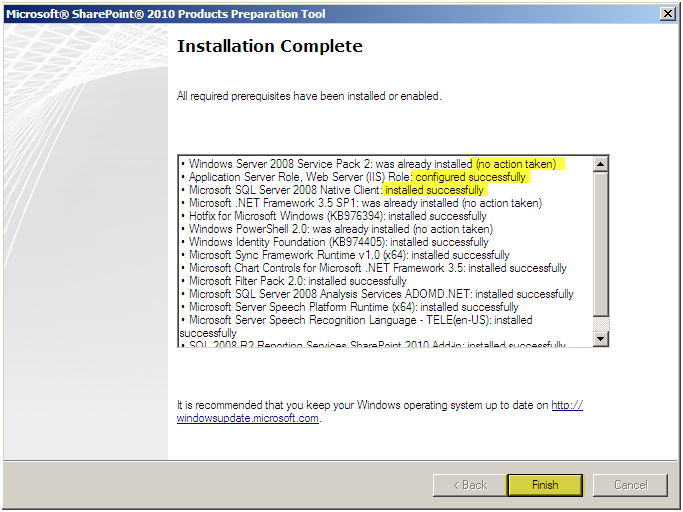
Verify that each item was installed or configured correctly

Press “Finish”
NOTE: One of my servers gave me a big issue and did not want to install all the prerequisites. I deleted all of the %TEMP% files and rebooted and tried a whole slew of other fixes however they did not work. I would have loved to troubleshoot this however it was just easier to rebuild the server from a working image. I’m sure I’ll run into this one again ;)

SharePoint Binary Installation

Select Install SharePoint Server
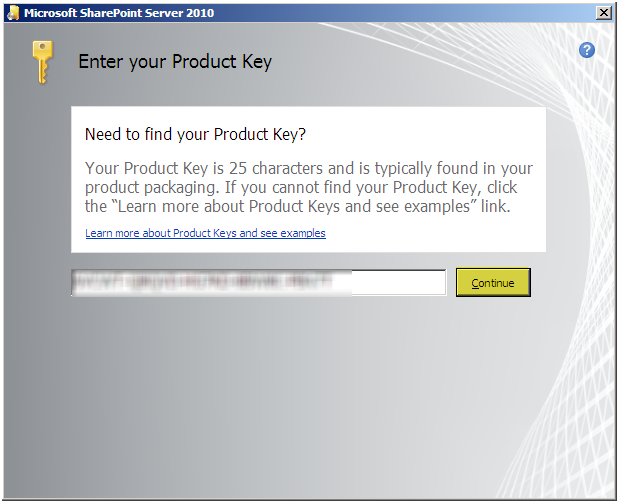
Enter your License Key

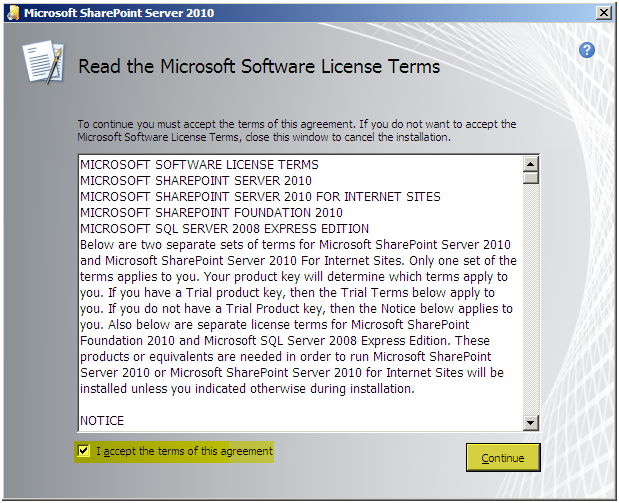
Press “Continue”
Accept the License Agreement

Press “Continue”
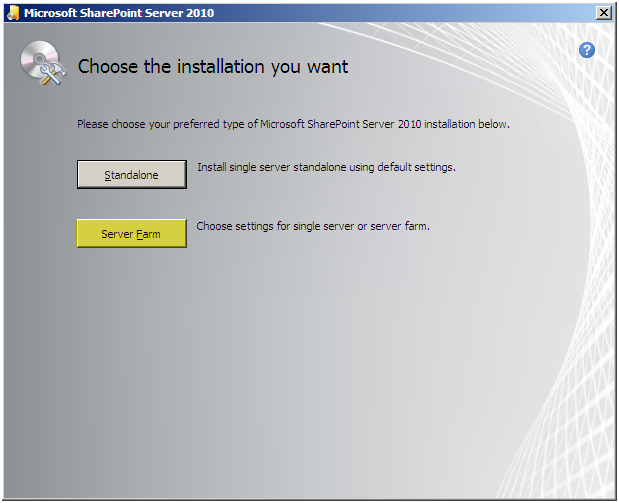
If you select “Standalone” it will install MSSQL Express. Not a good idea in our case.

Press “Server Farm”
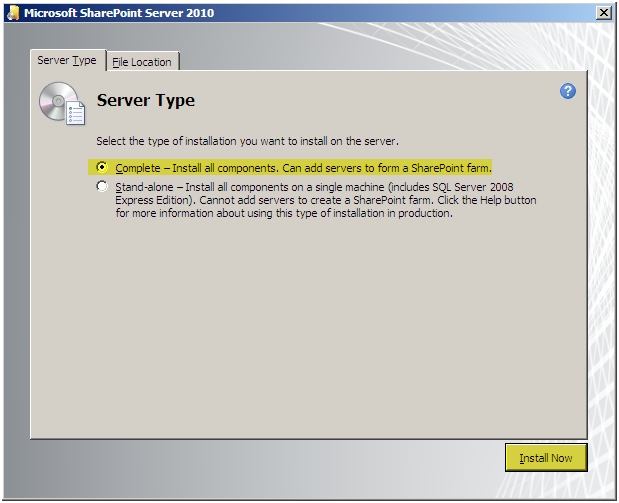
Select “Complete”, before continuing you can alter the installation location if you press the “File Location” tab, however I do not suggest you change those settings. If you do some stuff will get installed in the new directory however most of the files still end up in the default location anyway.

Press “Install Now”
The binaries will now install
Uncheck “Run the SharePoint Products Configuration Wizard”. We will install all the binaries on all servers first then run the wizard on each one. There is no particular reason for this; I just like doing things in a particular order.

Press “Close”
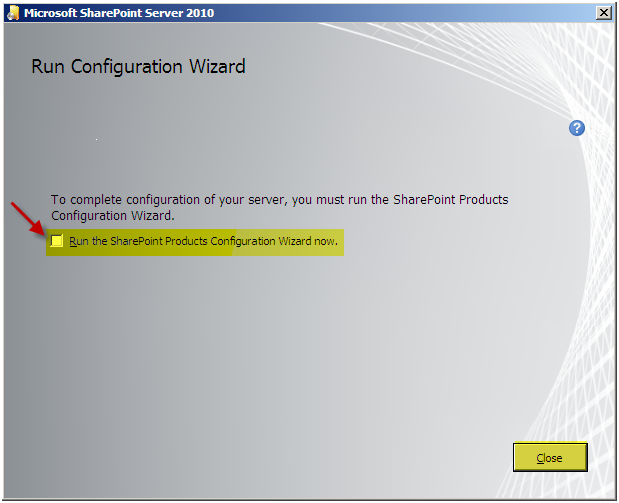
Repeat this process on all WFE’s and Indexing Servers in the farm before continuing to the next step.

Post Views: 196
<- SharePoint 2010: IIS Installation
SharePoint 2010: Primary Index Server Configuration ->

Categories

  • Active Directory (5)
  • Amazon Cloud Services (1)
  • Blazor (1)
  • C# (C-Sharp) (3)
  • CI/CD Pipelines (1)
  • Containers (4)
  • Development (1)
  • Docker (3)
  • General (5)
  • IIS 6.0 (4)
  • IIS 7.0 (10)
  • IIS 8.0 (1)
  • Infrastructure as Code (IaC) (1)
  • Kubernetes (3)
  • MySQL (1)
  • Office 2010 (1)
  • PHP (1)
  • PowerShell (3)
  • SharePoint 2007 (8)
  • SharePoint 2010 (19)
  • SharePoint 2013 (2)
  • SMTP (4)
  • SQL Server 2008 (1)
  • SQL Server 2008 R2 (1)
  • SQL Server 2012 (2)
  • SQL Server 2019 (1)
  • Uncategorized (1)
  • URL Rewrite (2)
  • Visual Studio 2019 (1)
  • Visual Studio Code (1)
  • Windows 10 (2)
  • Windows 2003 (9)
  • Windows 2008 (18)
  • Windows 2012 (6)
  • Windows 7 (3)
  • Windows Firewall (1)
  • Windows Vista (1)

Recent Posts

  • Install Terraform on Windows
  • Create a .NET Core 3.1 Console App in Visual Studio Code
  • Install a stand-alone SQL Server 2019 Enterprise Server
  • Create a Blazor App project in Visual Studio 2019
  • Username and Password for minikube Virtual Machine

Advertisement

Tags

backconnectionhostnames custom column default gateway disappears disable shutdown event tracker error opening exe exe permissions externalize blob externalize sharepoint data facebook spam filezilla server firewall rules filazilla full installation http redirect https https redirect IIS iis7 iis 7 installation IIS installation index server configuration installing cumulative updates load balance central administration magic default gateway missing default gateway moss advanced search nlb no default gateway powershell redirect http to https search column sharepoint 2010 cumulative updates sharepoint 2010 farm build sharepoint 2010 farm configuration sharepoint 2010 farm installation sharepoint data externalization shutdown event tracker shutdown tracker SMTP storagepoint Windows 7 windows firewall configuration windows live messenger crash windows server 2008 wlbs x86
© 2026 JPPinto.com – Tech Blog. All rights reserved.