0 1 0 1 0 1 0 1 0 1 0 1 0 1 0 1 0 1 0 1 0 1 0 1 0 1 0 1 0 1 0 1 0 1 0 1 0 1 0 1 0 1 0 1 0 1 0 1 0 1 0 1 0 1 0 1 0 1 0 1 0 1 0 1 0 1 0 1 0 1 0 1 0 1 0 1 0 1 0 1 0 1 0 1 0 1 0 1 0 1 0 1 0 1 0 1 0 1 0 1 0 1 0 1 0 1 0 1 0 1 0 1 0 1 0 1 0 1 0 1 0 1 0 1 0 1 0 1 0 1 0 1 0 1 0 1 0 1 0 1
JPPINTO
  • Home
  • Certifications
  • About
  • Contact
  • Gallery
  • Current Setup
Contact

Search

September 25, 2014 / PowerShell

Update Enom Domain Name via PowerShell (Dynamic DNS Update)
Tags: dynamic dns, enom domain name update, free dynamic dyn. dyndns free, update dns record, update enom name

DynDNS.org, the awesome service that lets you access your home computers from anywhere, recently announced that it’s getting rid of its free accounts. The most basic account now costs $25 per year.

Fortunately, we can use PowerShell to keep our DNS names updated with the latest public IP Address from our Internet Service Provider for FREE.

In this article I will update the domain name “test.jppinto.com” with the latest public IP address from my Internet Service Provider.

I use Enom.com for my Domain Name services, they charge about the same as GoDaddy and have very useful features for Domain Name management.

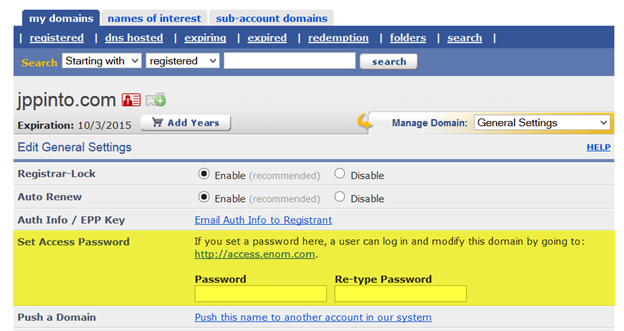
Under “General Setting”, you can set a password to access Domain Name settings.
“

PowerShell Script to Update IP Address for test.jppinto.com. You can use this and schedule to run periodically from a machine where you need the DNS update.


# VARIABLES FOR ENOM SITE
$HostName	= "test"
$DomainName = "jppinto.com"
$Password   = "veryhardpassword"

# GET THE CURRENT PUBLIC IP ADDRESS
$url = "http://checkip.dyndns.com"
$webclient = New-Object System.Net.WebClient
$Ip = $webclient.DownloadString($url)
$Ip2 = $Ip.ToString() 
$ip3 = $Ip2.Split(" ") 
$ip4 = $ip3[5] 
$ip5 = $ip4.replace("","") 
$FinalIPAddress = $ip5.replace("","") 
$webclient.dispose();

Write-Host "`r`n External IP Address is: $FinalIPAddress" -ForegroundColor Green

Write-Host "`r`n Attempting to update: $HostName.$DomainName" -ForegroundColor Yellow

Write-Host "`r`n Attempting to set record using the following URL: `r`n https://dynamic.name-services.com/interface.asp?Command=SetDNSHost&HostName=$HostName&Zone=$DomainName&DomainPassword=$Password&Address=$FinalIPAddress" -ForegroundColor Yellow

# SET THE CURRENT IP ADDRESS ON THE ENOM HOST RECORD
$enomclient = New-Object System.Net.WebClient
[System.Net.ServicePointManager]::ServerCertificateValidationCallback = {$true} # TO IGNORE SSL WARNING
$result = $enomclient.DownloadString("https://dynamic.name-services.com/interface.asp?Command=SetDNSHost&HostName=" + $HostName + "&Zone=" + $DomainName + "&DomainPassword=" + $Password + "&Address=" + $FinalIPAddress + "");
$enomclient.dispose();

Write-Host "Result: `n ===================================== `n $result" -ForegroundColor Yellow


“

“

“

Post Views: 431
<- How to check if a Domain User exists using PowerShell without loading AD Snap-Ins
Windows 10 PATH Environment Variable Update with PowerShell ->

Categories

  • Active Directory (5)
  • Amazon Cloud Services (1)
  • Blazor (1)
  • C# (C-Sharp) (3)
  • CI/CD Pipelines (1)
  • Containers (4)
  • Development (1)
  • Docker (3)
  • General (5)
  • IIS 6.0 (4)
  • IIS 7.0 (10)
  • IIS 8.0 (1)
  • Infrastructure as Code (IaC) (1)
  • Kubernetes (3)
  • MySQL (1)
  • Office 2010 (1)
  • PHP (1)
  • PowerShell (3)
  • SharePoint 2007 (8)
  • SharePoint 2010 (19)
  • SharePoint 2013 (2)
  • SMTP (4)
  • SQL Server 2008 (1)
  • SQL Server 2008 R2 (1)
  • SQL Server 2012 (2)
  • SQL Server 2019 (1)
  • Uncategorized (1)
  • URL Rewrite (2)
  • Visual Studio 2019 (1)
  • Visual Studio Code (1)
  • Windows 10 (2)
  • Windows 2003 (9)
  • Windows 2008 (18)
  • Windows 2012 (6)
  • Windows 7 (3)
  • Windows Firewall (1)
  • Windows Vista (1)

Recent Posts

  • Install Terraform on Windows
  • Create a .NET Core 3.1 Console App in Visual Studio Code
  • Install a stand-alone SQL Server 2019 Enterprise Server
  • Create a Blazor App project in Visual Studio 2019
  • Username and Password for minikube Virtual Machine

Advertisement

Tags

backconnectionhostnames custom column default gateway disappears disable shutdown event tracker error opening exe exe permissions externalize blob externalize sharepoint data facebook spam filezilla server firewall rules filazilla full installation http redirect https https redirect IIS iis7 iis 7 installation IIS installation index server configuration installing cumulative updates load balance central administration magic default gateway missing default gateway moss advanced search nlb no default gateway powershell redirect http to https search column sharepoint 2010 cumulative updates sharepoint 2010 farm build sharepoint 2010 farm configuration sharepoint 2010 farm installation sharepoint data externalization shutdown event tracker shutdown tracker SMTP storagepoint Windows 7 windows firewall configuration windows live messenger crash windows server 2008 wlbs x86
© 2026 JPPinto.com – Tech Blog. All rights reserved.