0 1 0 1 0 1 0 1 0 1 0 1 0 1 0 1 0 1 0 1 0 1 0 1 0 1 0 1 0 1 0 1 0 1 0 1 0 1 0 1 0 1 0 1 0 1 0 1 0 1 0 1 0 1 0 1 0 1 0 1 0 1 0 1 0 1 0 1 0 1 0 1 0 1 0 1 0 1 0 1 0 1 0 1 0 1 0 1 0 1 0 1 0 1 0 1 0 1 0 1 0 1 0 1 0 1 0 1 0 1 0 1 0 1 0 1 0 1 0 1 0 1 0 1 0 1 0 1 0 1 0 1 0 1 0 1 0 1 0 1
JPPINTO
  • Home
  • Certifications
  • About
  • Contact
  • Gallery
  • Current Setup
Contact

Search

June 4, 2009 / SharePoint 2007, SharePoint 2010, Windows 2003, Windows 2008

You receive an HTTP Error 401.1 error when accessing a SharePoint 2007 or SharePoint 2010 site on a web front end
Tags: backconnectionhostnames, disableloopbackcheck

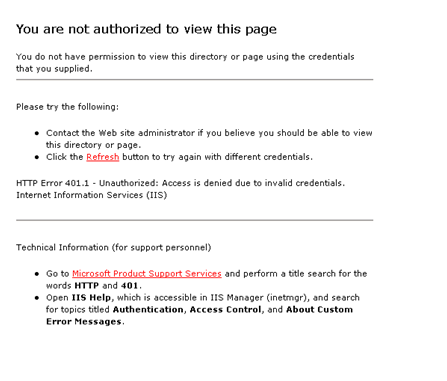
When attempting to view a MOSS (SharePoint) 2007 or SharePoint 2010 site locally from a Web Front End (WFE) you get an error stating: “HTTP Error 401.1 – Unauthorized: Access is denied due to invalid credentials.”

I have noticed that this happens on Windows 2003/2008 Server SP1/SP2/R2 when using Host Headers and Alternate Access Mappings on a web application in MOSS 2007. If you can access the site from remote machines and cannot access the site from the server itself, then this might be your issue.

For all my newer farm installs this includes SharePoint 2007 (MOSS) and SharePoint 2010. I use method number 2 on all SharePoint and SQL Servers in the farm.

If you cannot access the web site locally or remotely from other machines then there is an issue with security on the site and/or possibly a Kerberos related security issue
I implemented fix #2 listed in the following Microsoft KB Article. I implemented this fix on all servers in the MOSS 2007 Farm (WFE’s and Indexing/Search Server).

If using method 1, you would add all Host Headers and Alternate Access Mappings for all web applications to the BackConnectionHostNames value, then you will be able to access the sites locally from the WFE’s.

Microsoft KB Link: http://support.microsoft.com/kb/896861

Method 1: Specify host names

Note We recommend that you use this method.

To specify the host names that are mapped to the loopback address and can connect to Web sites on your computer, follow these steps:

  1. Click Start, click Run, type regedit, and then click OK.
  2. In Registry Editor, locate and then click the following registry key:

    HKEY_LOCAL_MACHINE\SYSTEM\CurrentControlSet\Control\Lsa\MSV1_0

  3. Right-click MSV1_0, point to New, and then click Multi-String Value.
  4. Type BackConnectionHostNames, and then press ENTER.
  5. Right-click BackConnectionHostNames, and then click Modify.
  6. In the Value data box, type the host name or the host names for the sites that are on the local computer, and then click OK.
  7. Quit Registry Editor, and then restart the IISAdmin service.


Method 2: Disable the loopback check

Follow these steps:

  1. Click Start, click Run, type regedit, and then click OK.
  2. In Registry Editor, locate and then click the following registry key:

    HKEY_LOCAL_MACHINE\SYSTEM\CurrentControlSet\Control\Lsa

  3. Right-click Lsa, point to New, and then click DWORD Value.
  4. Type DisableLoopbackCheck, and then press ENTER.
  5. Right-click DisableLoopbackCheck, and then click Modify.
  6. In the Value data box, type 1, and then click OK.
  7. Quit Registry Editor, and then restart your computer.


Post Views: 524
<- Install and Configure NLB (WLBS) on Windows Server 2008
Adding a custom search result Column (metadata) to MOSS Advanced Search ->

Categories

  • Active Directory (5)
  • Amazon Cloud Services (1)
  • Blazor (1)
  • C# (C-Sharp) (3)
  • CI/CD Pipelines (1)
  • Containers (4)
  • Development (1)
  • Docker (3)
  • General (5)
  • IIS 6.0 (4)
  • IIS 7.0 (10)
  • IIS 8.0 (1)
  • Infrastructure as Code (IaC) (1)
  • Kubernetes (3)
  • MySQL (1)
  • Office 2010 (1)
  • PHP (1)
  • PowerShell (3)
  • SharePoint 2007 (8)
  • SharePoint 2010 (19)
  • SharePoint 2013 (2)
  • SMTP (4)
  • SQL Server 2008 (1)
  • SQL Server 2008 R2 (1)
  • SQL Server 2012 (2)
  • SQL Server 2019 (1)
  • Uncategorized (1)
  • URL Rewrite (2)
  • Visual Studio 2019 (1)
  • Visual Studio Code (1)
  • Windows 10 (2)
  • Windows 2003 (9)
  • Windows 2008 (18)
  • Windows 2012 (6)
  • Windows 7 (3)
  • Windows Firewall (1)
  • Windows Vista (1)

Recent Posts

  • Install Terraform on Windows
  • Create a .NET Core 3.1 Console App in Visual Studio Code
  • Install a stand-alone SQL Server 2019 Enterprise Server
  • Create a Blazor App project in Visual Studio 2019
  • Username and Password for minikube Virtual Machine

Advertisement

Tags

backconnectionhostnames custom column default gateway disappears disable shutdown event tracker error opening exe exe permissions externalize blob externalize sharepoint data facebook spam filezilla server firewall rules filazilla full installation http redirect https https redirect IIS iis7 iis 7 installation IIS installation index server configuration installing cumulative updates load balance central administration magic default gateway missing default gateway moss advanced search nlb no default gateway powershell redirect http to https search column sharepoint 2010 cumulative updates sharepoint 2010 farm build sharepoint 2010 farm configuration sharepoint 2010 farm installation sharepoint data externalization shutdown event tracker shutdown tracker SMTP storagepoint Windows 7 windows firewall configuration windows live messenger crash windows server 2008 wlbs x86
© 2026 JPPinto.com – Tech Blog. All rights reserved.