0 1 0 1 0 1 0 1 0 1 0 1 0 1 0 1 0 1 0 1 0 1 0 1 0 1 0 1 0 1 0 1 0 1 0 1 0 1 0 1 0 1 0 1 0 1 0 1 0 1 0 1 0 1 0 1 0 1 0 1 0 1 0 1 0 1 0 1 0 1 0 1 0 1 0 1 0 1 0 1 0 1 0 1 0 1 0 1 0 1 0 1 0 1 0 1 0 1 0 1 0 1 0 1 0 1 0 1 0 1 0 1 0 1 0 1 0 1 0 1 0 1 0 1 0 1 0 1 0 1 0 1 0 1 0 1 0 1 0 1
JPPINTO
  • Home
  • Blog
  • Certifications
  • About
  • Contact
  • Shop
  • Gallery
  • Current Setup
Contact

Search

April 6, 2009 / IIS 6.0, IIS 7.0, Windows 2003, Windows 2008

Moving an SSL certificate from Windows 2003 Server to Windows Server 2008
Featured image for Moving an SSL certificate from Windows 2003 Server to Windows Server 2008

In this article I will move an SSL certificate from a Windows 2003 Server box to a Windows Server 2008 machine. We will need to export the certificate on the 2003 Server and import and configure the SSL certificate on the 2008 Server. This article is divided into 4 sections:

  1. Export SSL Certificate on Windows 2003 Server
  2. Import an SSL Certificate on Windows Server 2008
  3. Configure an SSL Certificate on Windows Server 2008
  4. Testing the website

Export SSL Certificate on Windows 2003 Server

  • Open IIS manager on the 2003 Server
  • Under the "Directory Security" tab, select "Server Certificate"
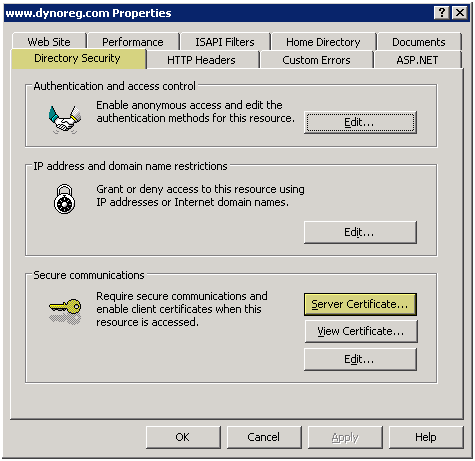
IIS Directory Security tab and Server Certificate button.

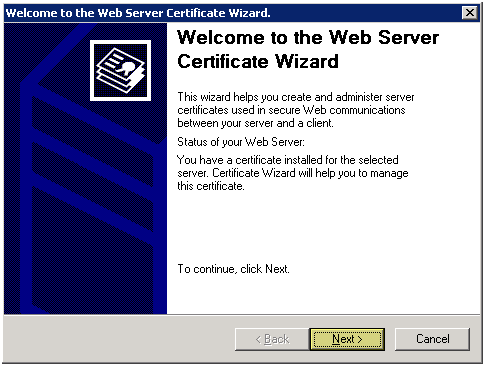
  • Press "Next" to continue

Welcome to the IIS Web Server Certificate Wizard.

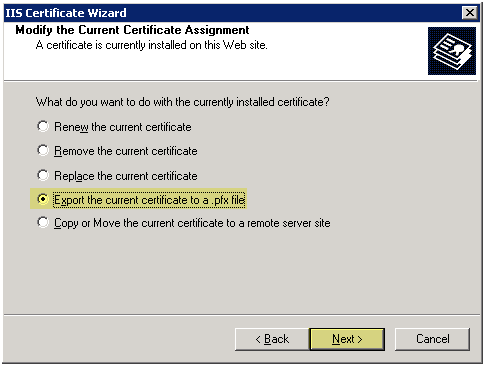
  • Select "Export the current certificate to a .pfx file"
  • Press "Next" to continue

Export the current certificate to a PFX file selected.

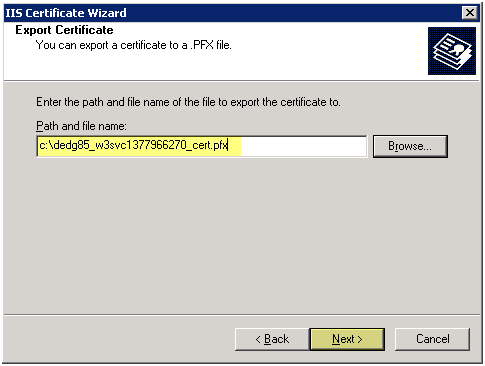
  • Export the .pfx file to a location to the desired location, you will need to copy this file to the 2008 Server so make sure you know where you saved it at
  • Press "Next" to continue

Destination path for the exported PFX certificate.

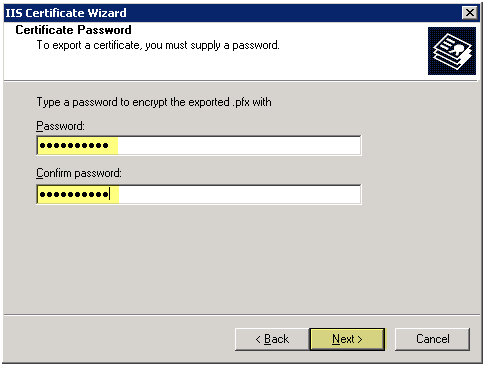
  • Enter a password for the certificate

Password and confirmation fields for the certificate export.

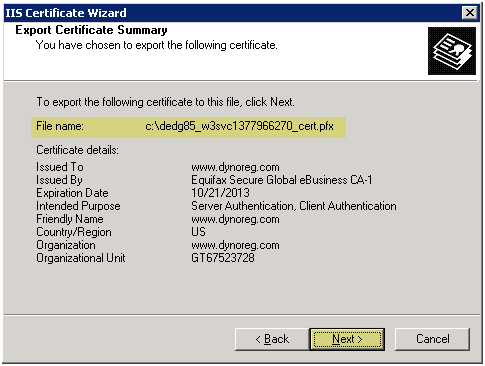
  • Remember the location of the .pfx file
  • Press "Next" to continue

Certificate export summary before completing the wizard.

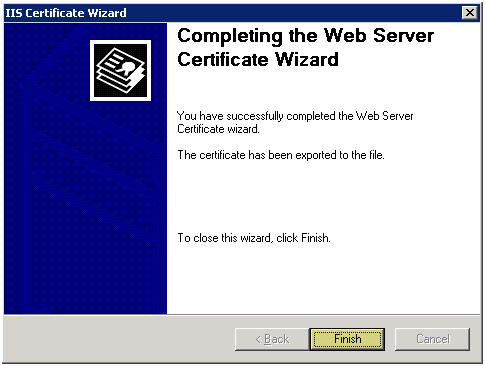
  • Press "Finish" to complete the export

Certificate export completed successfully.

Import an SSL Certificate on Windows Server 2008

Copy the PFX file to the 2008 Server. You will need to import it so remember the location you copy it to.

  • Open Internet Information Services (IIS) Manager
  • Select the SERVERNAME on the right side of the screen, then under "Features View" on the left side panel, double click "Server Certificates"
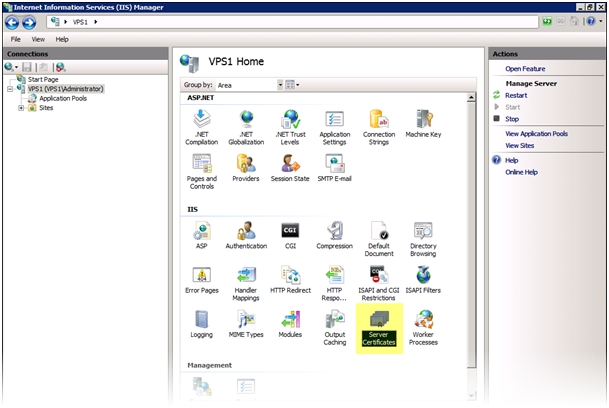
Server Certificates feature selected in IIS Manager.

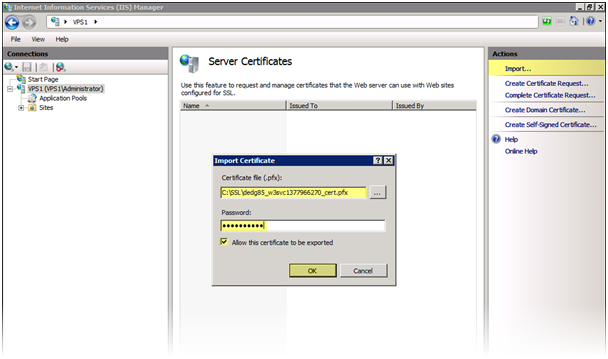
  • Select "Import" on the right hand side of the screen
  • Select the path of the .pfx file
  • Enter the password for the SSL certificate
  • Select "Allow the certificate to be exported", if you want this option. I like to select it just in case I need to export the SSL certificate again
  • Press OK to continue

Import Certificate dialog with file, password and exportability options.

  • You should now see the SSL certificate in the list of certificates
  • This concludes installation of the SSL certificate we now need to configure
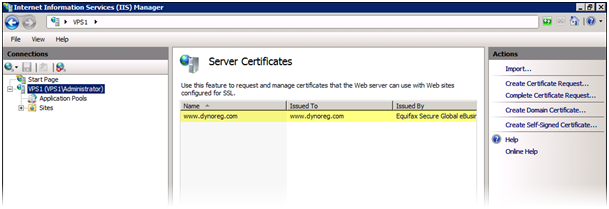
Imported certificate listed in IIS Server Certificates.

Configure an SSL Certificate on Windows Server 2008

After we import the SSL certificate in Windows Server 2008 we need to configure the website to use the certificate

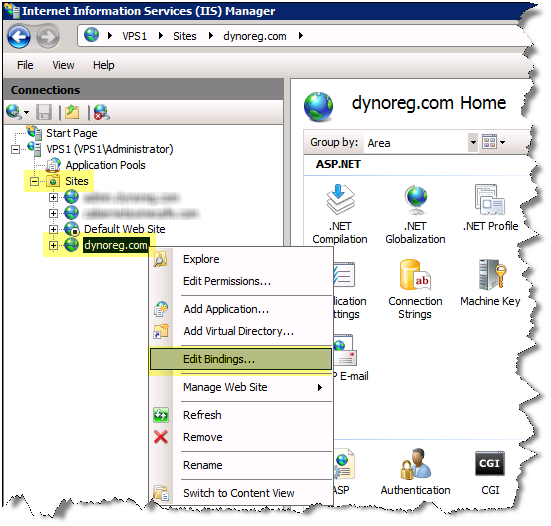
  • Right click the web site for which the SSL certificate was imported for
  • Select "Edit BindingsÔò¼├┤Ôö£├ºÔö¼┬¼"

Opening Edit Bindings for the IIS website.

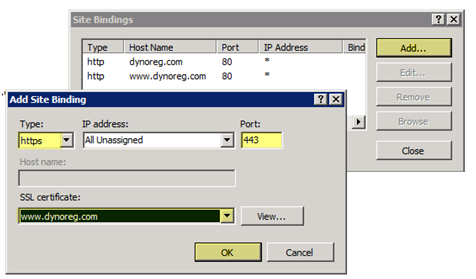
  • Select "AddÔò¼├┤Ôö£├ºÔö¼┬¼"
  • Select the "Type" as "https"
  • Select "IP Address" as "All Unassigned". NOTE: You can assign multiple SSL Certificate to a server as long as each SSL certificate is using a DIFFERENT IP ADDRESS because only one IP Address can bind the 443 port at a time with IIS
  • Select the "SSL certificate", select the SSL certificate that you have imported for this website
  • Press OK to continue

Adding an HTTPS binding on port 443 with the imported certificate.

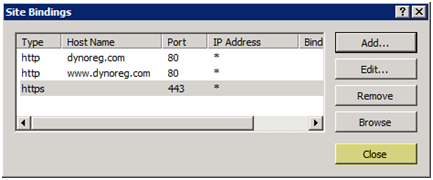
You should see the binding for "https" on the list of bindings now

  • Press "Close" to continue

HTTP and HTTPS website bindings listed in IIS.

We can stop the configuration here if we wanted users to access the site via http OR https, I want to force users to use https so we will make the next configuration change

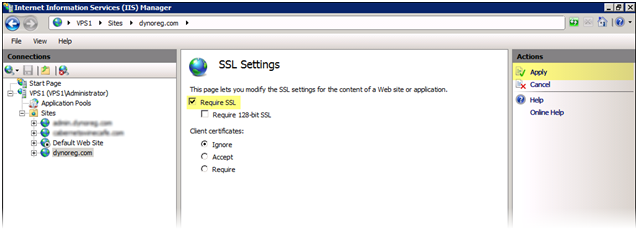
  • Under the "Features View", double click "SSL Settings"
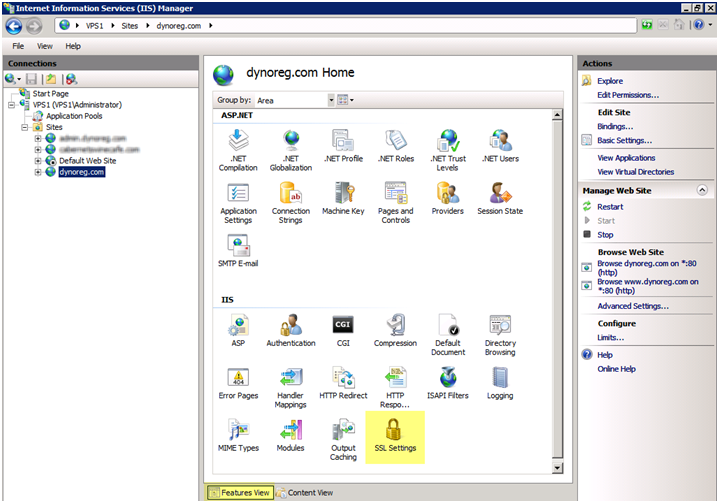
SSL Settings feature highlighted in IIS Manager.

  • Check "Require SSL" and press "Apply"

Require SSL checked in IIS SSL Settings.

Testing the website

Success:

To test go to HTTPS https://www.sitename.com, you should go to the site with no problems.

Failure:

If you go to HTTP http://www.sitename.com you will get a 403.4 error. You can automatically redirect HTTP to HTTPS with some minor tweaks, search my site for HTTP to HTTPS and you will find some useful articles on that change
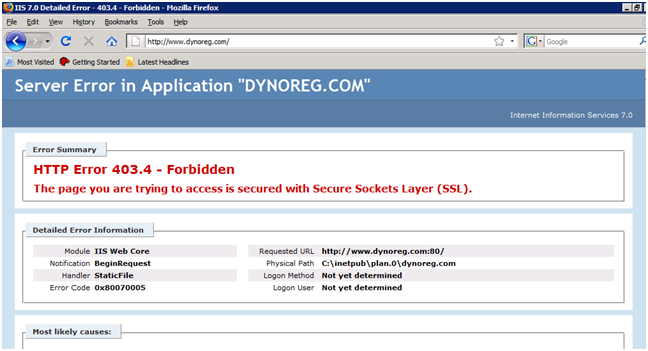
IIS HTTP 403.4 error when the SSL-only site is opened over HTTP.

Post Views: 526
<- Install CDONTS mail component and SMTP on Windows Server 2008
Automatically Redirect HTTP requests to HTTPS on IIS 7 ->

Categories

  • Active Directory (5)
  • AI (5)
  • Amazon Cloud Services (1)
  • AWS (3)
  • Blazor (1)
  • C# (C-Sharp) (3)
  • CI/CD Pipelines (1)
  • Cloud (1)
  • Cloudflare (2)
  • Codex (2)
  • Containers (4)
  • Deployment (2)
  • Development (6)
  • DNS (1)
  • Docker (3)
  • Email (1)
  • Family (1)
  • General (5)
  • IIS 6.0 (4)
  • IIS 7.0 (10)
  • IIS 8.0 (1)
  • Infrastructure as Code (IaC) (1)
  • Kubernetes (3)
  • Linux (11)
  • Microsoft 365 (2)
  • MySQL (1)
  • Office 2010 (1)
  • PHP (1)
  • PowerShell (11)
  • Productivity (1)
  • Security (2)
  • Servers (9)
  • SharePoint 2007 (8)
  • SharePoint 2010 (19)
  • SharePoint 2013 (2)
  • SharePoint Online (1)
  • SMTP (4)
  • SQL Server 2008 (1)
  • SQL Server 2008 R2 (1)
  • SQL Server 2012 (2)
  • SQL Server 2019 (1)
  • SSL (1)
  • Travel (1)
  • Troubleshooting (1)
  • Ubuntu (9)
  • Uncategorized (1)
  • URL Rewrite (2)
  • Visual Studio 2019 (1)
  • Visual Studio Code (1)
  • Web Server (1)
  • Windows 10 (7)
  • Windows 2003 (9)
  • Windows 2008 (18)
  • Windows 2012 (6)
  • Windows 7 (3)
  • Windows Firewall (1)
  • Windows Server (1)
  • Windows Vista (1)
  • WordPress (5)
  • WP-CLI (3)

Recent Posts

  • Fix ‘Codex Could Not Start’ in VS Code Remote SSH on Linux
  • Move WordPress Uploads to Amazon S3 with the Uploads to S3 Plugin
  • WordPress Must-Use Plugins: MU Plugins vs. Regular Plugins
  • Install Codex Desktop on Windows Server and Control It from Your Phone
  • Create an Internal Certificate Authority for Private Websites

Advertisement

Tags

agents.md ai coding agents aws bash cloudflare cloud storage codex context engineering developer workflow dev to production dns externalize blob externalize sharepoint data full installation https IIS IIS installation index server configuration installing cumulative updates linux load balance central administration microsoft 365 nginx powerpoint powershell redirect http to https s3 server setup sharepoint 2010 cumulative updates sharepoint 2010 farm build sharepoint 2010 farm configuration sharepoint 2010 farm installation sharepoint data externalization ssl storagepoint tls ubuntu ubuntu server web server windows windows server 2008 wordpress WordPress plugins wp-cli x86
© 2026 JPPinto.com. All rights reserved.