Install CDONTS mail component and SMTP on Windows Server 2008
CDONTS is mail component used to send messages from an ASP page. Instead of recoding multiple web sites I have created, I am just going to install the component on my Windows Server 2008.
Configuration Information
Platform: Hyper V Host (http://www.microsoft.com/windowsserver2008/en/us/hyperv.aspx)
OS: Windows Server 2008
Installation Media: CDONTS.zip – You can download the version I used here.
CPU: 2 dedicated 2.0Ghz
RAM: 1024mb
Disk: 40GB
Notes: IIS 7 has already been installed
Background
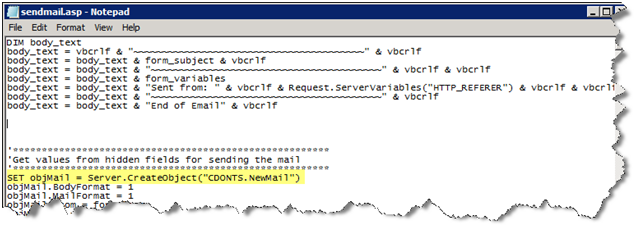
You can see here my sendmail.asp is calling CDONTS when it creates the message.
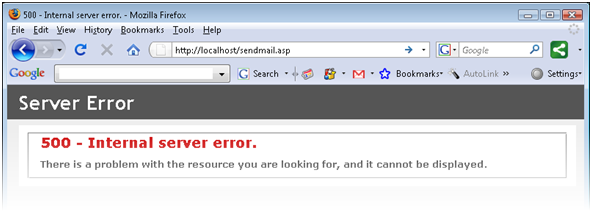
If CDONTS is not installed and I press send on my mail form I get this error
Installing CDONTS
Copy CDONTS.dll to c:\windows\system32 (You can download the version I used here)
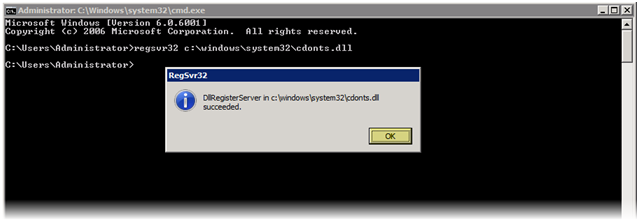
Open the command prompt and run "regsvr32 c:\windows\system32\cdonts.dll"
Press OK when registration succeeds
Installing SMTP
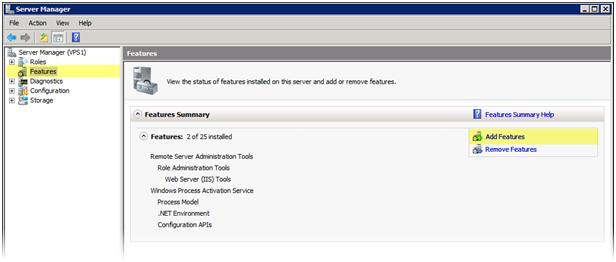
Open Server Manager, you can open this several different ways in Windows Server 2008. Probably the quickest way to open Server Manager is to right click "My Computer" and choose "Manage", another way is open "Control Panel" go to "Program and Features" and select "Turn Windows features on or off". A third way to open it is "Server Manager" option under Administrative Tools.
Under Features, select Add Roles
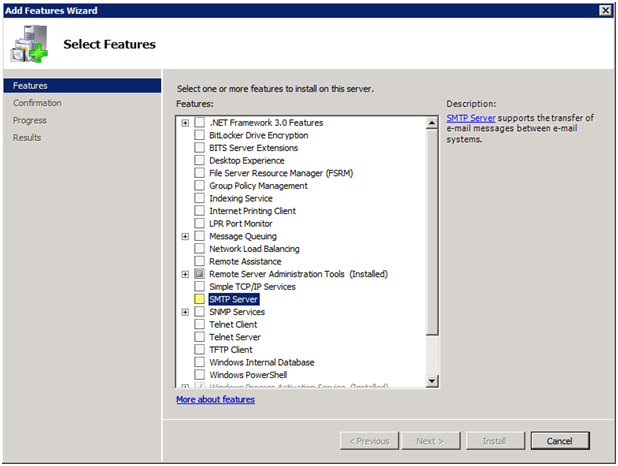
Check the check box off next to "SMTP Server"
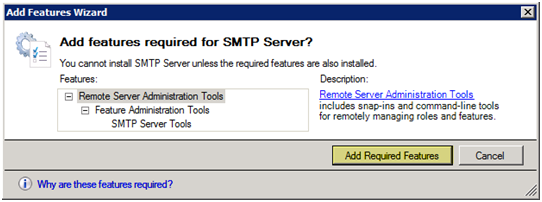
IIS will figure out what else it needs and create a list of required features, Press "Add Required Features"
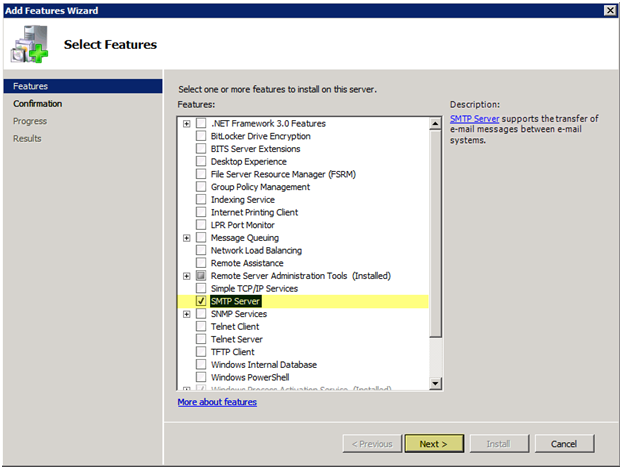
Now there should be a check in the check box next to "SMTP Server", Press "NEXT" to continue
Press "Install" to continue with the installation
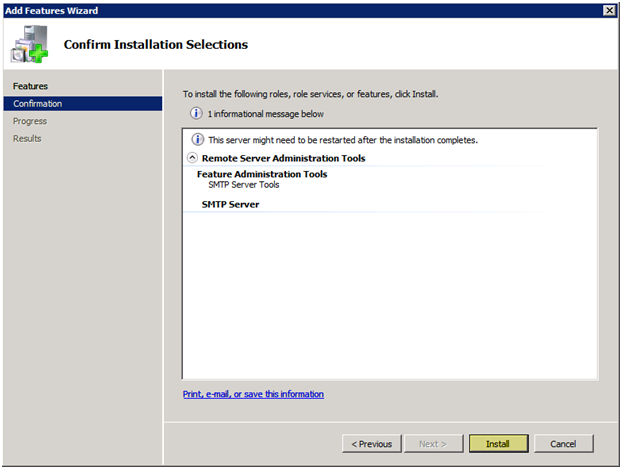
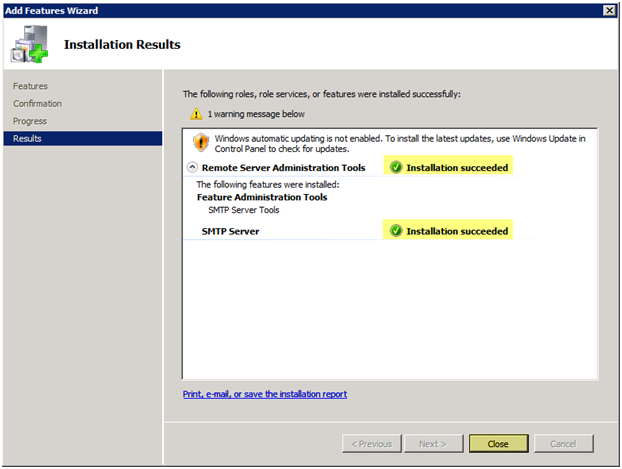
You should see a message indicating the Installation has succeeded, Press "Close" to continue
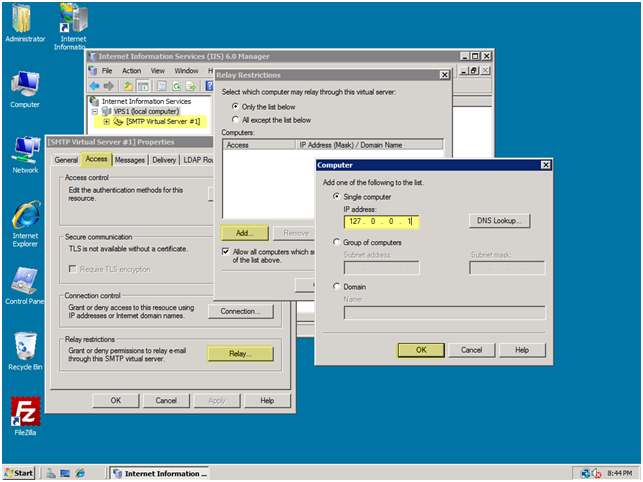
Configure SMTP Server
Make sure when you when you install the SMTP service, you enable Relay for localhost. Go to Administrative Tools > Internet Information Services (IIS6) > SMTP Virtual Server > Right click, Properties > Access Tab > Relay button > Add 127.0.0.1 in the option
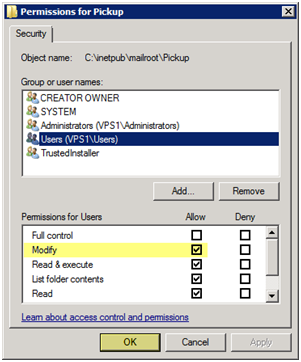
Configure SMTP Security
Grant the appropriate permissions on C:\inetpub\mailroot\pickup (I granted USERS group Modify permissions). You could get permission denied if the folder security isn’t adjusted.
Testing
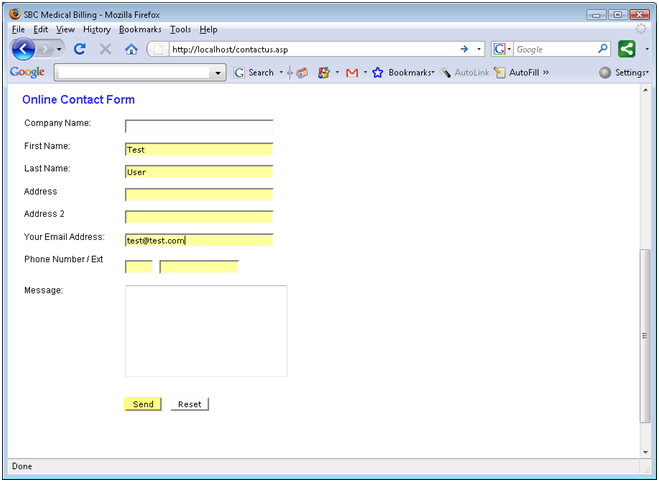
This is my contact form that uses the CDONTS component
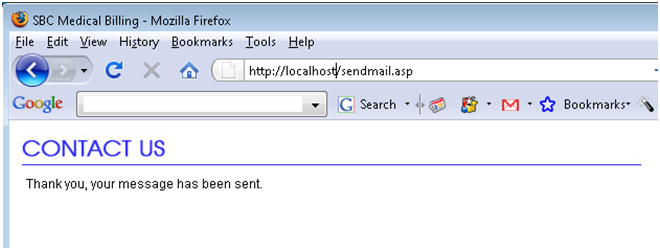
No more 500 error, the message was sent out successfully
You can also test using the using the following code in an ASP page. Here is the code to test CDONTS in an ASP page.
Create a TEST.ASP with the following code and put the file in C:\Inetpub\wwwroot. Change the "CDONTSMail.To=" value to your e-mail address. Navigate to http://localhost/test.asp, if all is configured ok then you should receive the mail message. If you do not receive the e-mail check the folders under c:\inetpub\mailroot to see if its queued up.
<%
Dim strBody
Dim CDONTSMail
Set CDONTSMail = CreateObject("CDONTS.NewMail")
CDONTSMail.From= "[email protected]"
CDONTSMail.To= "[email protected]"
CDONTSMail.Subject="This is a Test email"
strBody = "This is a test message." & vbCrLf
CDONTSMail.Body= strBody
CDONTSMail.Send
set CDONTSMail=nothing
%>