Automatically Redirect HTTP requests to HTTPS on IIS 7 using URL Rewrite 2.0
In a previous article I covered the installation URL Rewrite 2.0 for IIS 7. This is a plug-in for IIS 7 that allows you to manipulate URL’s.
URL Rewrite has a GUI to allow you to enter rules within IIS 7; in the background all this does is edit the web.config file of the site. I will show you how to create a rule both ways.
In the following example we will redirect HTTP to HTTPs using URL Rewrite. You will need the following items completed in order for this to work correctly.
– SSL Certificate for site installed in IIS.
– Site properly installed and configured for SSL (site set up and binding in IIS configured).
– URL Rewrite 2.0 is installed on the sever.
GUI Version
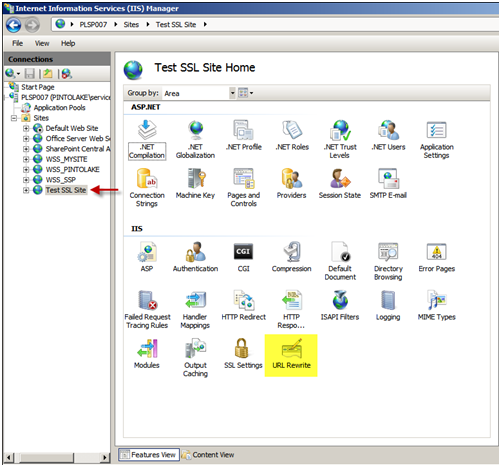
– Select the website you wish to configure
– In the “Features View” panel, double click URL Rewrite
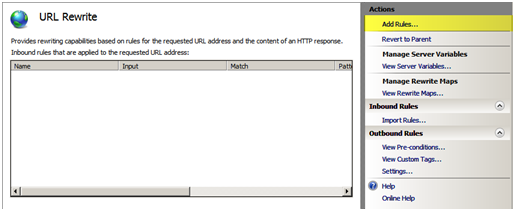
You will notice there are currently no rules configured for this site. Click “Add RulesÔò¼├┤Ôö£├ºÔö¼┬¼” in the Actions menu to the right of the “Features View” panel
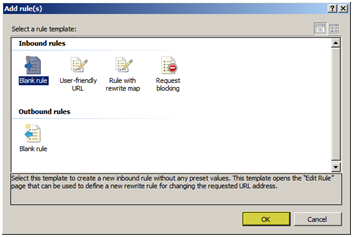
Use the default “Blank rule” and press “OK”.
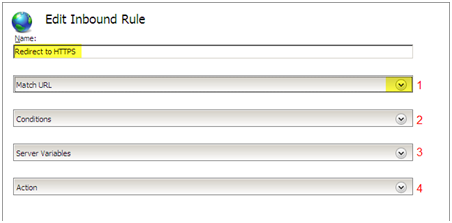
When editing a rule there are the “Name” field and 4 configuration pull down boxes.
– Enter “Redirect to HTTPS” in the name field.
– Next we will configure the first configuration pull down box called “Match URL”, on the right side of “Match URL” press the down arrow to expand the box.
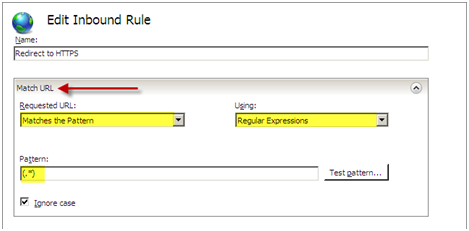
Within the “Match URL” configuration box we will set the following settings:
Requested URL: Matches the Pattern
Using: Regular Expressions
Pattern: (.*)
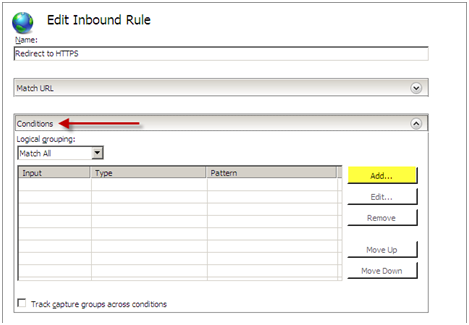
We can now edit the next configuration pull down box which is “Conditions”, Press “AddÔò¼├┤Ôö£├ºÔö¼┬¼” to add a new condition to the configuration.
We will configure the condition with the following settings:
Condition Input: {HTTPS}
Check if input string: Matches the Pattern
Pattern: ^OFF$
Press “OK” 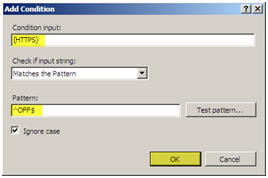
You should see your condition in the list of conditions.
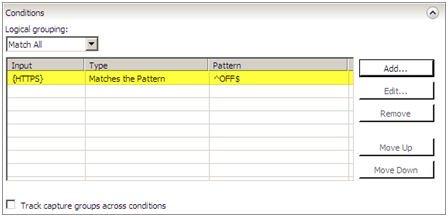
For this setting we do not need to configure the “Server Variables” pull down box. Continue onto the “Action” configuration box and pull down the box by selecting the arrow on the right. We will configure the following settings for the “Action” configuration:
Action Type: Redirect
Redirect URL: https://{HTTP_HOST}/{R:1}
Redirect Type: See Other (303)
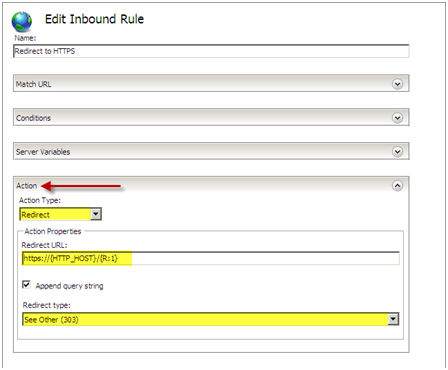
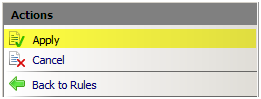
Press “Apply” then press “Back to Rules”
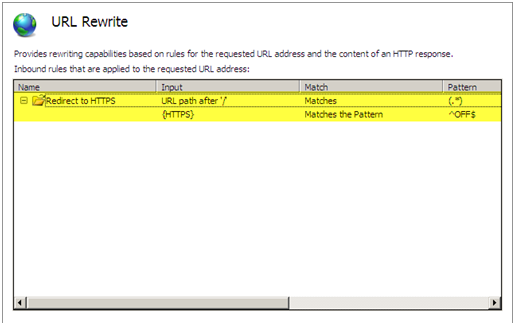
You should now see the rule configured on the main screen of the URL Rewrite module.
Test your site, it should now redirect from HTTP to HTTPS.
If we exam the web.config file we can see where the rule was entered. If we entered the rule directly into the web.config file it would show up in the GUI.
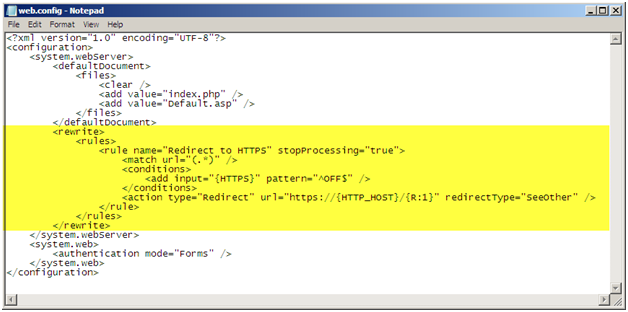
Web.Config Rule
You can also edit the web.config file of the site directly and you will be able to see the rule in the GUI. You will need to enter the following within the <system.webServer> </system.webServer> elements.
<rule name="Redirect to HTTPS" stopProcessing="true">
<match url="(.*)" />
<conditions><add input="{HTTPS}" pattern="^OFF$" />
</conditions>
<action type="Redirect" url="https://{HTTP_HOST}/{R:1}" redirectType="SeeOther" />
</rule>
When implementing this solution you need to make sure to use relative paths for all references on your page because there is a possibility you will get a warning asking you if you want to display secure and insecure items. For example, if you have a logo on your page and the URL to this logo is http://domain/images/logo.jpg, do not use the whole path because including the http:// will hard code this image to use http and not https. Instead use /images/logo.jpg.