0 1 0 1 0 1 0 1 0 1 0 1 0 1 0 1 0 1 0 1 0 1 0 1 0 1 0 1 0 1 0 1 0 1 0 1 0 1 0 1 0 1 0 1 0 1 0 1 0 1 0 1 0 1 0 1 0 1 0 1 0 1 0 1 0 1 0 1 0 1 0 1 0 1 0 1 0 1 0 1 0 1 0 1 0 1 0 1 0 1 0 1 0 1 0 1 0 1 0 1 0 1 0 1 0 1 0 1 0 1 0 1 0 1 0 1 0 1 0 1 0 1 0 1 0 1 0 1 0 1 0 1 0 1 0 1 0 1 0 1
JPPINTO
  • Home
  • Blog
  • Certifications
  • About
  • Contact
  • Shop
  • Gallery
  • Current Setup
Contact

Search

September 8, 2009 / IIS 6.0, IIS 7.0, Windows 2003, Windows 2008

Automatically Redirect HTTP requests to HTTPS using ASP
Featured image for Automatically Redirect HTTP requests to HTTPS using ASP

It’s possible to Force SSL on web pages using ASP. In this article I will show you how to accomplish this. To do this you need to do 2 things.

  1. Create a ForceSSL.asp page
  2. Set the file as an include on any pages that require SSL

ForceSSL.asp

Within your website create a file called ForceSSL.asp. I usually put this file in a directory called includes. You can get a copy of the file I used in this example here: ForceSSL.zip

ForceSSL.asp contents:

<%

If Request.ServerVariables("SERVER_PORT")=80 Then

Dim strSecureURL

strSecureURL = "https://"

strSecureURL = strSecureURL & Request.ServerVariables("SERVER_NAME")

strSecureURL = strSecureURL & Request.ServerVariables("URL")

Response.Redirect strSecureURL

End If

%>

Include File

On every ASP page that requires SSL you will need to add the “include virtual” statement below, you may need to modify it to the location of your ForceSSL.asp file. If you notice on the default.asp page I have created below, I have placed the “include virtual” statement at the top of the document, you want to put it on top so it will run first.

<!–include virtual=”/include/ForceSSL.asp” –>
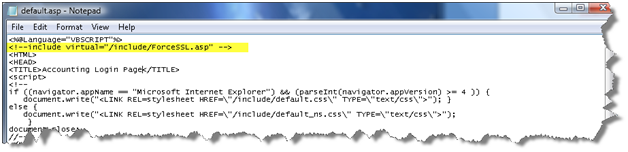
When implementing this solution you need to make sure to use relative paths for all references on your page because there is a possibility you will get a warning asking you if you want to display secure and insecure items. For example, if you have a logo on your page and the URL to this logo is http://domain/images/logo.jpg, do not use the whole path because including the http:// will hard code this image to use http and not https. Instead use /images/logo.jpg.

Post Views: 465
<- Adding a custom search result Column (metadata) to MOSS Advanced Search
Externalizing SharePoint Content with StoragePoint ->

Categories

  • Active Directory (5)
  • AI (3)
  • Amazon Cloud Services (1)
  • AWS (2)
  • Blazor (1)
  • C# (C-Sharp) (3)
  • CI/CD Pipelines (1)
  • Cloud (1)
  • Cloudflare (2)
  • Codex (1)
  • Containers (4)
  • Deployment (2)
  • Development (5)
  • DNS (1)
  • Docker (3)
  • Email (1)
  • Family (1)
  • General (5)
  • IIS 6.0 (4)
  • IIS 7.0 (10)
  • IIS 8.0 (1)
  • Infrastructure as Code (IaC) (1)
  • Kubernetes (3)
  • Linux (9)
  • Microsoft 365 (2)
  • MySQL (1)
  • Office 2010 (1)
  • PHP (1)
  • PowerShell (11)
  • Productivity (1)
  • Security (1)
  • Servers (9)
  • SharePoint 2007 (8)
  • SharePoint 2010 (19)
  • SharePoint 2013 (2)
  • SharePoint Online (1)
  • SMTP (4)
  • SQL Server 2008 (1)
  • SQL Server 2008 R2 (1)
  • SQL Server 2012 (2)
  • SQL Server 2019 (1)
  • SSL (1)
  • Travel (1)
  • Troubleshooting (1)
  • Ubuntu (9)
  • Uncategorized (1)
  • URL Rewrite (2)
  • Visual Studio 2019 (1)
  • Visual Studio Code (1)
  • Windows 10 (7)
  • Windows 2003 (9)
  • Windows 2008 (18)
  • Windows 2012 (6)
  • Windows 7 (3)
  • Windows Firewall (1)
  • Windows Vista (1)
  • WordPress (3)
  • WP-CLI (3)

Recent Posts

  • GPT-5.6 Sol Changes How We Prompt—and How We Write AGENTS.md
  • Protect a Domain That Does Not Send Email with SPF, DMARC, and Null MX
  • Turning Our Atlanta Vacation Photos into a Video with PowerShell
  • Bulk Create Cloudflare Origin CA Certificates with PowerShell
  • Test a Cloudflare Global API Key Connection with PowerShell

Advertisement

Tags

agents.md ai coding agents aws bash cloudflare cloud storage codex context engineering developer workflow dev to production dns externalize blob externalize sharepoint data full installation http redirect https IIS IIS installation index server configuration installing cumulative updates linux load balance central administration microsoft 365 nginx powerpoint powershell redirect http to https s3 server setup sharepoint 2010 cumulative updates sharepoint 2010 farm build sharepoint 2010 farm configuration sharepoint 2010 farm installation sharepoint data externalization SMTP ssl storagepoint ubuntu web server windows Windows 7 windows server 2008 wordpress wp-cli x86
© 2026 JPPinto.com. All rights reserved.