C# Windows Form is Busy (Waiting Cursor and Progress Bar)
This article helped me a great deal in programming this little application I’m building with C#. It was written by Ali Badereddin.
RSS Feed from: http://mycodelog.com/2010/02/11/busy/
There are two very common ways of telling the user that your application is busy. One is to show a progress bar that gets updated based on the progress getting done, and another is to show the “Waiting” cursor while the application is doing work.
Waiting Cursor
To show the user the Waiting cursor while your program is busy, all you have to do is to set the current cursor to the Waiting cursor before your code runs, then set it back to an arrow after your code completes.
Cursor.Current = Cursors.WaitCursor;
// Your Code
Cursor.Current = Cursors.Default;
Progress Bar
The progress bar is a more user-friendly solution, but in most cases showing the waiting cursor does the job. Here is the simplest way to use a progress bar:
int totalSteps = 10;
for (int i = 1; i <= totalSteps; i++)
{
// One chunk of your code
int progress = i * 100 / totalSteps;
blocksProgressBar.Value = progress;
}
blocksProgressBar.Value = 0;
Yes, it’s that easy to implement a progress bar that gets updated based on the work done by your app. However, while progress is shown, the user can’t interact with the UI or do any other operation (the UI thread is the single thread doing the work here). To get the multi-threaded behavior, the easiest way is to use a background worker process, as shown below:
So instead of putting your code in the event handler method, you will replace it with a call to start the worker process then move the code to the worker process events.
private void doButton_Click(object sender, EventArgs e)
{
backgroundWorker.RunWorkerAsync();
}
The worker process will do its work in the DoWork event. To show progress, the code needs to be split into segments and the background worker ReportProgress method needs to be called whenever a segment of code is executed.
private void backgroundWorker_DoWork(object sender, DoWorkEventArgs e)
{
int totalSteps = 10;
for (int i = 1; i <= totalSteps; i++)
{
// One chunk of your code
int progress = i * 100 / totalSteps;
backgroundWorker.ReportProgress(progress);
}
}
Whenever progress changes, we need to update the value of the progress bar.
private void backgroundWorker_ProgressChanged(object sender, ProgressChangedEventArgs e)
{
blocksProgressBar.Value = e.ProgressPercentage;
}
When the worker process is done (progress = 100%), we reset the progress bar.
Private void backgroundWorker_Completed(object sender, RunWorkerCompletedEventArgs e)
{
blocksProgressBar.Value = 0;
}
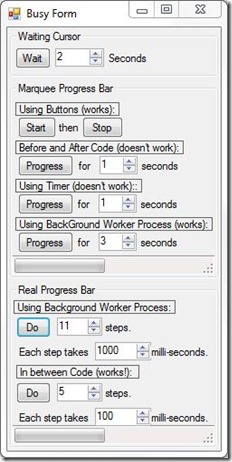
Below is a Windows Form application that lets you try the concepts explained above, and also shows you how the Marquee progress bar works, which is shockingly harder than the more realistic single-threaded progress bar we’ve discussed above.
Download source and exe from here.
Please check the original RSS Source for any changes or updates: http://mycodelog.com/2010/02/11/busy/