0 1 0 1 0 1 0 1 0 1 0 1 0 1 0 1 0 1 0 1 0 1 0 1 0 1 0 1 0 1 0 1 0 1 0 1 0 1 0 1 0 1 0 1 0 1 0 1 0 1 0 1 0 1 0 1 0 1 0 1 0 1 0 1 0 1 0 1 0 1 0 1 0 1 0 1 0 1 0 1 0 1 0 1 0 1 0 1 0 1 0 1 0 1 0 1 0 1 0 1 0 1 0 1 0 1 0 1 0 1 0 1 0 1 0 1 0 1 0 1 0 1 0 1 0 1 0 1 0 1 0 1 0 1 0 1 0 1 0 1
JPPINTO
  • Home
  • Certifications
  • About
  • Contact
  • Gallery
  • Current Setup
Contact

Search

January 8, 2020 / C# (C-Sharp), Development, Visual Studio Code

Create a .NET Core 3.1 Console App in Visual Studio Code
Tags: compile exe vs code, console app vs code

Testing Environment Information:

  • Windows 10 Enterprise: Version 1909 (OS Build 18396.535) (Type winver or systeminfo at a Command Prompt)
  • Visual Studio Code version 1.41.1 https://code.visualstudio.com/download
  • SDK for .NET Core 3.1.100 https://dotnet.microsoft.com/download/dotnet-core/3.1
  • Testing Date: 1/8/2020

Background:

Visual Studio Code is a streamlined code editor with support for development operations like debugging, task running, and version control. It aims to provide just the tools a developer needs for a quick code-build-debug cycle and leaves more complex workflows to fuller featured IDEs, such as Visual Studio 2019. VS Code runs on macOS, Linux, and Windows. VS Code is free for private or commercial use. More information at: https://code.visualstudio.com/

Create Console Application:

You must for the SDK for .NET Core 3.1 installed. The link is above.

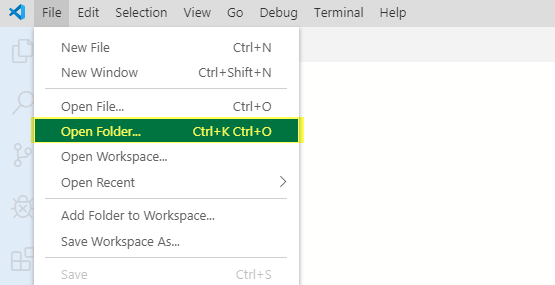
Open Visual Studio Code, File > Open Folder (Ctrl+K Ctrl+O)
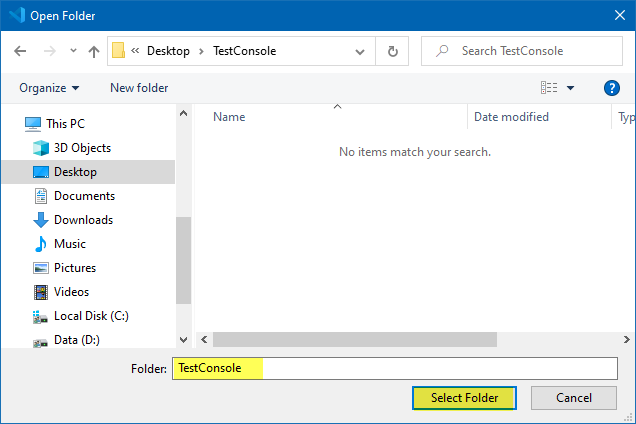
Select an empty folder, then press Select Folder. If you have the Visual Studio explorer extensions installed you can also right click on the folder and select Open with Code
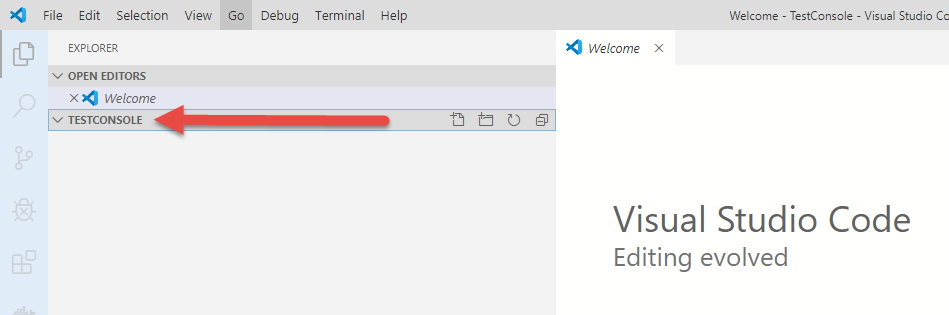
You will now see the folder in your VS Code explorer window, if you do not see explorer go to View > Explorer (Ctrl + Shift + E)
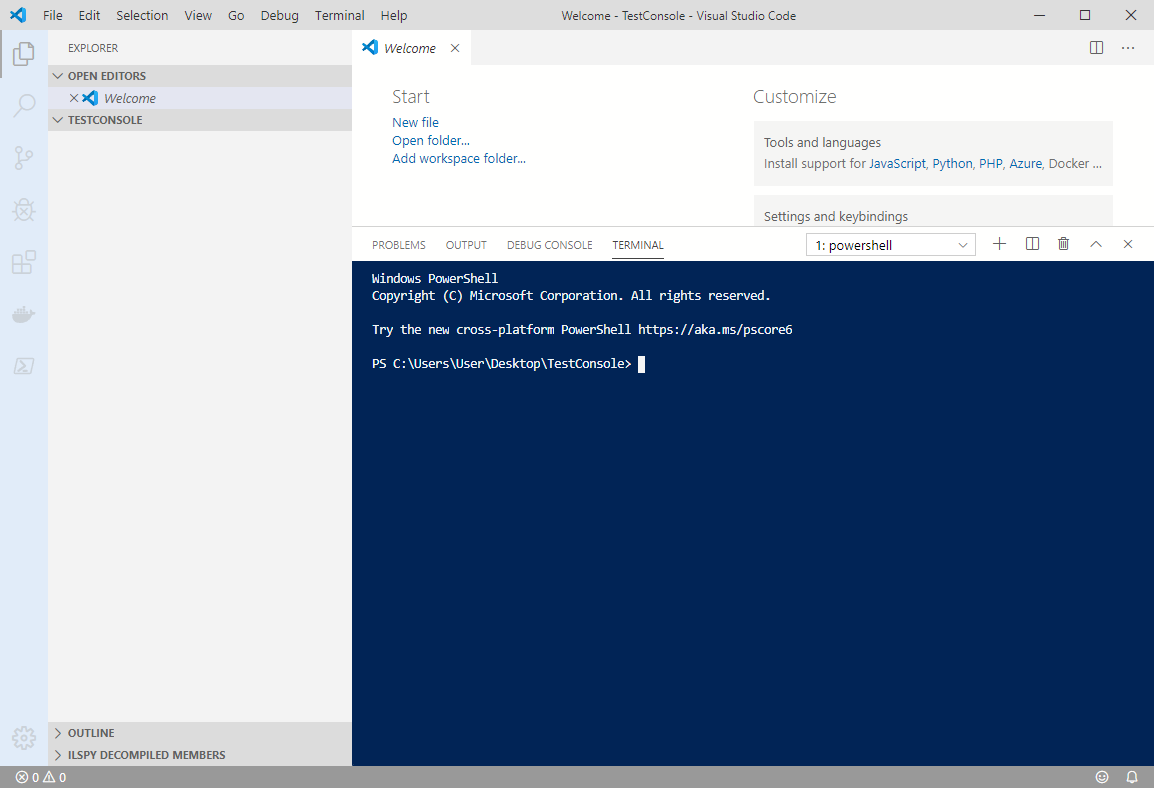
Start a terminal, go to View > Terminal (Ctrl + `)
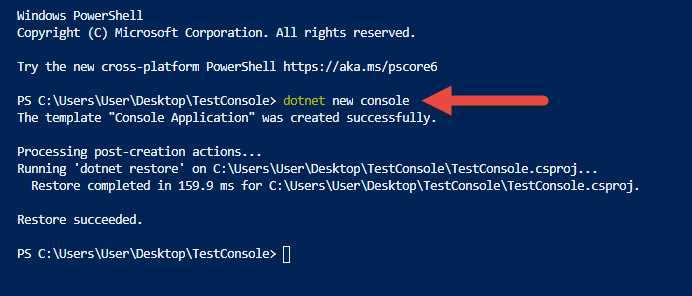
Type in dotnet new console

You can type in dotnet new -help to see which other templates are available for you to create a project from
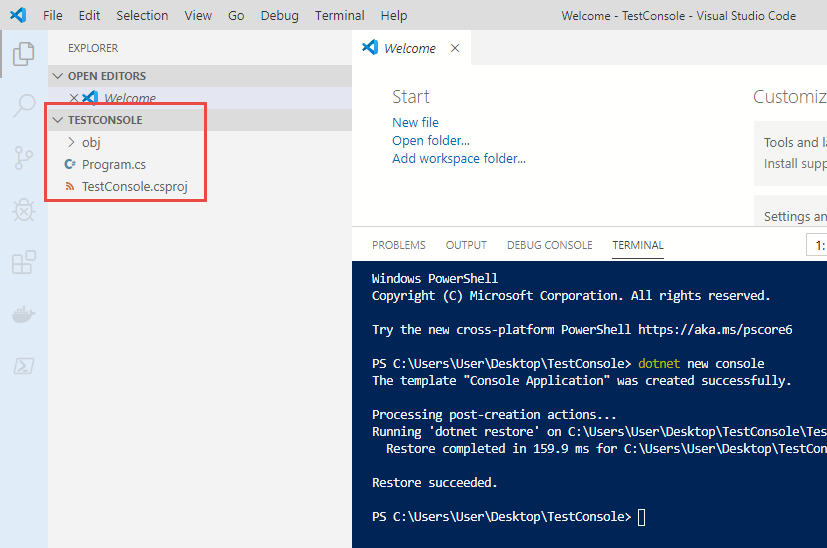
You will see that your folder is now populated with some files, this is a template for your console application.
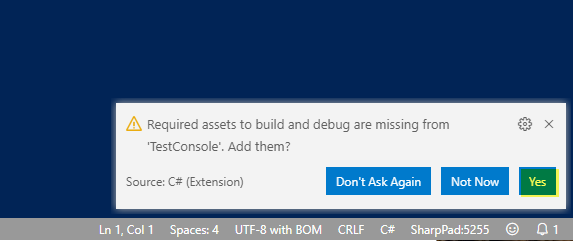
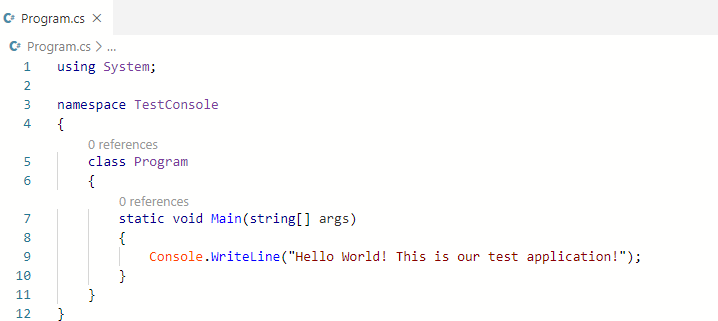
Let’s open Program.cs file by double clicking on it. If prompted to install assets to the build press Yes. This should create a .vscode folder in your project.
I added in some text after the Hello World! statement and I saved my changes

NOTE: You can have VS Code auto save all changes, go to File > Auto Save
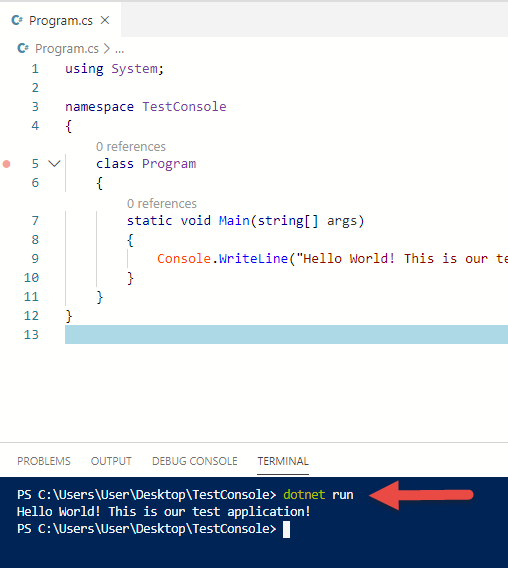
Now let’s test our application, at the terminal window type in dotnet run

it will compile the .EXE into the bin folder and run it.
Post Views: 703
<- Install a stand-alone SQL Server 2019 Enterprise Server
Install Terraform on Windows ->

Categories

  • Active Directory (5)
  • Amazon Cloud Services (1)
  • Blazor (1)
  • C# (C-Sharp) (3)
  • CI/CD Pipelines (1)
  • Containers (4)
  • Development (1)
  • Docker (3)
  • General (5)
  • IIS 6.0 (4)
  • IIS 7.0 (10)
  • IIS 8.0 (1)
  • Infrastructure as Code (IaC) (1)
  • Kubernetes (3)
  • MySQL (1)
  • Office 2010 (1)
  • PHP (1)
  • PowerShell (3)
  • SharePoint 2007 (8)
  • SharePoint 2010 (19)
  • SharePoint 2013 (2)
  • SMTP (4)
  • SQL Server 2008 (1)
  • SQL Server 2008 R2 (1)
  • SQL Server 2012 (2)
  • SQL Server 2019 (1)
  • Uncategorized (1)
  • URL Rewrite (2)
  • Visual Studio 2019 (1)
  • Visual Studio Code (1)
  • Windows 10 (2)
  • Windows 2003 (9)
  • Windows 2008 (18)
  • Windows 2012 (6)
  • Windows 7 (3)
  • Windows Firewall (1)
  • Windows Vista (1)

Recent Posts

  • Install Terraform on Windows
  • Create a .NET Core 3.1 Console App in Visual Studio Code
  • Install a stand-alone SQL Server 2019 Enterprise Server
  • Create a Blazor App project in Visual Studio 2019
  • Username and Password for minikube Virtual Machine

Advertisement

Tags

backconnectionhostnames custom column default gateway disappears disable shutdown event tracker error opening exe exe permissions externalize blob externalize sharepoint data facebook spam filezilla server firewall rules filazilla full installation http redirect https https redirect IIS iis7 iis 7 installation IIS installation index server configuration installing cumulative updates load balance central administration magic default gateway missing default gateway moss advanced search nlb no default gateway powershell redirect http to https search column sharepoint 2010 cumulative updates sharepoint 2010 farm build sharepoint 2010 farm configuration sharepoint 2010 farm installation sharepoint data externalization shutdown event tracker shutdown tracker SMTP storagepoint Windows 7 windows firewall configuration windows live messenger crash windows server 2008 wlbs x86
© 2026 JPPinto.com – Tech Blog. All rights reserved.