0 1 0 1 0 1 0 1 0 1 0 1 0 1 0 1 0 1 0 1 0 1 0 1 0 1 0 1 0 1 0 1 0 1 0 1 0 1 0 1 0 1 0 1 0 1 0 1 0 1 0 1 0 1 0 1 0 1 0 1 0 1 0 1 0 1 0 1 0 1 0 1 0 1 0 1 0 1 0 1 0 1 0 1 0 1 0 1 0 1 0 1 0 1 0 1 0 1 0 1 0 1 0 1 0 1 0 1 0 1 0 1 0 1 0 1 0 1 0 1 0 1 0 1 0 1 0 1 0 1 0 1 0 1 0 1 0 1 0 1
JPPINTO
  • Home
  • Certifications
  • About
  • Contact
  • Gallery
  • Current Setup
Contact

Search

January 9, 2020 / Infrastructure as Code (IaC)

Install Terraform on Windows
Tags: IaC tools, install terraform, terraform installation

Testing Environment Information:

  • Windows 10 Enterprise: Version 1909 (OS Build 18396.535) (Type winver or systeminfo at a Command Prompt)
  • Terraform: Version 0.12.19
  • Testing Date: 1/9/2020

Background:

Terraform is the infrastructure as code (IaC) offering from HashiCorp. It is a tool for building, changing, and managing infrastructure in a safe, repeatable way. Operators and Infrastructure teams can use Terraform to manage environments with a configuration language called the HashiCorp Configuration Language (HCL) for human-readable, automated deployments.

Terraform is used to create, manage, and update infrastructure resources such as physical machines, VMs, network switches, containers, and more. Almost any infrastructure type can be represented as a resource in Terraform.

You can use different “providers” to configure different resources. A provider is responsible for understanding API interactions and exposing resources. Providers generally are an IaaS (e.g. Alibaba Cloud, AWS, GCP, Microsoft Azure, OpenStack), PaaS (e.g. Heroku), or SaaS services (e.g. Terraform Cloud, DNSimple, Cloudflare). More Info at: https://www.terraform.io/docs/providers/index.html

Terraform Installation:

Download the appropriate file for your operating system from https://www.terraform.io/downloads.html

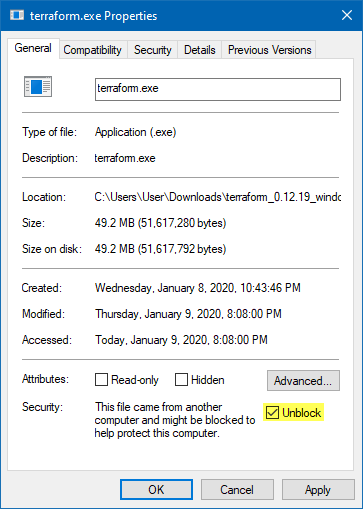
Unzip the zip, then right click on the executable and make sure it’s unblocked before continuing, you can also use PowerShell to do this using the “Unblock-File” cmdlet.
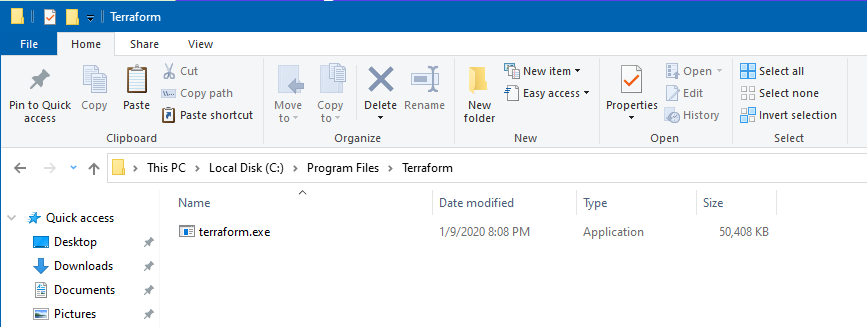
Copy the EXE to C:\Program Files\Terraform, you can put this anywhere you want. I am just putting it here because that makes sense.
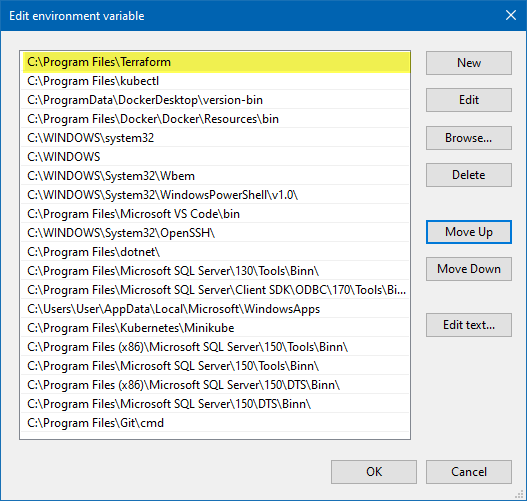
Add the C:\Program Files\Terraform path to your PATH Environment Variables. You can always add this in using PowerShell, see this article for that: https://jppinto.com/2019/12/windows-10-path-environment-variable-update-with-powershell/
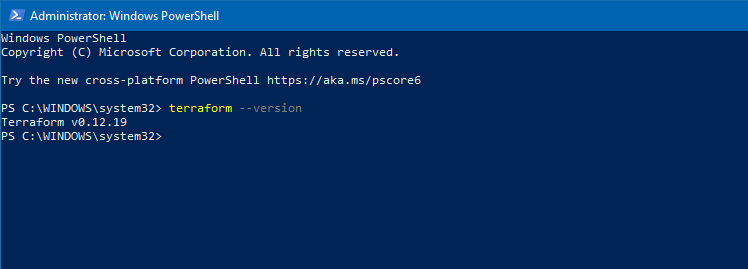
Run terraform –version to see which version you have running
Learning Resources:

Terraform is easy to learn and can simplify complex manual tasks. For more learning, please visit the following links:

HashiCorp Configuration Language (HCL) Information – https://www.terraform.io/docs/configuration/index.html

Step-by-Step learning Instructions – https://learn.hashicorp.com/terraform

Getting started with deploying your first AWS EC2 instance using Terraform – https://learn.hashicorp.com/terraform/getting-started/build

Post Views: 542
<- Create a .NET Core 3.1 Console App in Visual Studio Code

Categories

  • Active Directory (5)
  • Amazon Cloud Services (1)
  • Blazor (1)
  • C# (C-Sharp) (3)
  • CI/CD Pipelines (1)
  • Containers (4)
  • Development (1)
  • Docker (3)
  • General (5)
  • IIS 6.0 (4)
  • IIS 7.0 (10)
  • IIS 8.0 (1)
  • Infrastructure as Code (IaC) (1)
  • Kubernetes (3)
  • MySQL (1)
  • Office 2010 (1)
  • PHP (1)
  • PowerShell (3)
  • SharePoint 2007 (8)
  • SharePoint 2010 (19)
  • SharePoint 2013 (2)
  • SMTP (4)
  • SQL Server 2008 (1)
  • SQL Server 2008 R2 (1)
  • SQL Server 2012 (2)
  • SQL Server 2019 (1)
  • Uncategorized (1)
  • URL Rewrite (2)
  • Visual Studio 2019 (1)
  • Visual Studio Code (1)
  • Windows 10 (2)
  • Windows 2003 (9)
  • Windows 2008 (18)
  • Windows 2012 (6)
  • Windows 7 (3)
  • Windows Firewall (1)
  • Windows Vista (1)

Recent Posts

  • Install Terraform on Windows
  • Create a .NET Core 3.1 Console App in Visual Studio Code
  • Install a stand-alone SQL Server 2019 Enterprise Server
  • Create a Blazor App project in Visual Studio 2019
  • Username and Password for minikube Virtual Machine

Advertisement

Tags

backconnectionhostnames custom column default gateway disappears disable shutdown event tracker error opening exe exe permissions externalize blob externalize sharepoint data facebook spam filezilla server firewall rules filazilla full installation http redirect https https redirect IIS iis7 iis 7 installation IIS installation index server configuration installing cumulative updates load balance central administration magic default gateway missing default gateway moss advanced search nlb no default gateway powershell redirect http to https search column sharepoint 2010 cumulative updates sharepoint 2010 farm build sharepoint 2010 farm configuration sharepoint 2010 farm installation sharepoint data externalization shutdown event tracker shutdown tracker SMTP storagepoint Windows 7 windows firewall configuration windows live messenger crash windows server 2008 wlbs x86
© 2026 JPPinto.com – Tech Blog. All rights reserved.