0 1 0 1 0 1 0 1 0 1 0 1 0 1 0 1 0 1 0 1 0 1 0 1 0 1 0 1 0 1 0 1 0 1 0 1 0 1 0 1 0 1 0 1 0 1 0 1 0 1 0 1 0 1 0 1 0 1 0 1 0 1 0 1 0 1 0 1 0 1 0 1 0 1 0 1 0 1 0 1 0 1 0 1 0 1 0 1 0 1 0 1 0 1 0 1 0 1 0 1 0 1 0 1 0 1 0 1 0 1 0 1 0 1 0 1 0 1 0 1 0 1 0 1 0 1 0 1 0 1 0 1 0 1 0 1 0 1 0 1
JPPINTO
  • Home
  • Blog
  • Certifications
  • About
  • Contact
  • Shop
  • Gallery
  • Current Setup
Contact

Search

December 26, 2019 / CI/CD Pipelines, Containers, Docker

Deploy Jenkins container on Docker Desktop for Windows
Tags: docker for windows, install jenkins, jenkins installation
Featured image for Deploy Jenkins container on Docker Desktop for Windows

Testing Environment Information:

  • Windows 10 Enterprise: Version 1909 (OS Build 18396.535) (Type winver or systeminfo at a Command Prompt)
  • Docker Desktop Community: Version 2.1.0.5 (Released 11/18/2019)
  • Jenkins: (Release Date 12/26/2019) – https://hub.docker.com/r/jenkins/jenkins
  • Testing Date: 12/26/2019

Background:

What is Jenkins? In a nutshell Jenkins CI (Continuous Integration) is the leading open-source continuous integration server. Built with Java, it provides over 300 plugins to support building and testing virtually any project. Facebook, Netflix, and Instacart are some of the popular companies that use Jenkins.

Pull Image:

First make sure Docker is installed and running, check out this article for information on how to do that: https://jppinto.com/2019/12/install-docker-desktop-for-windows-on-windows-10-enterprise/

We run the following Docker command to pull the image from the Docker Hub, there were a couple of i/o timeout errors, however after a couple of tries I was able to pull down the image. I waited a couple of minutes in between each attempt.

docker pull jenkins/Jenkins
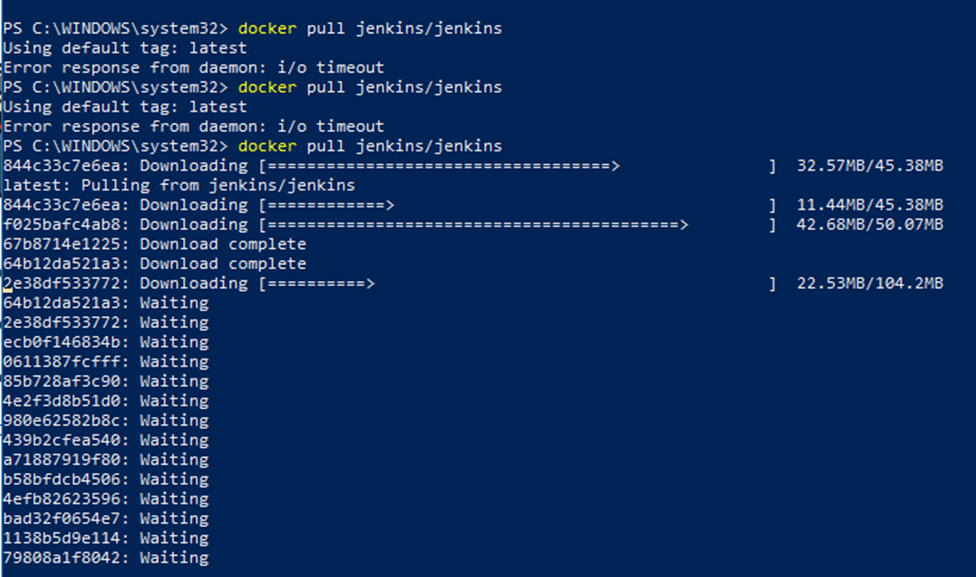
I ran docker images to verify that my Jenkins image was in the repository and to check the size. It’s under 600MB.

docker images

Start Container:

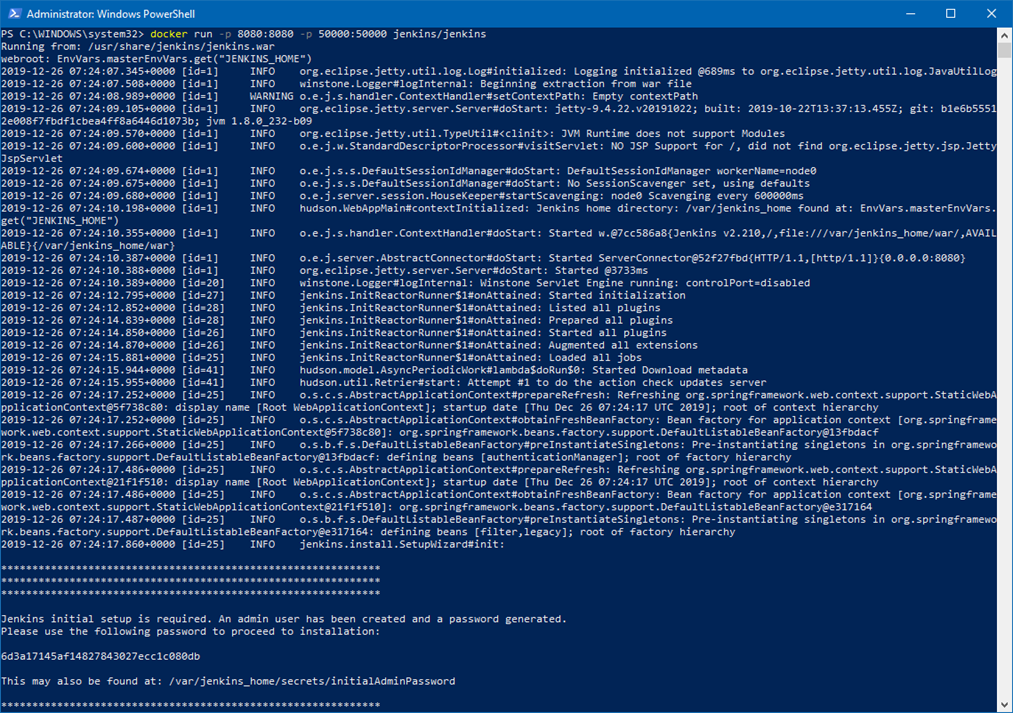
As per the documentation, https://github.com/jenkinsci/docker/blob/master/README.md. I ran the following Docker command to start the container using the Jenkins image

docker run -p 8080:8080 -p 50000:50000 jenkins/jenkins
Initial Configuration:

If we go to port 8080 on our localhost, we can now access the Jenkins server, the password is on output of the docker run command it is also located in the container under /var/Jenkins_home/secrets/initalAdminPassword.
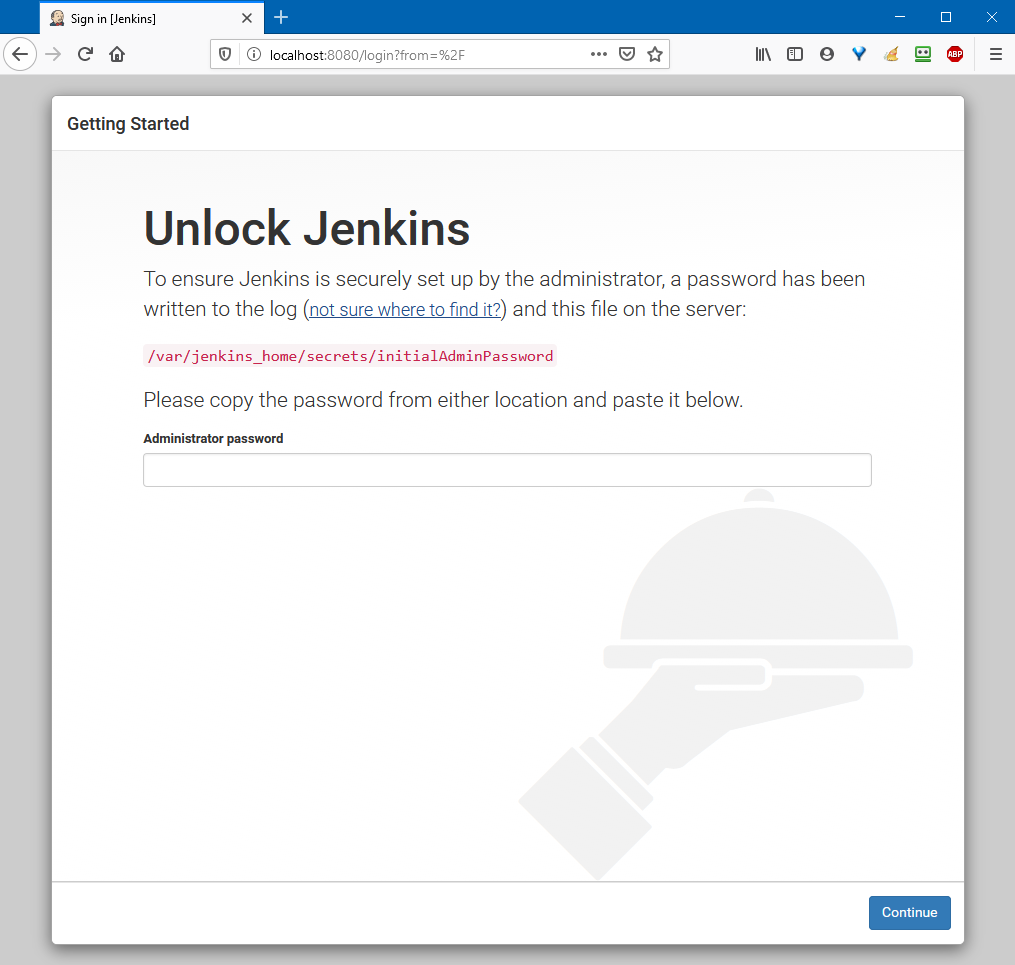
After entering the password there was a screen with a loading icon, it stood at that step for over an hour, I ended up switching browsers but that didn’t help. After another hour, I refreshed that page and it finally brought me to the Getting Started > Customize Jenkins page. I opted for the “Install suggested plugins” option this time around.
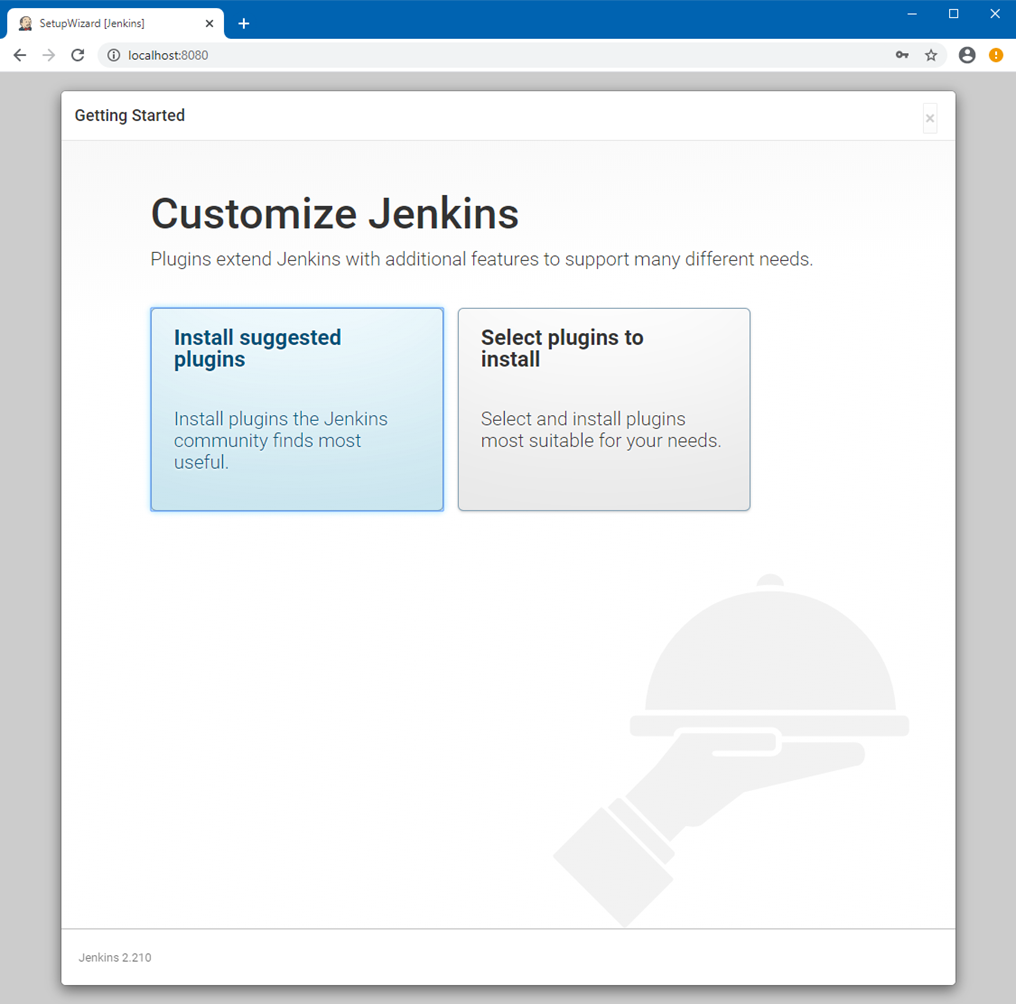
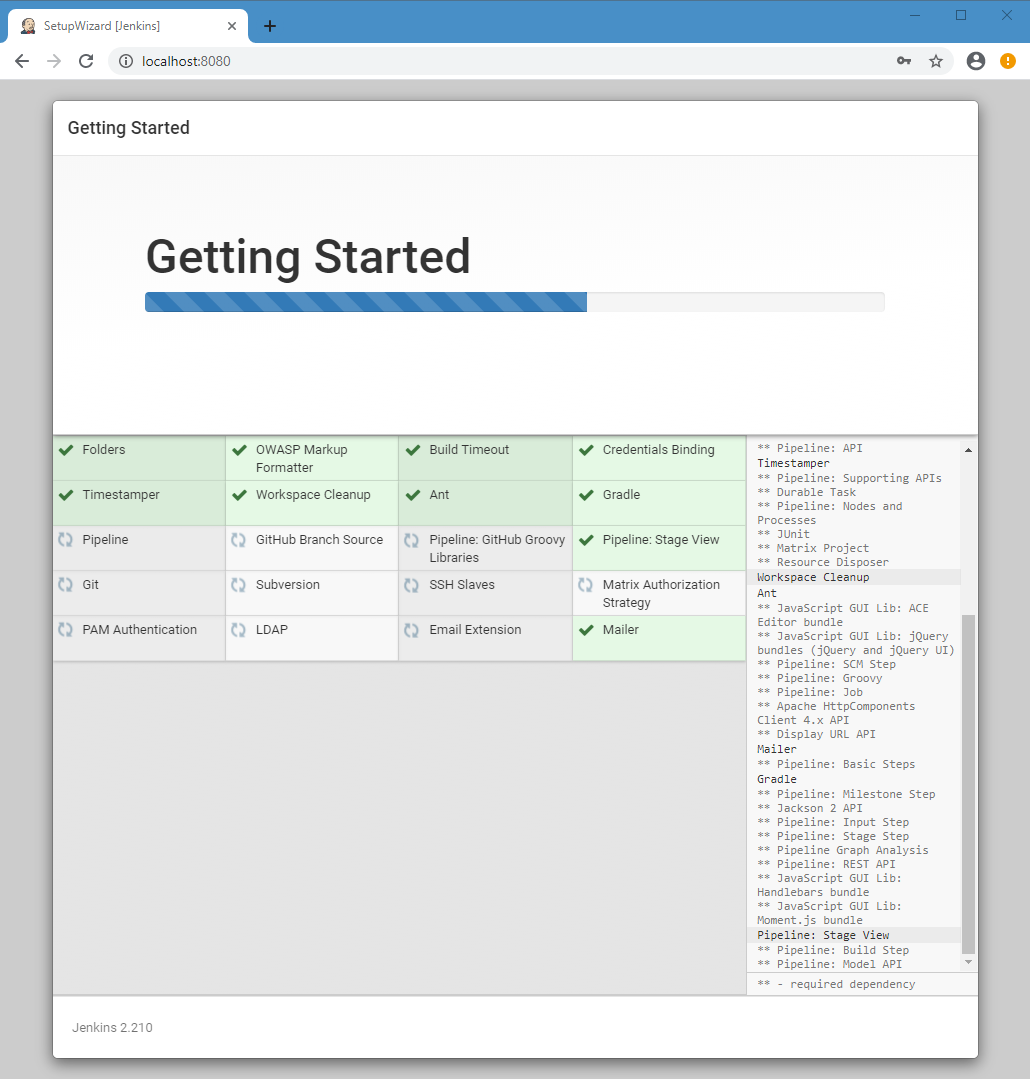
At this point everything will be installed and configured with the options you selected.
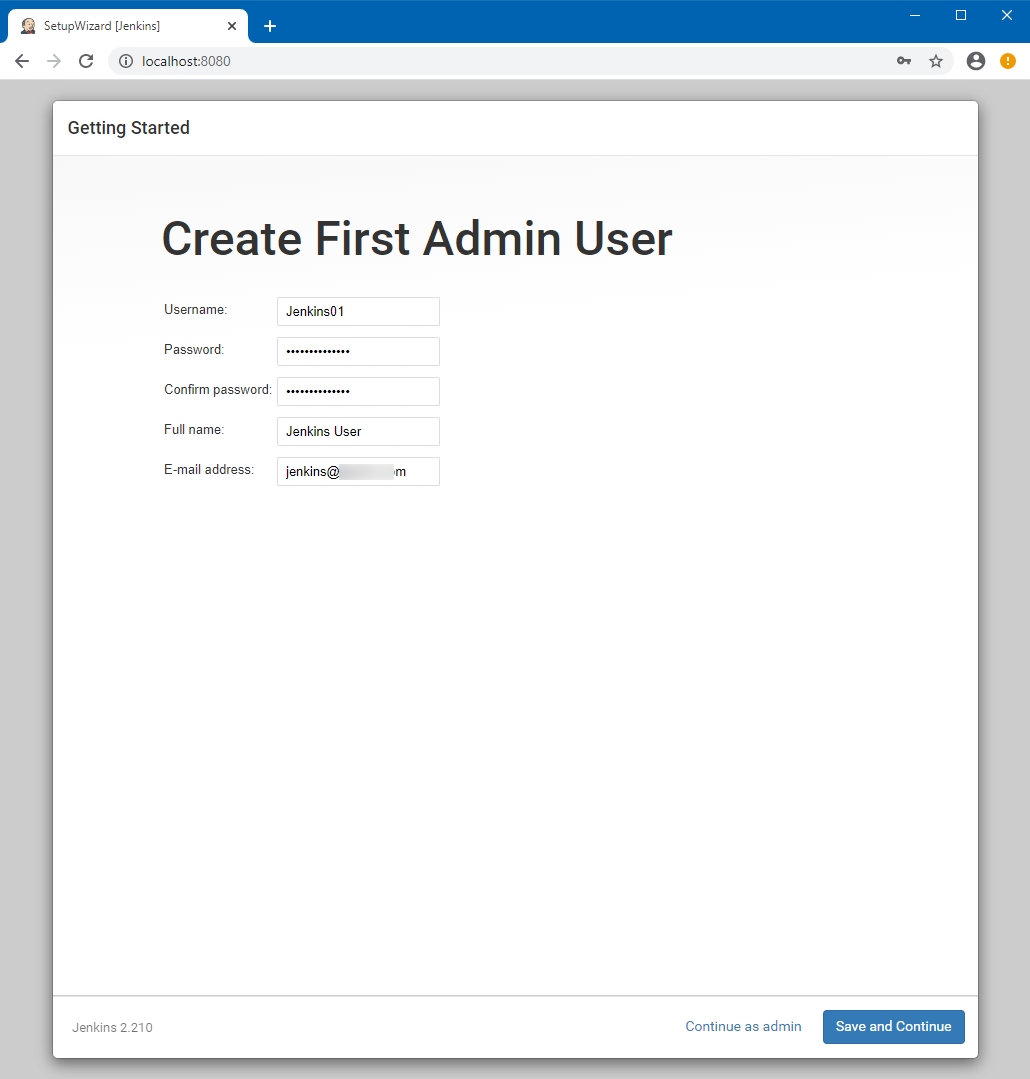
We can create an additional account or skip this step. I created a user.
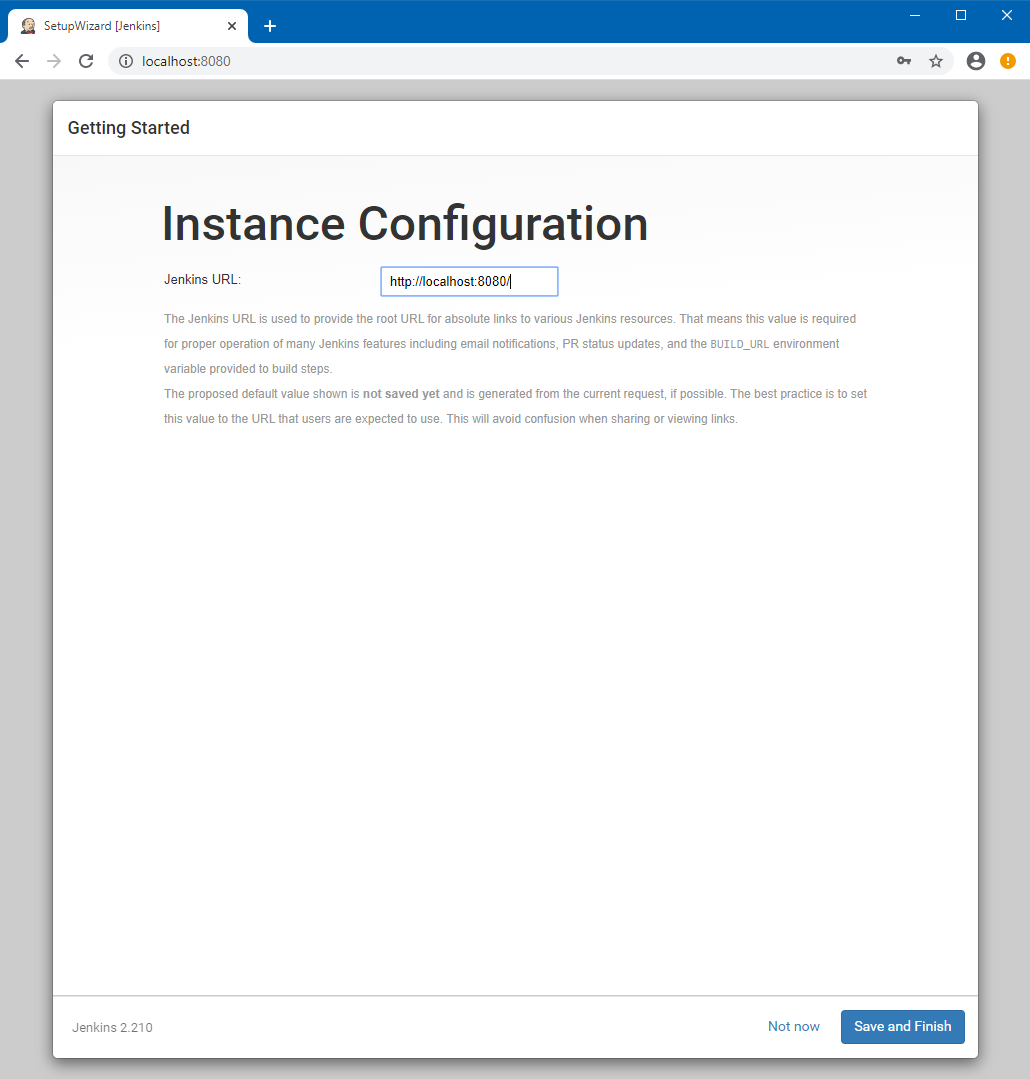
Save and finish your Instance Configuration, this completes the Getting Started Wizard.
Press Start using Jenkins
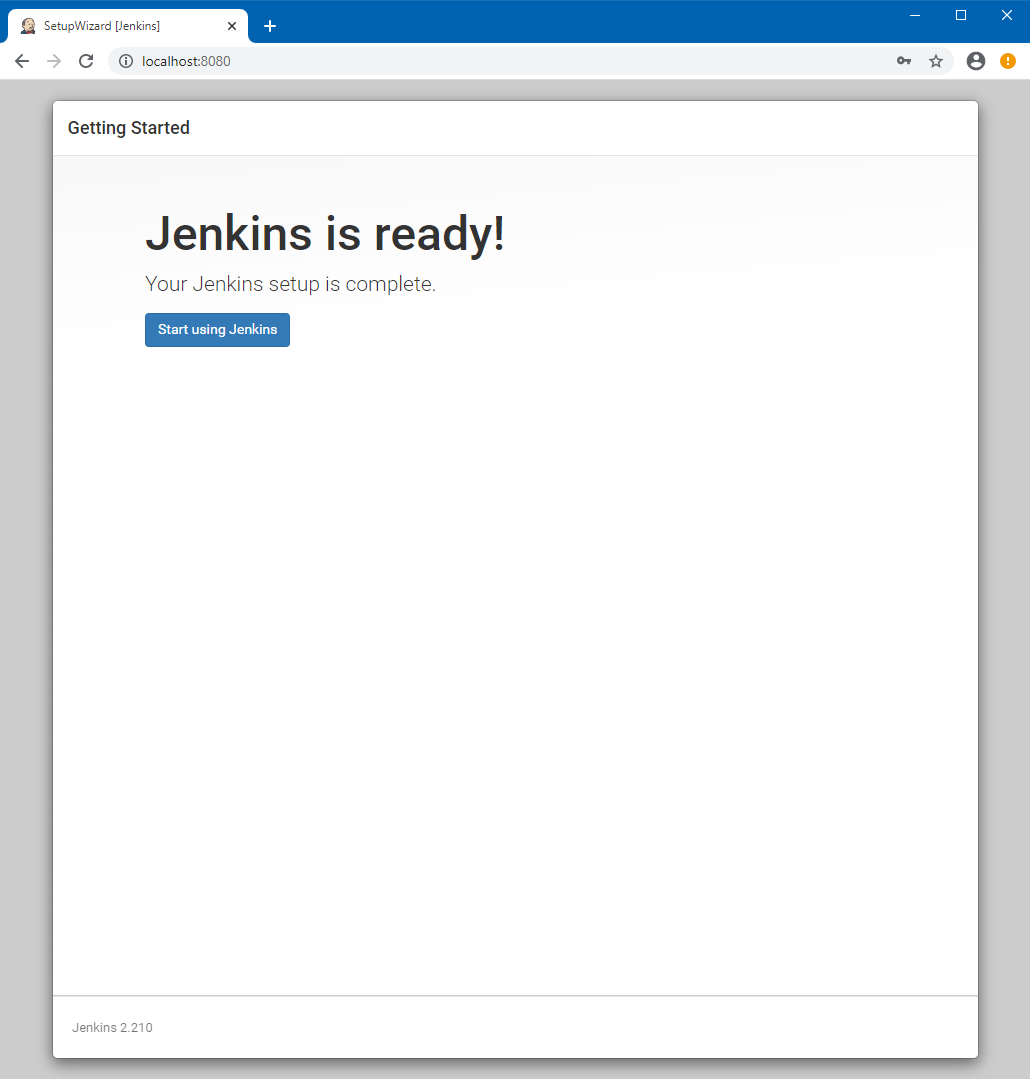
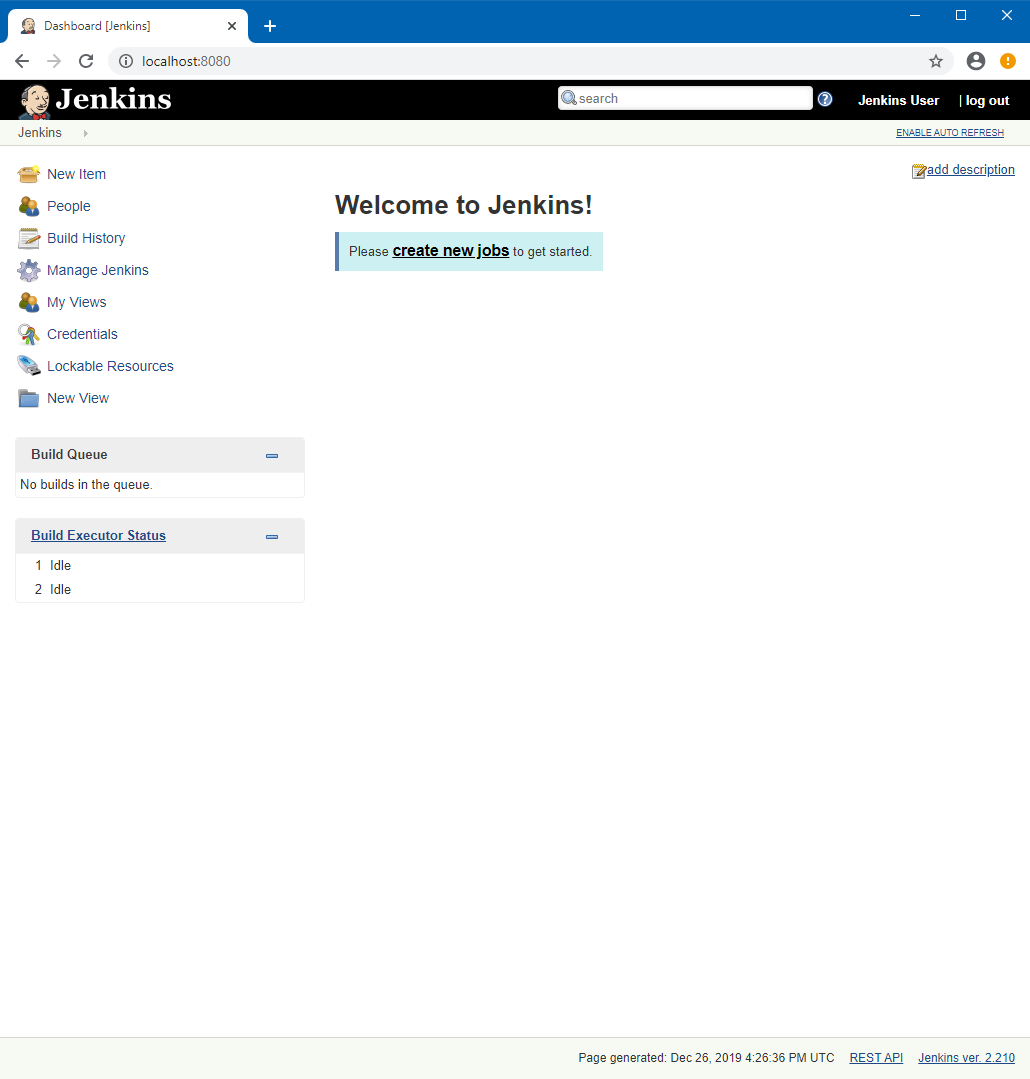
Running and ready for further configuration:

Jenkins is now ready for you to configure it for Continuous Integration/Delivery (CI/CD). For more information on next steps please visit the official documentation located at: https://jenkins.io/doc/
Post Views: 911
<- Docker Desktop For Windows “error during connect” or “error response from daemon” error message
Install Minikube for Kubernetes testing on Windows 10 Enterprise or Pro ->

Categories

  • Active Directory (5)
  • AI (5)
  • Amazon Cloud Services (1)
  • AWS (3)
  • Blazor (1)
  • C# (C-Sharp) (3)
  • CI/CD Pipelines (1)
  • Cloud (1)
  • Cloudflare (2)
  • Codex (2)
  • Containers (4)
  • Deployment (2)
  • Development (6)
  • DNS (1)
  • Docker (3)
  • Email (1)
  • Family (1)
  • General (5)
  • IIS 6.0 (4)
  • IIS 7.0 (10)
  • IIS 8.0 (1)
  • Infrastructure as Code (IaC) (1)
  • Kubernetes (3)
  • Linux (11)
  • Microsoft 365 (2)
  • MySQL (1)
  • Office 2010 (1)
  • PHP (1)
  • PowerShell (11)
  • Productivity (1)
  • Security (2)
  • Servers (9)
  • SharePoint 2007 (8)
  • SharePoint 2010 (19)
  • SharePoint 2013 (2)
  • SharePoint Online (1)
  • SMTP (4)
  • SQL Server 2008 (1)
  • SQL Server 2008 R2 (1)
  • SQL Server 2012 (2)
  • SQL Server 2019 (1)
  • SSL (1)
  • Travel (1)
  • Troubleshooting (1)
  • Ubuntu (9)
  • Uncategorized (1)
  • URL Rewrite (2)
  • Visual Studio 2019 (1)
  • Visual Studio Code (1)
  • Web Server (1)
  • Windows 10 (7)
  • Windows 2003 (9)
  • Windows 2008 (18)
  • Windows 2012 (6)
  • Windows 7 (3)
  • Windows Firewall (1)
  • Windows Server (1)
  • Windows Vista (1)
  • WordPress (5)
  • WP-CLI (3)

Recent Posts

  • Fix ‘Codex Could Not Start’ in VS Code Remote SSH on Linux
  • Move WordPress Uploads to Amazon S3 with the Uploads to S3 Plugin
  • WordPress Must-Use Plugins: MU Plugins vs. Regular Plugins
  • Install Codex Desktop on Windows Server and Control It from Your Phone
  • Create an Internal Certificate Authority for Private Websites

Advertisement

Tags

agents.md ai coding agents aws bash cloudflare cloud storage codex context engineering developer workflow dev to production dns externalize blob externalize sharepoint data full installation https IIS IIS installation index server configuration installing cumulative updates linux load balance central administration microsoft 365 nginx powerpoint powershell redirect http to https s3 server setup sharepoint 2010 cumulative updates sharepoint 2010 farm build sharepoint 2010 farm configuration sharepoint 2010 farm installation sharepoint data externalization ssl storagepoint tls ubuntu ubuntu server web server windows windows server 2008 wordpress WordPress plugins wp-cli x86
© 2026 JPPinto.com. All rights reserved.