0 1 0 1 0 1 0 1 0 1 0 1 0 1 0 1 0 1 0 1 0 1 0 1 0 1 0 1 0 1 0 1 0 1 0 1 0 1 0 1 0 1 0 1 0 1 0 1 0 1 0 1 0 1 0 1 0 1 0 1 0 1 0 1 0 1 0 1 0 1 0 1 0 1 0 1 0 1 0 1 0 1 0 1 0 1 0 1 0 1 0 1 0 1 0 1 0 1 0 1 0 1 0 1 0 1 0 1 0 1 0 1 0 1 0 1 0 1 0 1 0 1 0 1 0 1 0 1 0 1 0 1 0 1 0 1 0 1 0 1
JPPINTO
  • Home
  • Certifications
  • About
  • Contact
  • Gallery
  • Current Setup
Contact

Search

July 29, 2010 / Office 2010

How to Change an Office 2010 License/Product Key

Tags: change 2010 product key, change key 2010 word, change office 2010 key, change office 2010 license key, change office serial

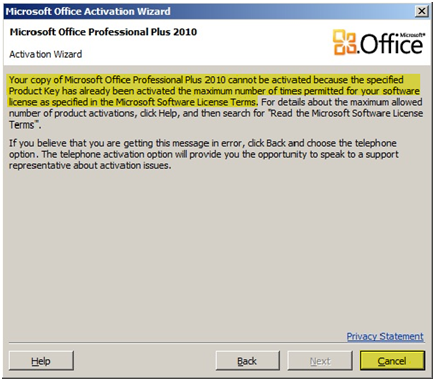
Issue: You go to activate Microsoft Office 2010 and you receive a message stating, “Your copy of Microsoft Office Professional Plus 2010 cannot be activated because the specified Product Key has already been activated the maximum number of times permitted for your software license as specified in the Microsoft Software License Terms.”

“


“

The solution is to change the product key to another product key. I will show you three different methods of changing the License Key

Method 1

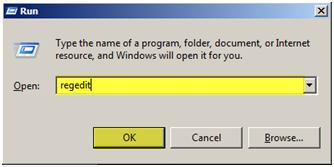
Open “regedit”

Navigate the registry to: HKEY_LOCAL_MACHINE\SOFTWARE\Microsoft\Office\14.0\Registration\ and delete the whole “Registration” key located under the “14.0” key

Right click “Registration”

Select “Delete”
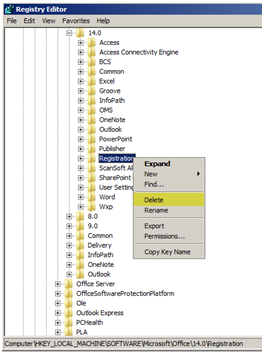

Press “Yes”
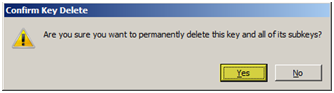

“

Close Regedit, Restart an Office 2010 application. You should be prompted to reenter your License Key

“

Method 2

Open to Microsoft Word

Press “File”

Press “Help”

Select “Change Product Key” (this option was not here on my installation, I used Method 1)
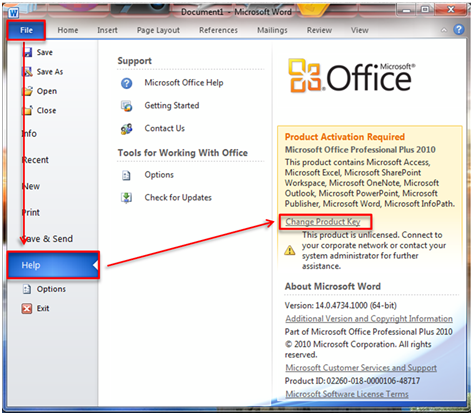

“

Method 3

Click on Start Menu > Control Panel > Programs and Features (or Add/Remove Programs, depending on your operating system).

Click on your product, e.g. Microsoft Office Professional Plus 2010

Click “Change” on the top menu.

“
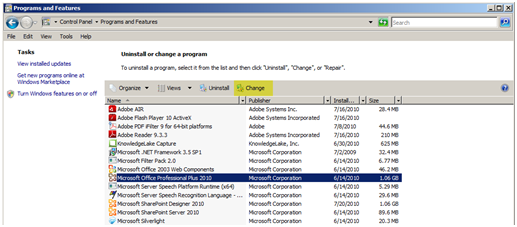

“

Select the option to “Enter a Product Key.”

Press “Continue”
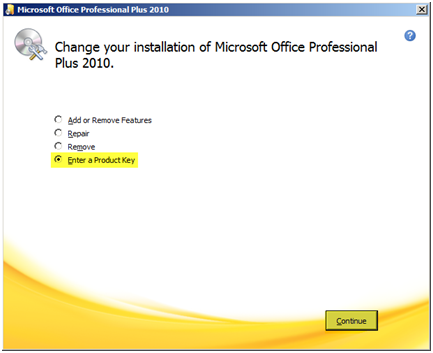

“

Changing your Product Key

Once you complete one of the Methods listed above you should be able to change your Product Key

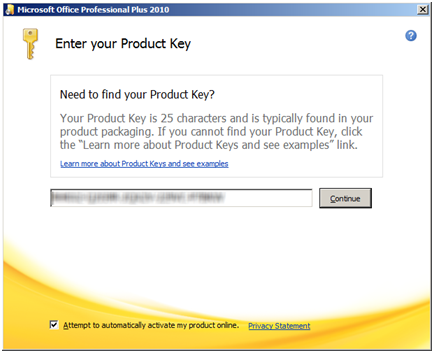
Enter the appropriate product key from the top of this page and click “Continue.”

“

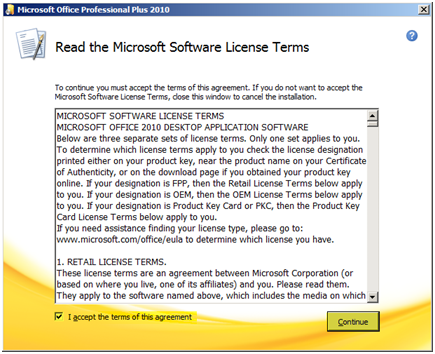
Accept the agreement

Press “Continue”

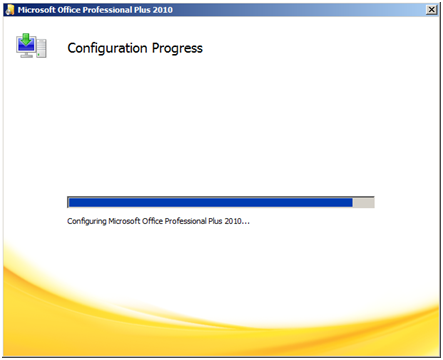
Configuration will occur

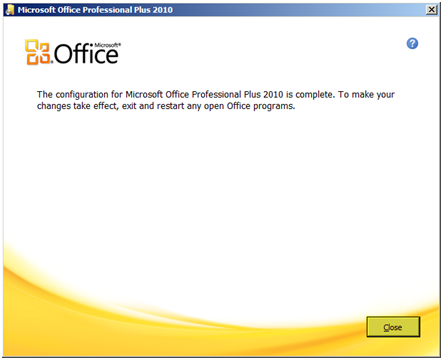
Press “Close”

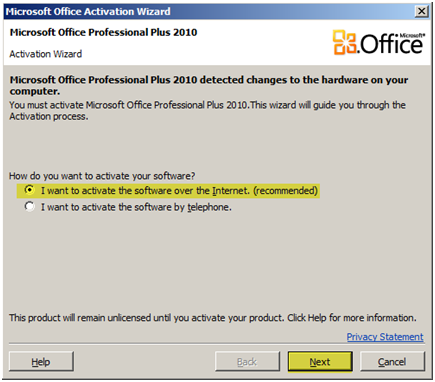
Select “I want to activate the software over the Internet (recommended)”

Press “Next”
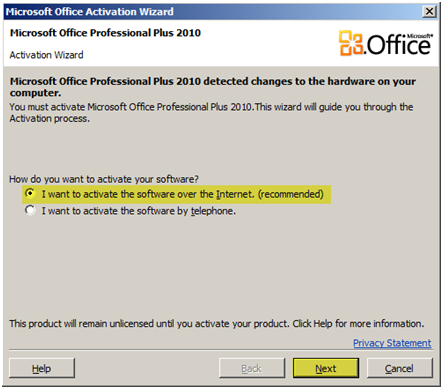

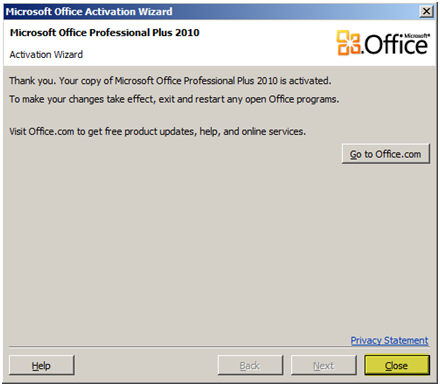
Your product should activate successfully

Press “Close”

“

“

“

“


“

Post Views: 1,320
<- Create custom Columns & Content Types in SharePoint 2007 (MOSS) using C#
WLBS (NLB) – Multicast vs Unicast ->

Categories

  • Active Directory (5)
  • Amazon Cloud Services (1)
  • Blazor (1)
  • C# (C-Sharp) (3)
  • CI/CD Pipelines (1)
  • Containers (4)
  • Development (1)
  • Docker (3)
  • General (5)
  • IIS 6.0 (4)
  • IIS 7.0 (10)
  • IIS 8.0 (1)
  • Infrastructure as Code (IaC) (1)
  • Kubernetes (3)
  • MySQL (1)
  • Office 2010 (1)
  • PHP (1)
  • PowerShell (3)
  • SharePoint 2007 (8)
  • SharePoint 2010 (19)
  • SharePoint 2013 (2)
  • SMTP (4)
  • SQL Server 2008 (1)
  • SQL Server 2008 R2 (1)
  • SQL Server 2012 (2)
  • SQL Server 2019 (1)
  • Uncategorized (1)
  • URL Rewrite (2)
  • Visual Studio 2019 (1)
  • Visual Studio Code (1)
  • Windows 10 (2)
  • Windows 2003 (9)
  • Windows 2008 (18)
  • Windows 2012 (6)
  • Windows 7 (3)
  • Windows Firewall (1)
  • Windows Vista (1)

Recent Posts

  • Install Terraform on Windows
  • Create a .NET Core 3.1 Console App in Visual Studio Code
  • Install a stand-alone SQL Server 2019 Enterprise Server
  • Create a Blazor App project in Visual Studio 2019
  • Username and Password for minikube Virtual Machine

Advertisement

Tags

backconnectionhostnames custom column default gateway disappears disable shutdown event tracker error opening exe exe permissions externalize blob externalize sharepoint data facebook spam filezilla server firewall rules filazilla full installation http redirect https https redirect IIS iis7 iis 7 installation IIS installation index server configuration installing cumulative updates load balance central administration magic default gateway missing default gateway moss advanced search nlb no default gateway powershell redirect http to https search column sharepoint 2010 cumulative updates sharepoint 2010 farm build sharepoint 2010 farm configuration sharepoint 2010 farm installation sharepoint data externalization shutdown event tracker shutdown tracker SMTP storagepoint Windows 7 windows firewall configuration windows live messenger crash windows server 2008 wlbs x86
© 2026 JPPinto.com – Tech Blog. All rights reserved.