Create custom Columns & Content Types in SharePoint 2007 (MOSS) using C#
I created a small utility using C# to do the following in tasks (listed below) in SharePoint. The example code used for this is also located in this article it covers all of these SharePoint tasks.
1. Create 3 columns in SharePoint.
a. “Example Amount” – Type: Current, Not a Required Field
b. “Example Date” – Type: Date and Time, Not a Required Field
c. “Example Choice” – Type: Choice Field, Not a Required Field
d. Add these three columns to a group named “_Example Column Group”
2. Create “Content Type 1”
a. Create “Content Type 1”
b. Add “Example Amount” to this Content Type
c. Add “Example Date” to this Content Type, sets the field to Required within the Content Type
d. Add this content type to a group named “_Example Content Type Group”
3. Create “Content Type 2”
a. Create “Content Type 2”
b. Make this a child of “Content Type 1”
c. Add “Example Choice” to this Content Type, renames the column to “ExampleChoices” & sets the field to Required within the Content Type
d. Add this content type to a group named “_Example Content Type Group”
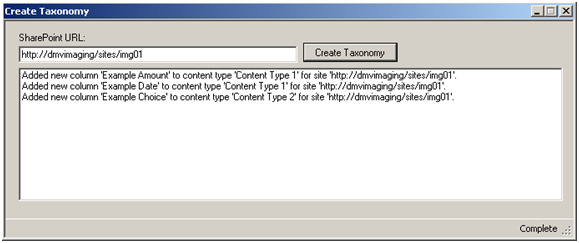
This is how the utility looks, I enter the URL and it runs all of the tasks listed above. Before we get into the code let’s take a look at the results
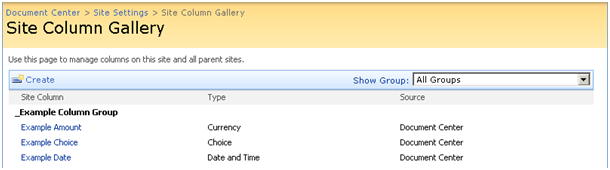
We can see that three Site Columns were created. I use an underscore in the beginning of the group name so it will come up first in the Site Column Gallery
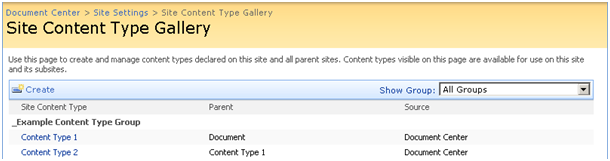
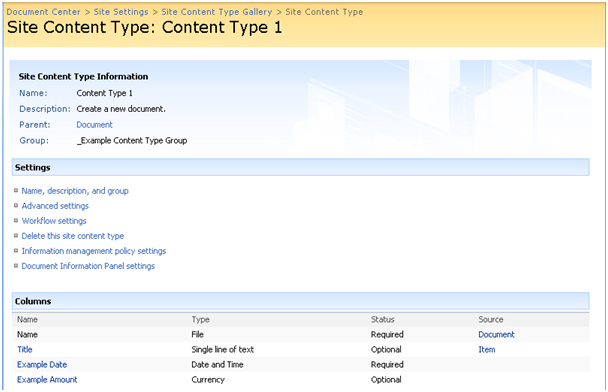
We can see that two Site Content Types were created and Content Type 2 is a child of Content Type one. We also can notice that “Content Type 1” parent is “Document” Content Type. Now let’s examine the Content Types
We notice the two Site Columns that were added to “Content Type 1” and that we changed the “Example Date” column to “Required” within “Content Type 1”
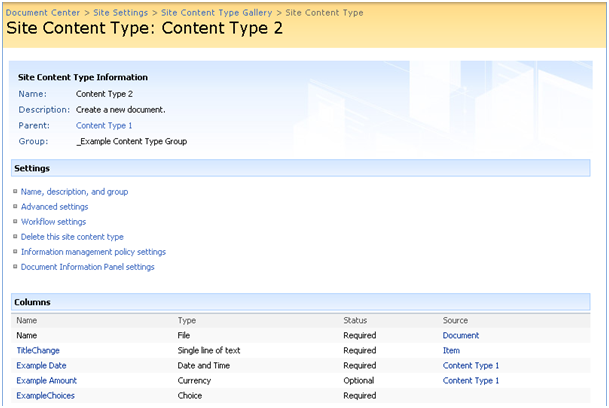
We notice that “ExampleChoices” was added to “Content Type 2” and it was set to a “Required” column. We also notice that “Content Type 2” inherited the columns from “Content Type 1”
This is the SharePoint specific code that was use during the creation of this utility. You can double click to code to select it, then copy it.
using Microsoft.SharePoint;


     // use impersonation so this code will run under another account
     // using (new Impersonator("USERNAME", "DOMAIN", "PASSWORD"))
     // this uses the Impersonator.cs which will not work unless you add "using Tools;" above and have the Impersonator.cs file
     using (new Impersonator("service-sharepoint", "pintolake", "PASSWORD"))

     using (SPSite siteCollection = new SPSite(sURL)) // sets the site with the URL the user entered, sURL is a variable that got filled in from the text box I created for the user
     using (SPWeb site = siteCollection.OpenWeb()) // opens the URL that was set


     // CREATE TAXONOMY
     // CREATE SITE COLUMNS

     string columnGroup = "_Example Column Group"; // sets the name of the column group that the columns will be added to

     // Example Amount Column
     string amountFieldName01 = site.Fields.Add("Example Amount", SPFieldType.Currency, false); // set the type name of the field, set the type, set the "is this field required" to false
     SPFieldCurrency amountField = (SPFieldCurrency)site.Fields.GetFieldByInternalName(amountFieldName01); // preparing to create the column with the attributes from the line above this one
     amountField.Group = columnGroup; // add the column to the group specified above
     amountField.DisplayFormat = SPNumberFormatTypes.TwoDecimals; // change a default parameter for this column type
     amountField.MinimumValue = 0; // change a default parameter for this column type
     amountField.Update(); // create the column

     // Example Date Column
     string dateFieldName01 = site.Fields.Add("Example Date", SPFieldType.DateTime, false); // set the type name of the field, set the type, set the "is this field required" to false
     SPFieldDateTime dateOpenedField = (SPFieldDateTime)site.Fields.GetFieldByInternalName(dateFieldName01); // preparing to create the column with the attributes from the line above this one
     dateOpenedField.Group = columnGroup; // add the column to the group specified above
     dateOpenedField.DisplayFormat = SPDateTimeFieldFormatType.DateOnly; // change a default parameter for this column type
     dateOpenedField.DefaultValue = "[today]"; // change a default parameter for this column type
     dateOpenedField.Update();  // create the column

     // Example Choice Column
     string choiceFieldName01 = site.Fields.Add("Example Choice", SPFieldType.Choice, false); // set the type name of the field, set the type, set the "is this field required" to false
     SPFieldChoice choiceField = (SPFieldChoice)site.Fields.GetFieldByInternalName(choiceFieldName01); // preparing to create the column with the attributes from the line above this one
     choiceField.Choices.Add("Choice 1"); // add the choices to the column
     choiceField.Choices.Add("Choice 2"); // add the choices to the column
     choiceField.Choices.Add("Choice 3"); // add the choices to the column
     choiceField.Choices.Add("Choice 4"); // add the choices to the column
     choiceField.Choices.Add("Choice 5"); // add the choices to the column
     choiceField.Choices.Add("Choice 6"); // add the choices to the column
     choiceField.Group = columnGroup; // add the column to the group specified above
     choiceField.Update();  // create the column

     // CREATE SITE CONTENT TYPES

     string contentTypeGroup = "_Example Content Type Group"; // sets the name of the Content Type Group that the Content Types will be added to

     SPContentType documentCType = site.AvailableContentTypes[SPBuiltInContentTypeId.Document]; // Get a content type to be the parent, we will make the second content type a child of this one

     SPContentType contentType01 = new SPContentType(documentCType, site.ContentTypes, "Content Type 1"); // Create the "contentType01" content type.
     site.ContentTypes.Add(contentType01);

     contentType01 = site.ContentTypes[contentType01.Id]; // Note: A content type is not initialized until after it is added.
     contentType01.Group = contentTypeGroup;

     SPFieldLink dateFieldRef = new SPFieldLink(dateOpenedField); // Add the Date column. Child contentType02 will inherit the column.
     dateFieldRef.Required = true;  // makes this a required field
     contentType01.FieldLinks.Add(dateFieldRef); // adds the column to the Content Type

     SPFieldLink amountFieldRef = new SPFieldLink(amountField); // Add the Amount column. Child contentType02 will inherit the column.
     contentType01.FieldLinks.Add(amountFieldRef); // adds the column to the Content Type

     contentType01.Update(); // Commit changes to contentType01

     SPContentType contentType02 = new SPContentType(contentType01, site.ContentTypes, "Content Type 2"); // Create the "contentType02" content type and set its parent to contentType01
     site.ContentTypes.Add(contentType02);
     contentType02 = site.ContentTypes[contentType02.Id];
     contentType02.Group = contentTypeGroup; // adds the Content Type to the custom group name listed above

     SPFieldLink itemFieldRef = contentType02.FieldLinks[SPBuiltInFieldId.Title]; // Modify the Title column inherited from the parent.
     itemFieldRef.DisplayName = "TitleChange"; // changes this title of the column, this is just within the Content Type
     itemFieldRef.Required = true;  // makes this a required field

     SPFieldLink choiceFieldRef = new SPFieldLink(choiceField); // preparing to add the "Example Choice" column to contentType02.
     choiceFieldRef.DisplayName = "ExampleChoices";  // changes this title of the column, this is just within the Content Type
     choiceFieldRef.Required = true; // makes this a required field
     contentType02.FieldLinks.Add(choiceFieldRef); // adds the column to the Content Type

     contentType02.Update(); // Commit changes to contentType02

     site.Dispose(); // close the connection
|