Installing IIS 7.0 with SMTP on Windows Server 2008
Configuration Information
Platform: Hyper V Host (http://www.microsoft.com/windowsserver2008/en/us/hyperv.aspx)
OS: Windows Server 2008 Web Edition
Installation Media: Control Panel > Server Manager
CPU: 2 dedicated 2.0Ghz
RAM: 1024mb
Disk: 40GB
Installation
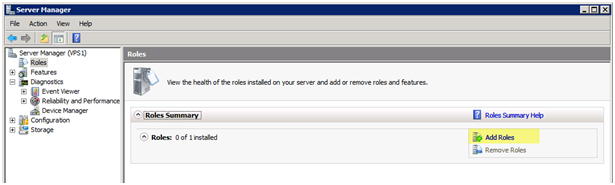
Open Server Manager, you can open this several different ways in Windows Server 2008. Probably the quickest way to open Server Manager is to right click “My Computer” and choose “Manage”, another way is open “Control Panel” go to “Program and Features” and select “Turn Windows features on or off”. A third way to open it is “Server Manager” option under Administrative Tools.
Under Roles, select “Add Roles”
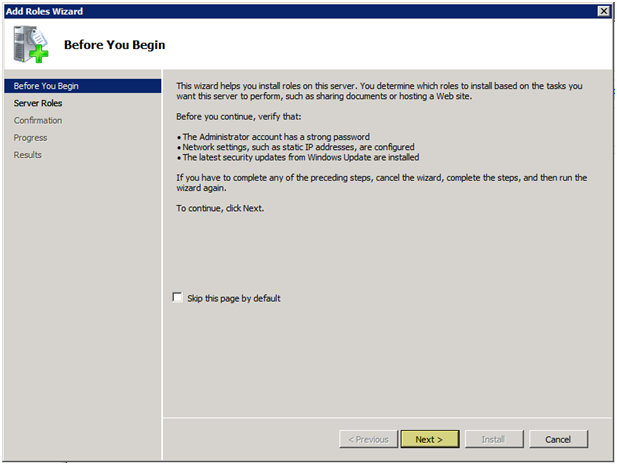
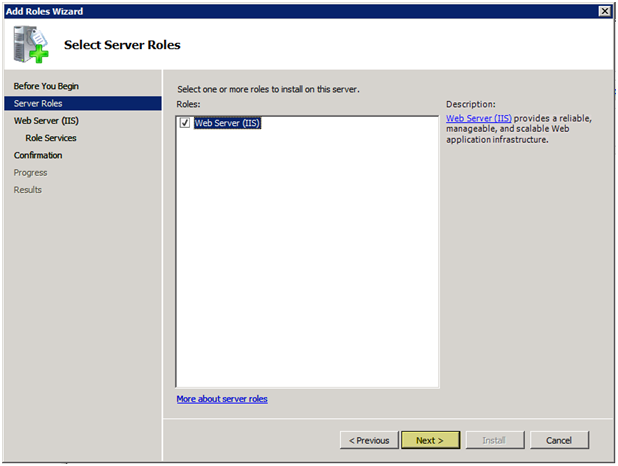
Press “Next” to continue
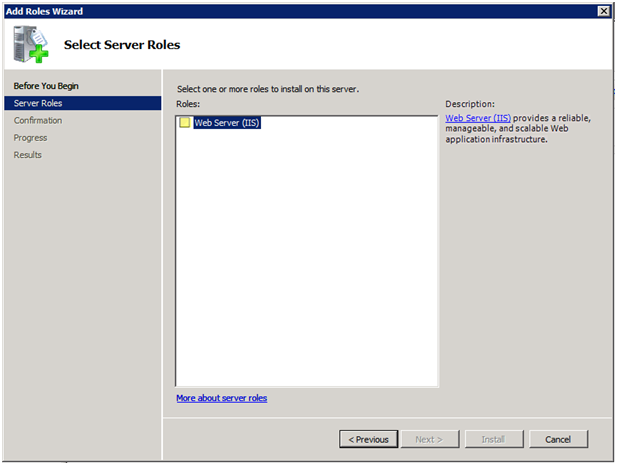
” Check the check box next to Web Server (IIS), you might have a lot more roles listed here. I am using Windows Server 2008 Web Edition, I believe that is why I don’t see any other roles
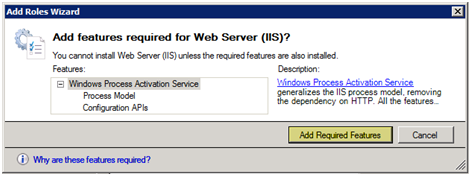
” “Installing Web Server (IIS) requires the Windows Process Activation Service, Windows 2008 will install this feature for you. Press “Add Required Features” to continue
” “After the installation of the required features is installed, you can now press “Next”. This option was grayed out when the required feature was not installed.
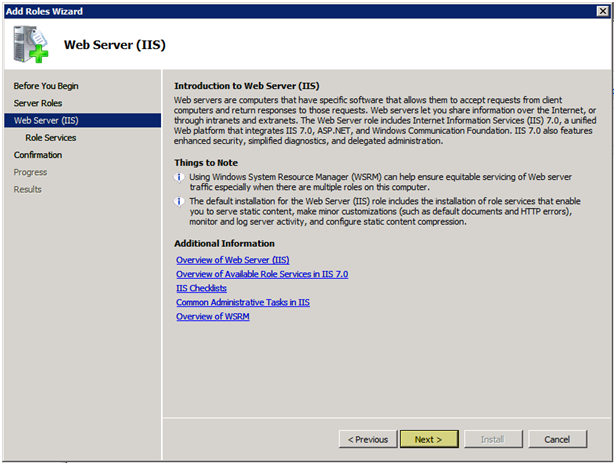
Read the Introduction to IIS 7 to get some more information on the new features. Press “Next” to continue
“
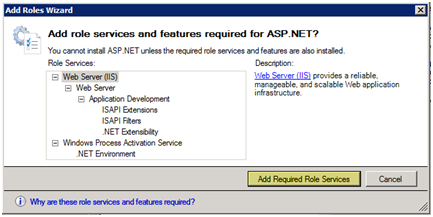
On the next screen first check the check box off next to “ASP.NET” and you will be prompted to install this feature

Press “Add Required Role Services”
Select the following features by checking the check box next to the feature, you can disable/enable these as needed to there is no harm installing them (as long as they are disabled, enabling them poses potential security issues as more security vulnerabilities are discovered). Press “Next to continue
- HTTP Redirection
- ASP.NET
- .NET Extensibility
- ASP
- CGI
- ISAPI Extensions
- ISAPI Filters
- Server Side Includes
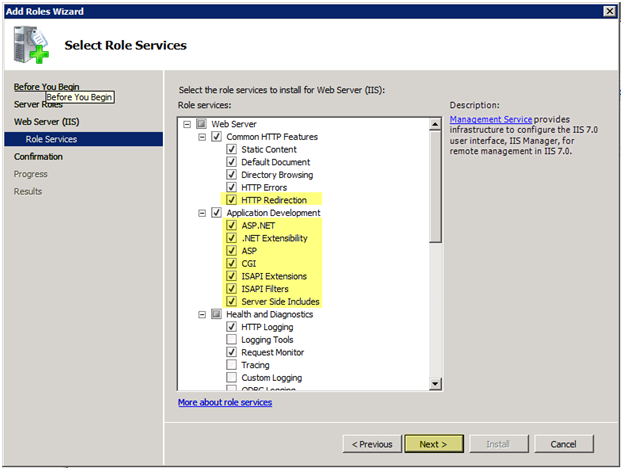
Now that you have selected all of the features you want to install. Press “Install”
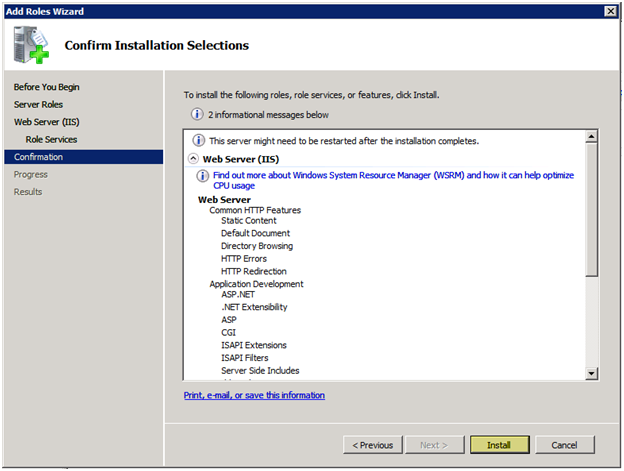
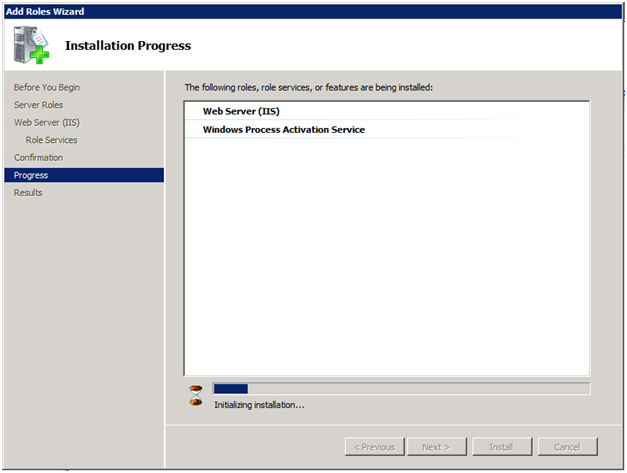
” “Windows 2008 will spend some time installing IIS 7, this process can take several minutes
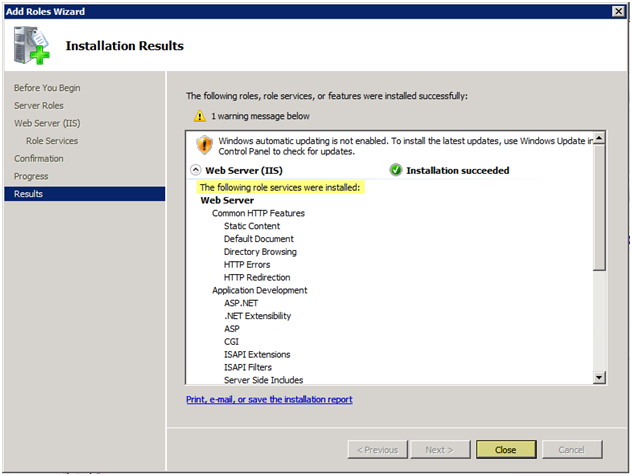
” “As you can see the Installation succeeded. Press “Close”
SMTP Installation
I like to install SMTP because some application require an SMTP Server to send out email and I see no point in sending it to another server if I can send it out from itself. If you are in a corporate environment, there is no reason for 2 hops to send out an email so stop using your exchange server to bounce mail from your web applications. If you have SMTP installed you can enter SERVERNAME.DOMAINNAME.COM where server name is your local host name. If configured properly it will function just as any other SMTP mail relay.
Open Server Manager, you can open this several different ways in Windows Server 2008. Probably the quickest way to open Server Manager is to right click “My Computer” and choose “Manage”, another way is open “Control Panel” go to “Program and Features” and select “Turn Windows features on or off”. A third way to open it is “Server Manager” option under Administrative Tools.
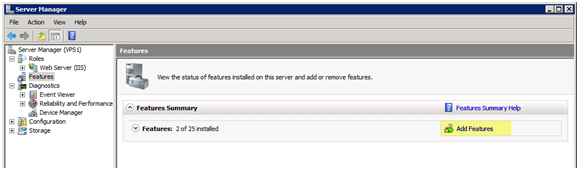
Under Features, select “Add Features”
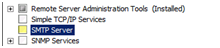
Press the check box next to “SMTP Server”
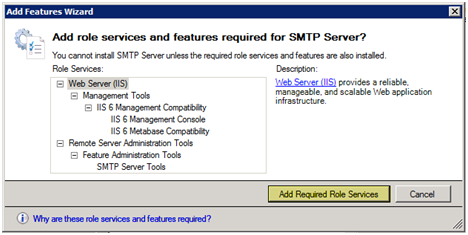
If there are any missing Roles that are required for this installation, Server 2008 will install them for you. Press “Add Required Role Services”
“After the installation of the required roles are installed, you can now press “Next”. This option was grayed out when the required feature was not installed.
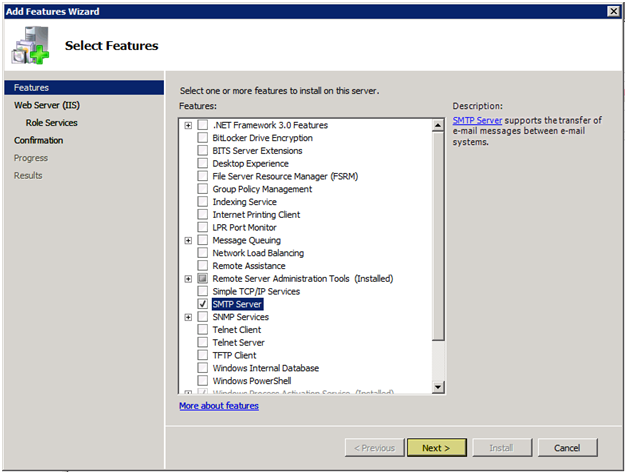
You will need to go through this whole wizard again even though IIS was already installed (It needs to install IIS 6 Compatibility for SMTP to work). Press “Next” to continue
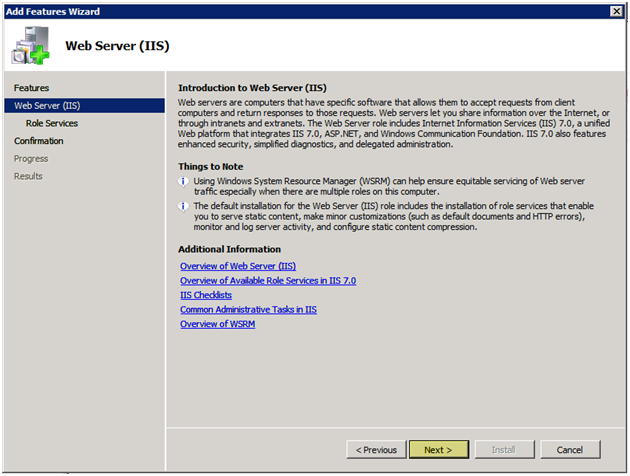
Press “Next” to continue
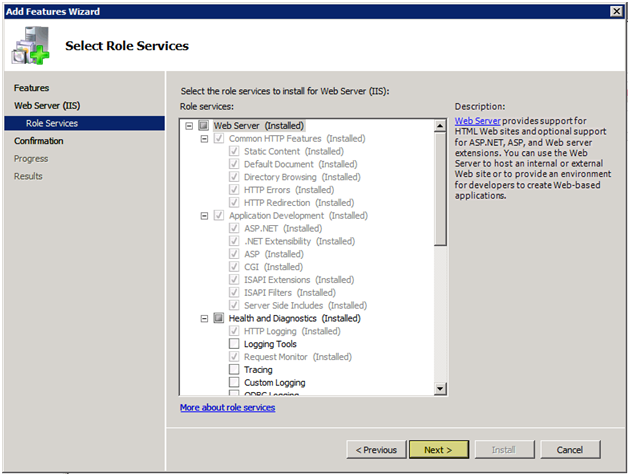
Press “Install” to continue
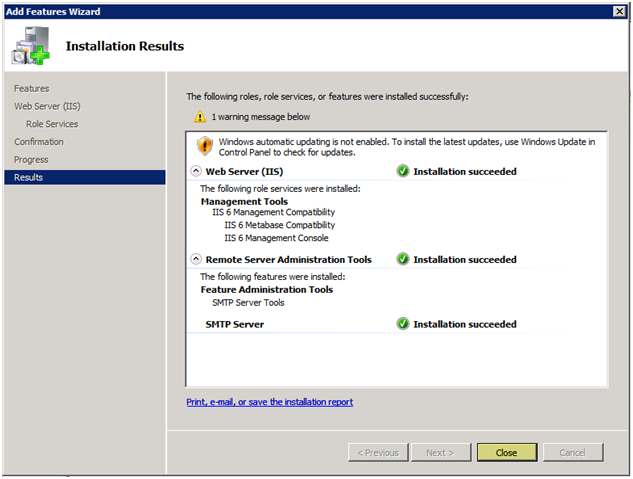
As you can see it will now install the following for IIS – IIS 6 Management Compatibility and IIS 6 Management Console
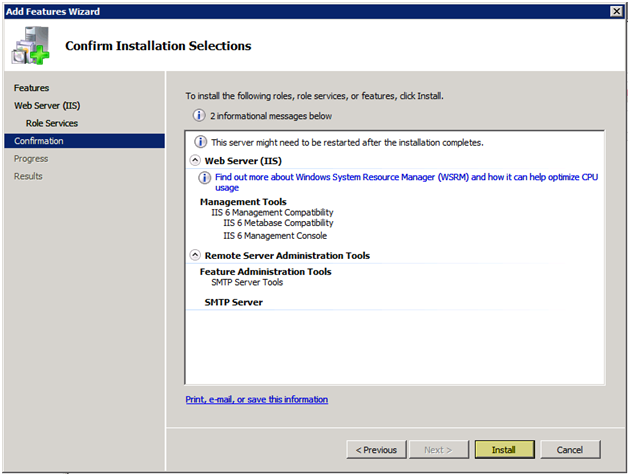
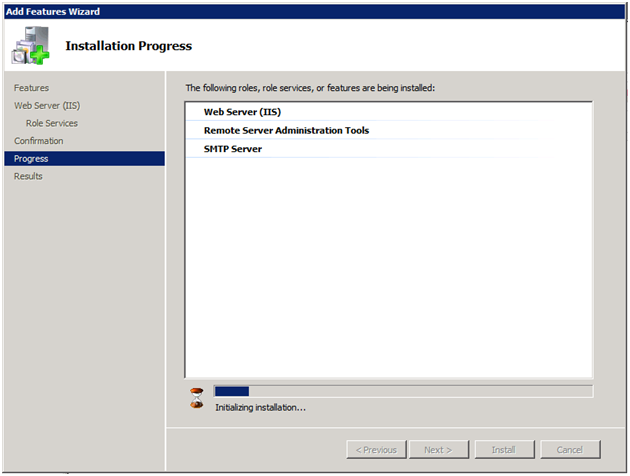
Installation will begin, this process can take several minutes
” “As you can see the Installation succeeded. Installation is complete. I cover SMTP configuration in another article on this site. Press “Close”.
” ”
“
” ”
“
” ”
“
” ”
“
” ”
“
” ”
“
” ”
“
” ”
“
” ”
“
” ”
“
” ”
“
” ”
“
” ”
“
” ”
“
” ”
“
” ”
“
” ”
“
“””