0 1 0 1 0 1 0 1 0 1 0 1 0 1 0 1 0 1 0 1 0 1 0 1 0 1 0 1 0 1 0 1 0 1 0 1 0 1 0 1 0 1 0 1 0 1 0 1 0 1 0 1 0 1 0 1 0 1 0 1 0 1 0 1 0 1 0 1 0 1 0 1 0 1 0 1 0 1 0 1 0 1 0 1 0 1 0 1 0 1 0 1 0 1 0 1 0 1 0 1 0 1 0 1 0 1 0 1 0 1 0 1 0 1 0 1 0 1 0 1 0 1 0 1 0 1 0 1 0 1 0 1 0 1 0 1 0 1 0 1
JPPINTO
  • Home
  • Blog
  • Certifications
  • About
  • Contact
  • Shop
  • Gallery
  • Current Setup
Contact

Search

September 11, 2013 / Windows 2012

Windows Server 2012 Installation (Server with GUI)
Tags: server 2012 installation, windows 2012 installation
Featured image for Windows Server 2012 Installation (Server with GUI)

“

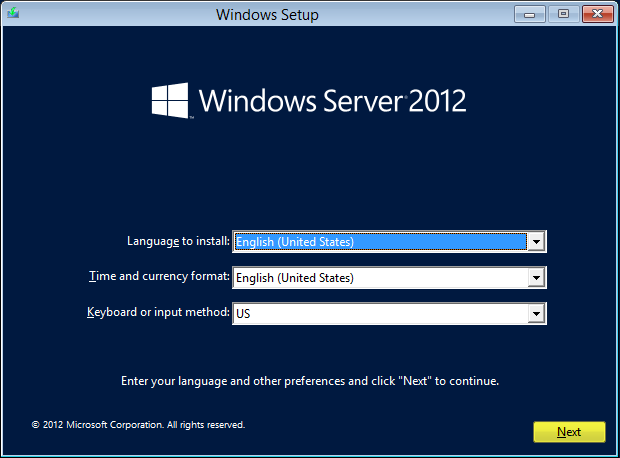
Boot from the installation media

Press Next
“

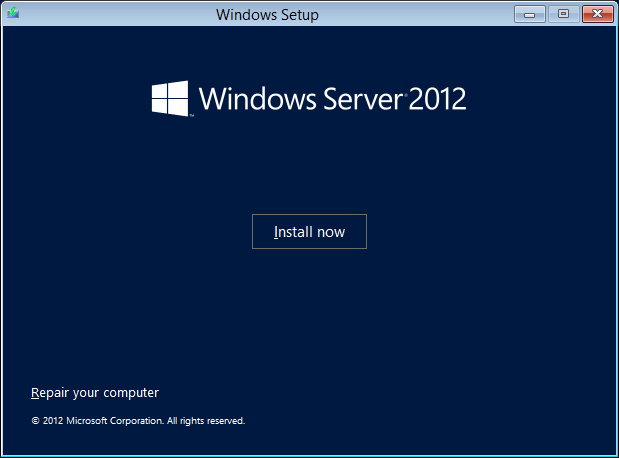
Click Install Now
“

Setup will initialize

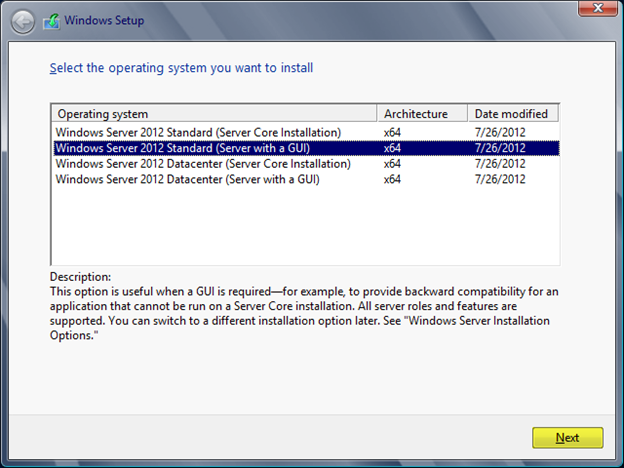
Pick your installation version. In this example we are selecting Windows Server 2012 Standard (Server with a GUI)

You can get an idea of the different editions that are available from this page:

http://www.microsoft.com/en-us/server-cloud/windows-server/buy.aspx
“

Accept the license terms and press Next
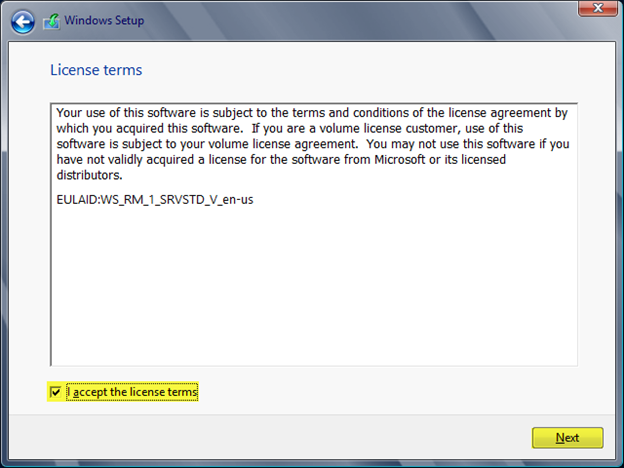
“

Choose Custom: Install Windows only (advanced)
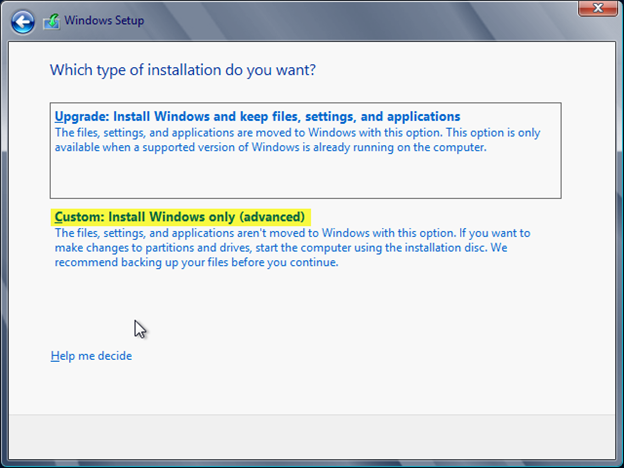
“

Select the drive to install on and press Next
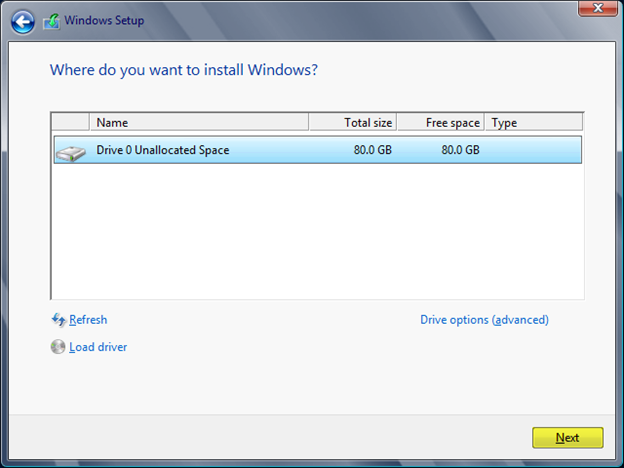
“

Setup will install Windows Server 2012
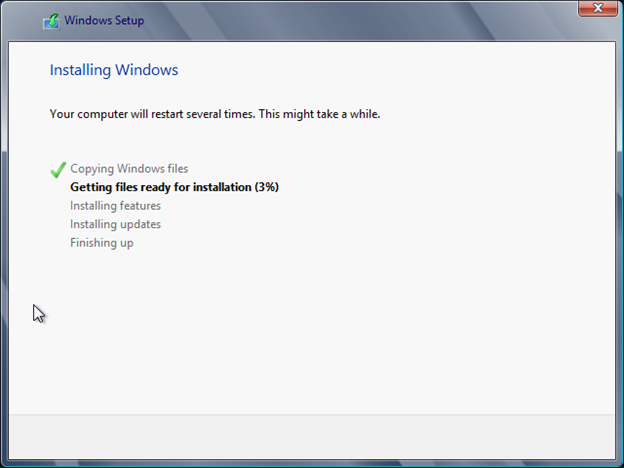
“

After setup completes, Windows Server 2012 will restart and complete the installation
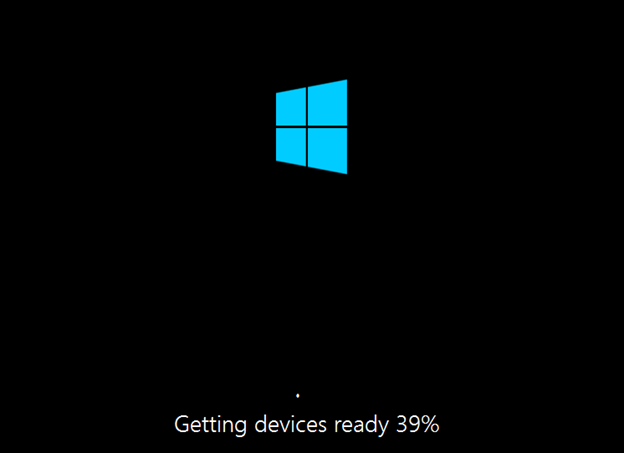
“

Enter the Administrator password and click Finish
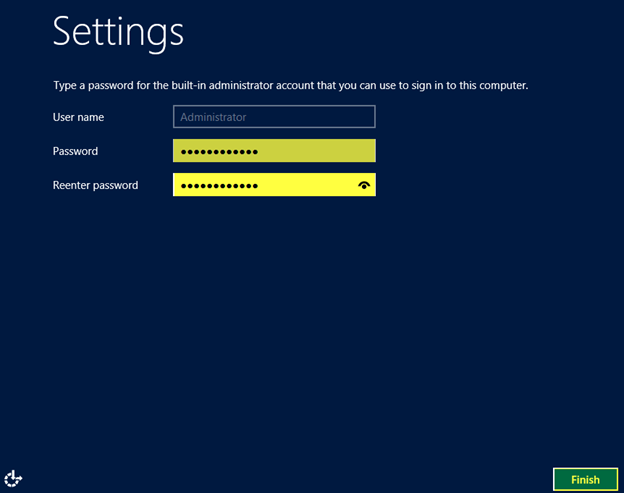
“

Login to Windows Server 2012. Installation is complete.

You should activate your Windows Server installation and configure it with desired software
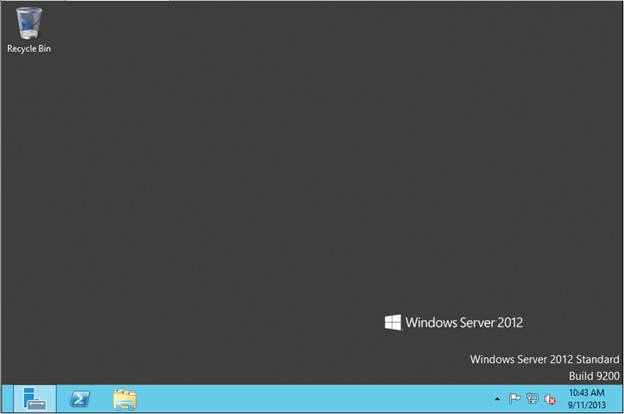
“

“

“

“

“

“

Post Views: 202
<- Missing GoTo Meeting icon in System Tray
How to Activate Windows Server 2012 ->

Categories

  • Active Directory (5)
  • AI (3)
  • Amazon Cloud Services (1)
  • AWS (2)
  • Blazor (1)
  • C# (C-Sharp) (3)
  • CI/CD Pipelines (1)
  • Cloud (1)
  • Cloudflare (2)
  • Codex (1)
  • Containers (4)
  • Deployment (2)
  • Development (5)
  • DNS (1)
  • Docker (3)
  • Email (1)
  • Family (1)
  • General (5)
  • IIS 6.0 (4)
  • IIS 7.0 (10)
  • IIS 8.0 (1)
  • Infrastructure as Code (IaC) (1)
  • Kubernetes (3)
  • Linux (9)
  • Microsoft 365 (2)
  • MySQL (1)
  • Office 2010 (1)
  • PHP (1)
  • PowerShell (11)
  • Productivity (1)
  • Security (1)
  • Servers (9)
  • SharePoint 2007 (8)
  • SharePoint 2010 (19)
  • SharePoint 2013 (2)
  • SharePoint Online (1)
  • SMTP (4)
  • SQL Server 2008 (1)
  • SQL Server 2008 R2 (1)
  • SQL Server 2012 (2)
  • SQL Server 2019 (1)
  • SSL (1)
  • Travel (1)
  • Troubleshooting (1)
  • Ubuntu (9)
  • Uncategorized (1)
  • URL Rewrite (2)
  • Visual Studio 2019 (1)
  • Visual Studio Code (1)
  • Windows 10 (7)
  • Windows 2003 (9)
  • Windows 2008 (18)
  • Windows 2012 (6)
  • Windows 7 (3)
  • Windows Firewall (1)
  • Windows Vista (1)
  • WordPress (3)
  • WP-CLI (3)

Recent Posts

  • GPT-5.6 Sol Changes How We Prompt—and How We Write AGENTS.md
  • Protect a Domain That Does Not Send Email with SPF, DMARC, and Null MX
  • Turning Our Atlanta Vacation Photos into a Video with PowerShell
  • Bulk Create Cloudflare Origin CA Certificates with PowerShell
  • Test a Cloudflare Global API Key Connection with PowerShell

Advertisement

Tags

agents.md ai coding agents aws bash cloudflare cloud storage codex context engineering developer workflow dev to production dns externalize blob externalize sharepoint data full installation http redirect https IIS IIS installation index server configuration installing cumulative updates linux load balance central administration microsoft 365 nginx powerpoint powershell redirect http to https s3 server setup sharepoint 2010 cumulative updates sharepoint 2010 farm build sharepoint 2010 farm configuration sharepoint 2010 farm installation sharepoint data externalization SMTP ssl storagepoint ubuntu web server windows Windows 7 windows server 2008 wordpress wp-cli x86
© 2026 JPPinto.com. All rights reserved.