0 1 0 1 0 1 0 1 0 1 0 1 0 1 0 1 0 1 0 1 0 1 0 1 0 1 0 1 0 1 0 1 0 1 0 1 0 1 0 1 0 1 0 1 0 1 0 1 0 1 0 1 0 1 0 1 0 1 0 1 0 1 0 1 0 1 0 1 0 1 0 1 0 1 0 1 0 1 0 1 0 1 0 1 0 1 0 1 0 1 0 1 0 1 0 1 0 1 0 1 0 1 0 1 0 1 0 1 0 1 0 1 0 1 0 1 0 1 0 1 0 1 0 1 0 1 0 1 0 1 0 1 0 1 0 1 0 1 0 1
JPPINTO
  • Home
  • Blog
  • Certifications
  • About
  • Contact
  • Shop
  • Gallery
  • Current Setup
Contact

Search

January 17, 2009 / IIS 6.0

Automatically Redirect HTTP requests to HTTPS on IIS 6

Tags: http redirect, https, https redirect, IIS, redirect http to https
Featured image for Automatically Redirect HTTP requests to HTTPS on IIS 6

This article is for IIS 6 for the IIS 7 please refer to this article.

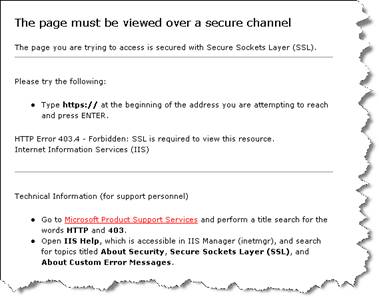
If you configure IIS to only allow https connections, a user will get a 403.4 error when attempting to access the page via http. To fix this problem we create a custom 403.4 page that redirects http requests to https. We will be changing this configuration in a couple of steps:

Step 1 – Verify SSL is required for the selected site
Step 2 – Create a HttpRedirect.htm file and save it to C:InetPub
Step 3 – Set the 403.4 error page to use this file instead of the regular error file
Step 4 – Test

This is a standard 403.4 error message file provided out of the box with IIS.
Step 1 – Verify SSL is required for the selected site

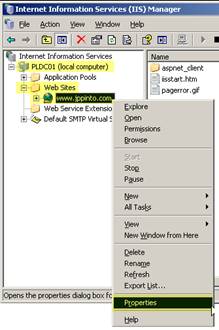
1)””””” Open IIS Manager (Start MenuProgramsAdministrative Tools or %SystemRoot%system32inetsrviis.msc)
2)””””” Expand the Computer Name
3)””””” Expand Web Sites
4)””””” Right click the web site we wish to modify
5)””””” Select “Properties”
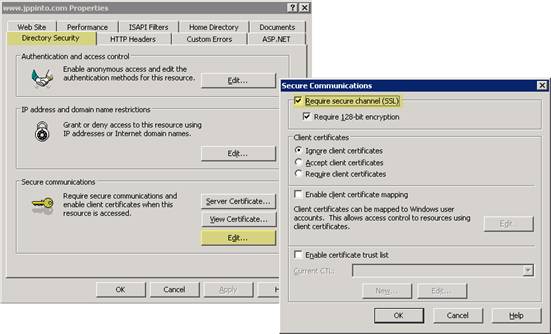
6)””””” Select the “Directory Security” tab
7)””””” Select “Edit” in the Secure Communications section
8)””””” Check off the “Require secure channel (SSL)” option. (This will only allow pages on this site to be viewed only with https.)
9)””””” Press OK and close all Properties windows
Step 2 – Create a HttpRedirect.htm file and save it to C:InetPub

We will be creating an HTM file containing the following code. We will save this file to C:Inetpub.

1)””””” Open Notepad and copy in the following code below
2)””””” Go to File > Save as and save this file as HttpRedirect.htm, and save the file to C:Inetpub directory.

You can download a copy of this file here: HttpRedirect.zip

<!-- beginning of HttpRedirect.htm file -->

<script type="text/javascript">

function redirectToHttps()

{

var httpURL = window.location.hostname+window.location.pathname;

var httpsURL = "https://" + httpURL ;

window.location = httpsURL ;

}

redirectToHttps();

</script>

<!-- end of HttpRedirect.htm file --> 


Step 3 – Set the 403 error page to use this file instead of the regular error file

1)””””” Expand the Computer Name
2)””””” Expand Web Sites
3)””””” Right click the web site you wish to modify
4)””””” Select “Properties”

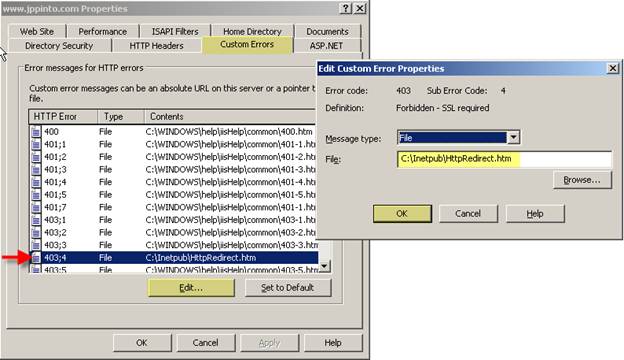
5)””””” Select “Custom Errors” Tab
6)””””” Select the “403;4″ error
7)””””” Press the “Edit” button
8)””””” Browse to and Select the HttpRedirect.htm file in C:Inetpub
9)””””” Press OK and close all Properties windows
Step 4 – Test

1)””””” Bring up a web browser and try to access the site by https, verify that this is working ok
2)””””” Try to access the site via http now. You should see the browser change the http:// to https://

Note

In the unlikely event that a client does not have JavaScript enabled, this will not work. JavaScript must be enabled on the client machine for this to work.

Post Views: 1,560
<- Windows Server 2008 Standard Installation
Windows 7 Beta Installation ->

Categories

  • Active Directory (5)
  • AI (3)
  • Amazon Cloud Services (1)
  • AWS (2)
  • Blazor (1)
  • C# (C-Sharp) (3)
  • CI/CD Pipelines (1)
  • Cloud (1)
  • Cloudflare (2)
  • Codex (1)
  • Containers (4)
  • Deployment (2)
  • Development (5)
  • DNS (1)
  • Docker (3)
  • Email (1)
  • Family (1)
  • General (5)
  • IIS 6.0 (4)
  • IIS 7.0 (10)
  • IIS 8.0 (1)
  • Infrastructure as Code (IaC) (1)
  • Kubernetes (3)
  • Linux (9)
  • Microsoft 365 (2)
  • MySQL (1)
  • Office 2010 (1)
  • PHP (1)
  • PowerShell (11)
  • Productivity (1)
  • Security (1)
  • Servers (9)
  • SharePoint 2007 (8)
  • SharePoint 2010 (19)
  • SharePoint 2013 (2)
  • SharePoint Online (1)
  • SMTP (4)
  • SQL Server 2008 (1)
  • SQL Server 2008 R2 (1)
  • SQL Server 2012 (2)
  • SQL Server 2019 (1)
  • SSL (1)
  • Travel (1)
  • Troubleshooting (1)
  • Ubuntu (9)
  • Uncategorized (1)
  • URL Rewrite (2)
  • Visual Studio 2019 (1)
  • Visual Studio Code (1)
  • Windows 10 (7)
  • Windows 2003 (9)
  • Windows 2008 (18)
  • Windows 2012 (6)
  • Windows 7 (3)
  • Windows Firewall (1)
  • Windows Vista (1)
  • WordPress (3)
  • WP-CLI (3)

Recent Posts

  • GPT-5.6 Sol Changes How We Prompt—and How We Write AGENTS.md
  • Protect a Domain That Does Not Send Email with SPF, DMARC, and Null MX
  • Turning Our Atlanta Vacation Photos into a Video with PowerShell
  • Bulk Create Cloudflare Origin CA Certificates with PowerShell
  • Test a Cloudflare Global API Key Connection with PowerShell

Advertisement

Tags

agents.md ai coding agents aws bash cloudflare cloud storage codex context engineering developer workflow dev to production dns externalize blob externalize sharepoint data full installation http redirect https IIS IIS installation index server configuration installing cumulative updates linux load balance central administration microsoft 365 nginx powerpoint powershell redirect http to https s3 server setup sharepoint 2010 cumulative updates sharepoint 2010 farm build sharepoint 2010 farm configuration sharepoint 2010 farm installation sharepoint data externalization SMTP ssl storagepoint ubuntu web server windows Windows 7 windows server 2008 wordpress wp-cli x86
© 2026 JPPinto.com. All rights reserved.