DCPROMO on Windows Server 2008
From my Windows Server 2008 machine, I will be running DCPROMO to turn it into a domain controller for my new domain.
Prerequisites
Networking
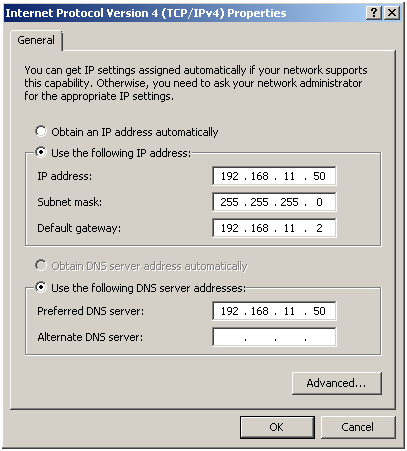
Before we run DCPROMO, we need to make sure we have a Static IP Address set. If this is your first Domain Controller on your network set the DNS server to the same IP address you set for the server itself. This is because we will be installing DNS with this Domain Controller. For clients in an Active Directory domain they must point to a DNS server located on a Domain Controller.
If you are connecting to an existing AD domain then point the Preferred DNS server to another AD Domain Controller. After AD is installed you can point the Preferred DNS server to itself and point the Alternate DNS server to another AD Domain Controller.
Password
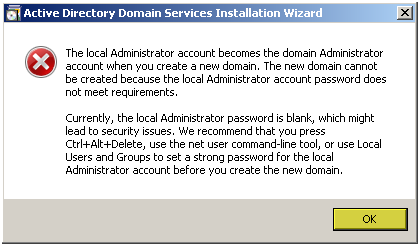
If this is a new AD installation, change the administrator password to a complex password or you will get this error during installation
DCPROMO
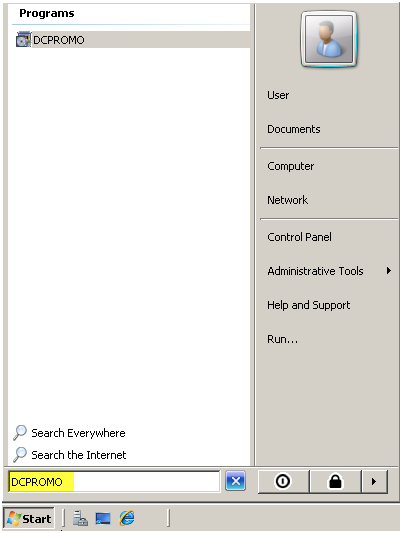
Press the Start button then enter “DCPROMO” and press “ENTER”
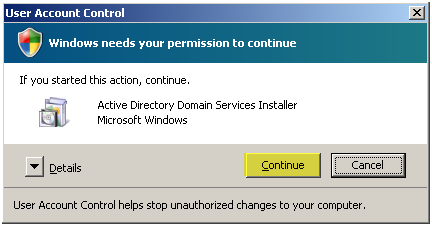
Press “Continue”
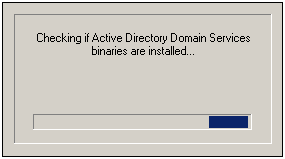
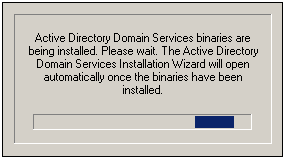
The setup will detect if the binaries are installed and if they are not it will install them
|
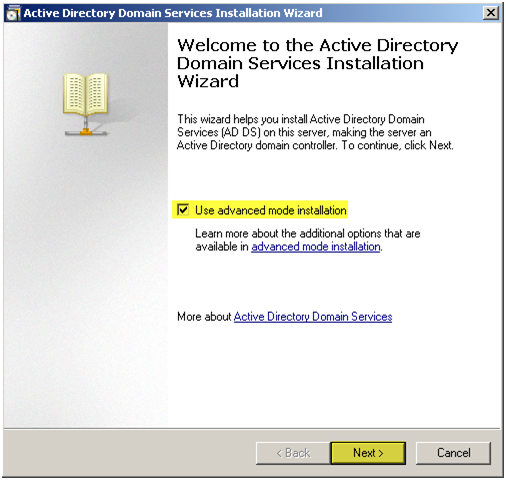
Using Advanced Mode Installation The improvements to the Active Directory Domain Services Installation Wizard are all available by default. However, some wizard pages appear only if you select the Use advanced mode installation check box on the Welcome to the Active Directory Domain Services Installation Wizard page of the wizard. Advanced mode installation provides experienced users with more control over the installation process, without confusing newer users with configuration options that may not be familiar. For users who do not select the Use advanced mode installation check box, the wizard uses default options that apply to most configurations. The new option on the Welcome page of the wizard enables advanced mode installation as an alternative to running dcpromo at a command prompt with the /adv switch (dcpromo /adv). The following table lists the additional wizard pages that appear for each deployment configuration when you select the Use advanced mode installation check box.
|
Check “Use advanced mode installation”
Press “Next”
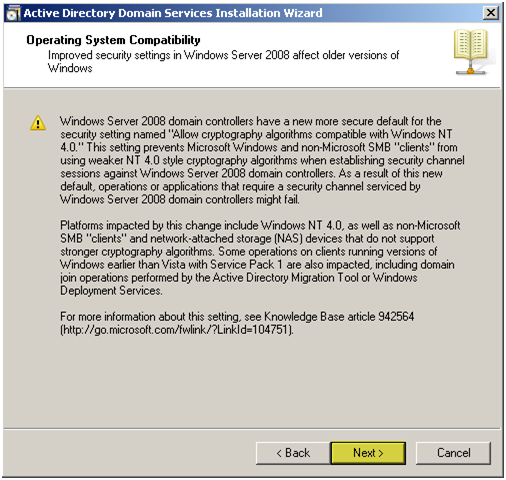
Microsoft’s message letting you know NT 4.0 clients might have issues with Windows Server 2008 Domain Controllers
Press “Next”
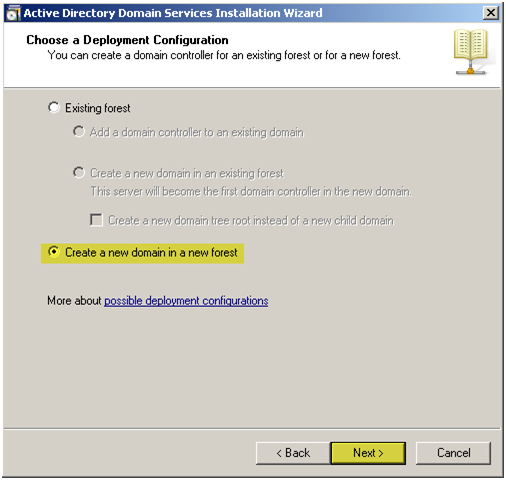
We will be creating a nee domain in a new forest.
Select “Create a new domain in new forest”
Press “Next”
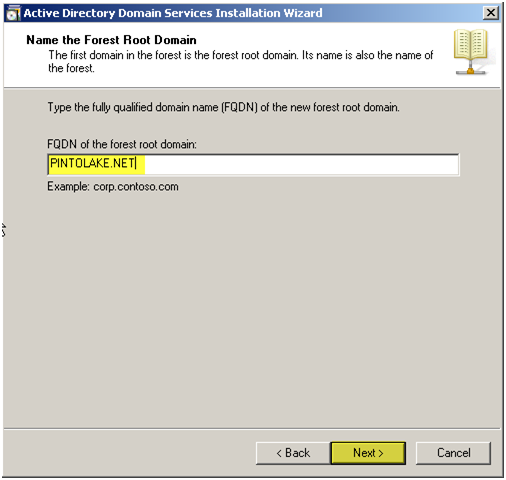
Enter the name of the new forest root.
Press “Next”
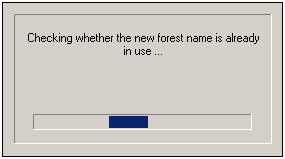
At this point it will check to see if the forest name is in use, since we set the DNS server to itself – it will not get very far.
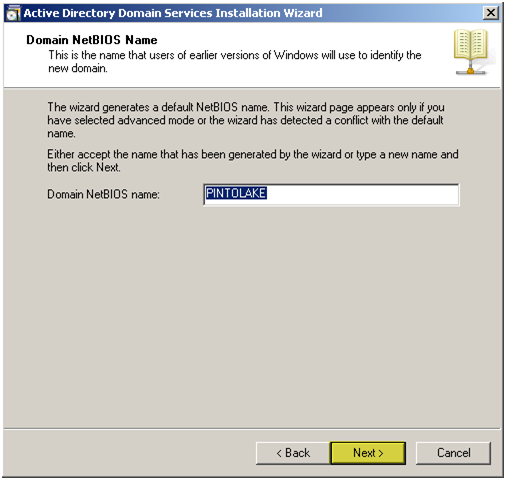
Enter the NetBIOS name of the domain. This is for clients who use NetBIOS, you want to keep this under 8 charaters for true NetBIOS clients. I don’t have any of those so my domain is 9 charaters
Press “Next”
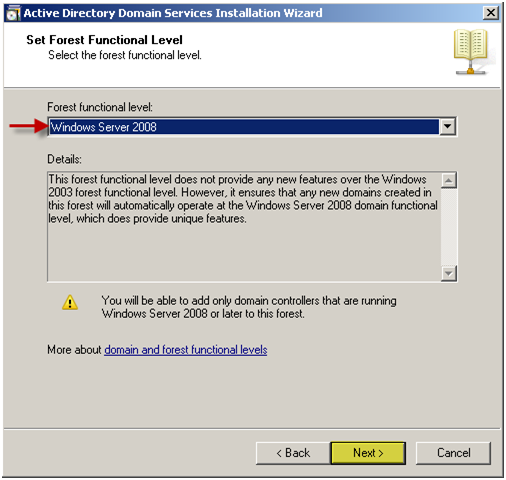
| Domain and Forest Functional Levels 2008: This forest functional level does not provide any new features over the Windows 2003 forest functional level. However, it ensures that any new domains created in this forest will automatically operate at the Windows Server 2008 domain functional level, which does provide unique features. 2003: -“”””Linked-value replication, which improves the replication of changes to group memberships. -“”””More efficient generation of complex replication topologies by the KCC. -“”””Forest trust, which allows organizations to easily share internal resources across multiple forests. Any new domains that are created in this forest will automatically operate at the Windows Server 2003 domain functional level. 2000: |
Choose “Windows Server 2008”
Press “Next”
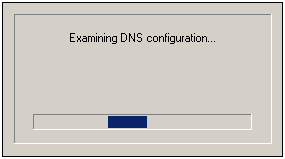
Setup will check our DNS configuration
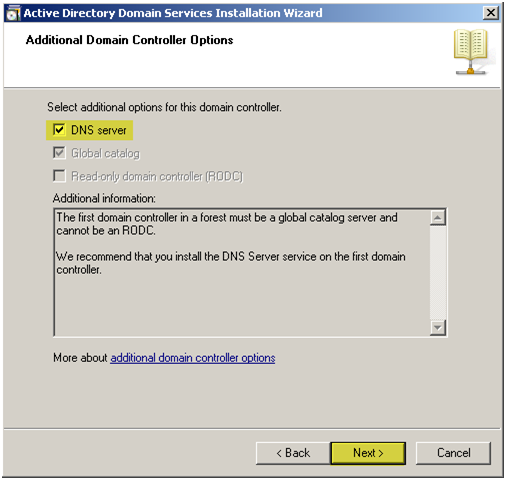
Select “DNS sever” to make this server a DNS Server
Press “Next”
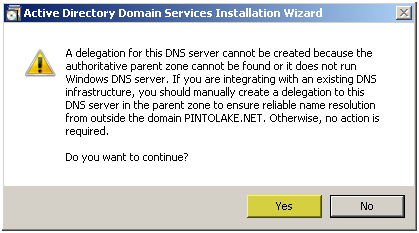
Press “Yes”
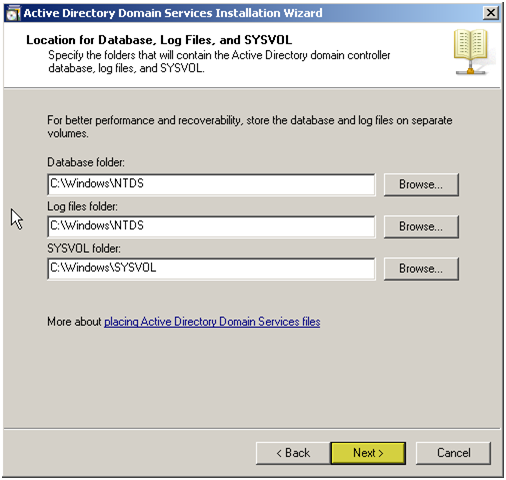
You can change these locations but why would you. If you are running low on space on your C drive then why even make the box a domain controller?
Press “Next”
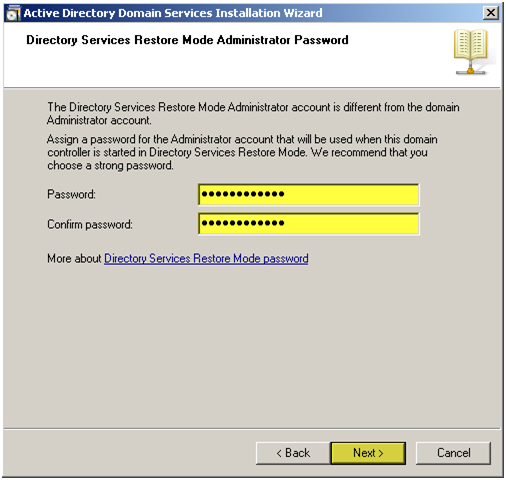
Enter a password for the “Directory Services Restore Mode Administrator”
Confirm the password
Press “Next”
Press “Next”
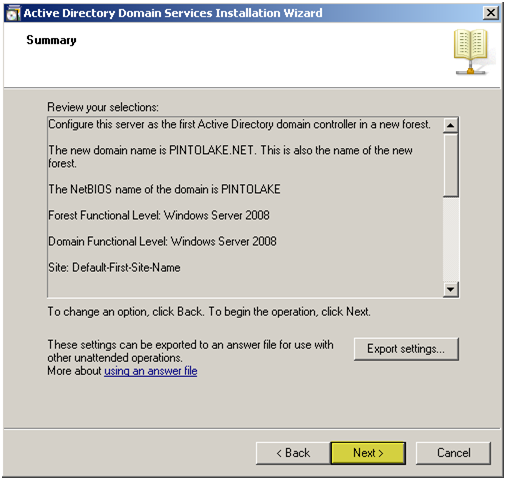
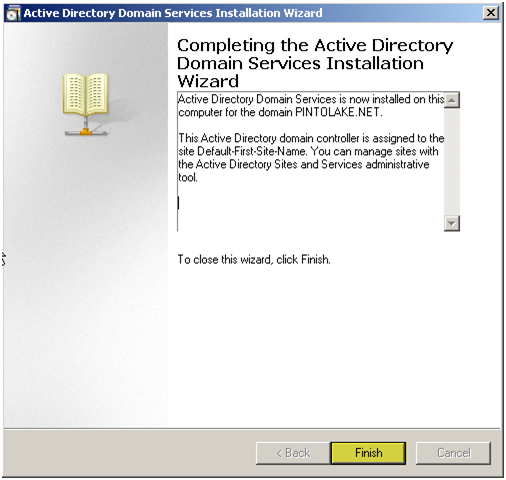
Active Directory will install
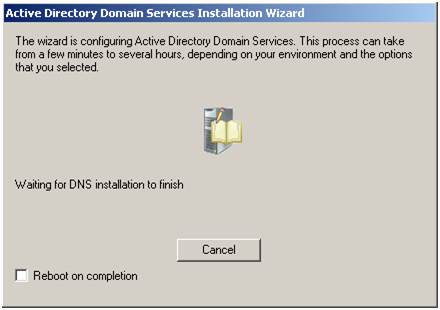
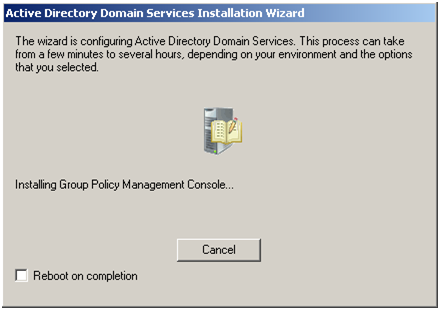
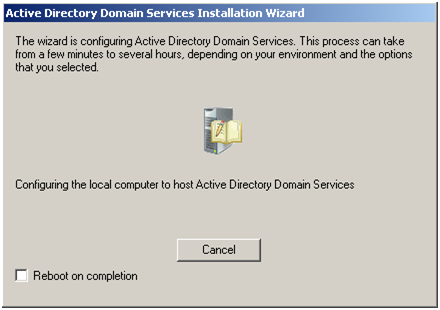
Press “Finish”
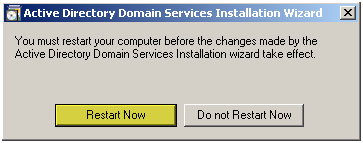
Press “Restart”
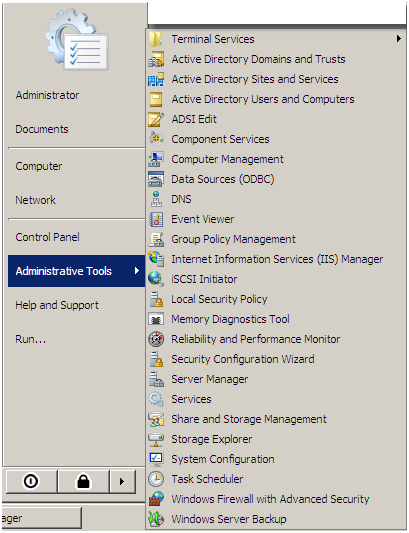
After the reboot you should have several Active Directory related tools under “Administrative Tools”