SharePoint 2010: Installation Overview – Table of Contents
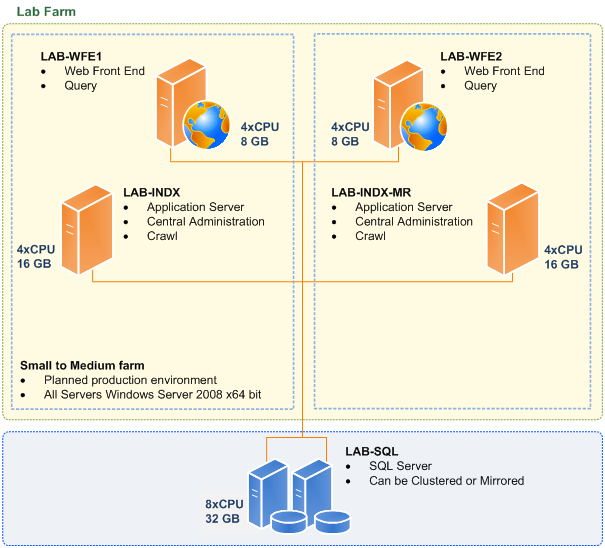
Topology Overview
Note: SharePoint 2010 requires x64 bit servers, this includes the SQL Server. Quad Cores and 8GB of RAM are recommended for the Web Front End Servers and Indexing Servers. You can read more about the recommendation for SharePoint 2010 here: http://technet.microsoft.com/en-us/library/cc262485.aspx
| Server Name | Operating System | Description | IP Address |
| LAB-DC | Win2k8, x32 |
|
192.168.15.50 |
| LAB-SQL | Win2k8, x64 |
|
192.168.15.59 |
| LAB-INDX | Win2k8, x64 |
|
192.168.15.60 |
| LAB-INDX-MR | Win2k8, x64 |
|
192.168.15.61 |
| LAB-WFE1 | Win2k8, x64 |
|
192.168.15.71 |
| LAB-WFE2 | Win2k8, x64 |
|
192.168.15.72 |
This diagram shows the layout of the lab. This is how a typical small to medium SharePoint 2010 farm with high availability will look, this is also the same exact setup used in this series of articles. You can get further recommendations and more examples of SharePoint 2010 farm designs here: http://technet.microsoft.com/en-us/library/cc263199.aspx
You can use this overview as an installation checklist for performing your SharePoint 2010 installations.
Server Preparation Overview
- Create Topology Diagram (above)
-
Base OS installation
- All servers MUST be x64 including the SQL Server
- Installed Windows Server 2008 x64 bit on all servers
- Installed Windows Server 2008 x64 Service Pack 2 (MS Link)
- Installed Windows updates available as of 6/30/2010
- All servers MUST be x64 including the SQL Server
-
LAB-DC
- Installed Active Directory by running DC PROMO
- Made LAB-DC (192.168.1.50) a DNS Server
-
Created the following domain service accounts:
- Service-SharePoint – this user that will be installing SharePoint 2010
- Service-SPFarm – this is a Server Farm/Database access account, This is the account that we nominate as the “Database Access” account during the SharePoint Configuration Wizard.
- Service-SPServices – this is the account that will run the SharePoint services in the farm..
- Service-WebApp – this is an account for our web applications.
- Service-SQL – this is the SQL administrator
- Service-SharePoint – this user that will be installing SharePoint 2010
- Installed Active Directory by running DC PROMO
-
LAB-SQL
- “PINTOLAKE\Service-SQL” to local administrator group and logged in as that user
- Installed SQL Server 2008
- Installed SQL Server 2008 SP 1 (MS Link)
- Installed CU6 for SQL Server 2008 Service Pack 1 (MS Link)
-
Added “PINTOLAKE\Service-SharePoint” as a SQL server login with the following SQL server security roles; “securityadmin” and “dbcreator” (note: “public” will be added by default – you do not need to remove it)
- “PINTOLAKE\Service-SQL” to local administrator group and logged in as that user
-
LAB-INDX, LAB-INDX-MR, LAB-WFE1 & LAB-WFE2 – The steps below were performed on all 4 servers
- Ran IIS installation script from command prompt (JPPinto.com Article – part of this series)
-
Added “PINTOLAKE\Service-SharePoint” to local administration group
- Ran IIS installation script from command prompt (JPPinto.com Article – part of this series)
-
Network Load Balancing (JPPinto.com Article – not in this series)
- Set up NLB on LAB-INDX and LAB-INDX-MR – this is just for the Central Administration site
-
Set up NLB on LAB-WFE1 and LAB-WFE2 – this is for all other web applications
-
Registry Change
- DiableLoopbackCheck on LAB-INDX, LAB-INDX-MR, LAB-WFE1, LAB-WFE2 and LAB-SQL (JPPinto.com Article – not in this series)
SharePoint 2010 Installation Overview
- IIS Installation on LAB-INDX, LAB-INDX-MR, LAB-WFE1 & LAB-WFE2 (JPPinto.com Article – part of this series)
- Install Binaries on LAB-INDX, LAB-INDX-MR, LAB-WFE1 & LAB-WFE2 (JPPinto.com Article – part of this series)
- LAB-INDX – Primary Index Server SP Configuration (JPPinto.com Article – part of this series)
- LAB-INDX-DR – Secondary Index Server SP Configuration (JPPinto.com Article – part of this series)
- LAB-WFE1/2 – Web Front End SP Configuration (JPPinto.com Article – part of this series)
- Farm Configuration Wizard (JPPinto.com Article – part of this series)
- Create Index Mirror (JPPinto.com Article – part of this series)
- Load Balance Central Administration (JPPinto.com Article – part of this series)
- Create Web Application (JPPinto.com Article – part of this series)