
Update Enom Domain Name via PowerShell (Dynamic DNS Update) |
Sep
25
|
| « How to check if a Domain User exists using PowerShell without loading AD Snap-Ins | Windows 10 PATH Environment Variable Update with PowerShell » |
DynDNS.org, the awesome service that lets you access your home computers from anywhere, recently announced that it’s getting rid of its free accounts. The most basic account now costs $25 per year.
Fortunately, we can use PowerShell to keep our DNS names updated with the latest public IP Address from our Internet Service Provider for FREE.
In this article I will update the domain name “test.jppinto.com” with the latest public IP address from my Internet Service Provider.
I use Enom.com for my Domain Name services, they charge about the same as GoDaddy and have very useful features for Domain Name management.
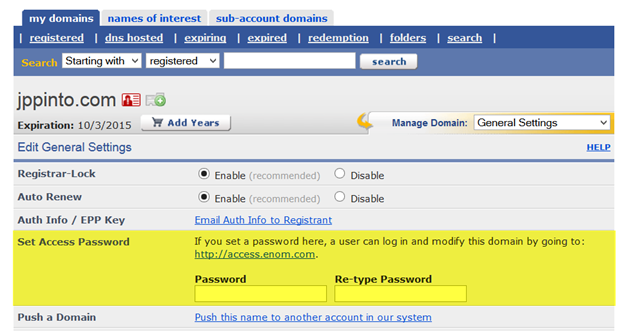
Under “General Setting”, you can set a password to access Domain Name settings.
“
PowerShell Script to Update IP Address for test.jppinto.com. You can use this and schedule to run periodically from a machine where you need the DNS update.
# VARIABLES FOR ENOM SITE
$HostName	= "test"
$DomainName = "jppinto.com"
$Password   = "veryhardpassword"

# GET THE CURRENT PUBLIC IP ADDRESS
$url = "http://checkip.dyndns.com"
$webclient = New-Object System.Net.WebClient
$Ip = $webclient.DownloadString($url)
$Ip2 = $Ip.ToString()
$ip3 = $Ip2.Split(" ")
$ip4 = $ip3[5]
$ip5 = $ip4.replace("